Configure SAML with Keycloak
This page explains how to integrate Keycloak as a SAML Identity Provider to authenticate your users on Reemo.
Note
Configure SAML in Reemo
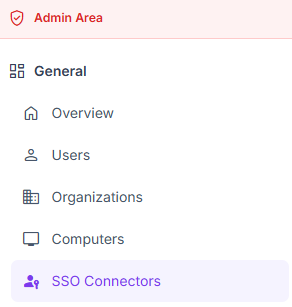
Access SSO Connectors in the instance Admin Area.
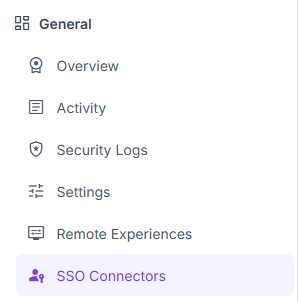
Configure SAML in Organization > SSO Connectors.
Create the SAML connector in Reemo
From verified_user Admin Area > domain Organizations, select your organization, then go to dashboard General > passkey SSO Connectors and click New Connector > New SAML Connector.
Fill in the basic fields:
Friendly Name: name displayed to your users (e.g. Keycloak).
Issuer / App URI ID:
reemo.Attributes Mapping: attribute names Reemo expects in the SAML assertion (
email,username,fullnameby default).The other fields (e.g. Entry Point, Certificate) will be filled in after the Keycloak configuration.
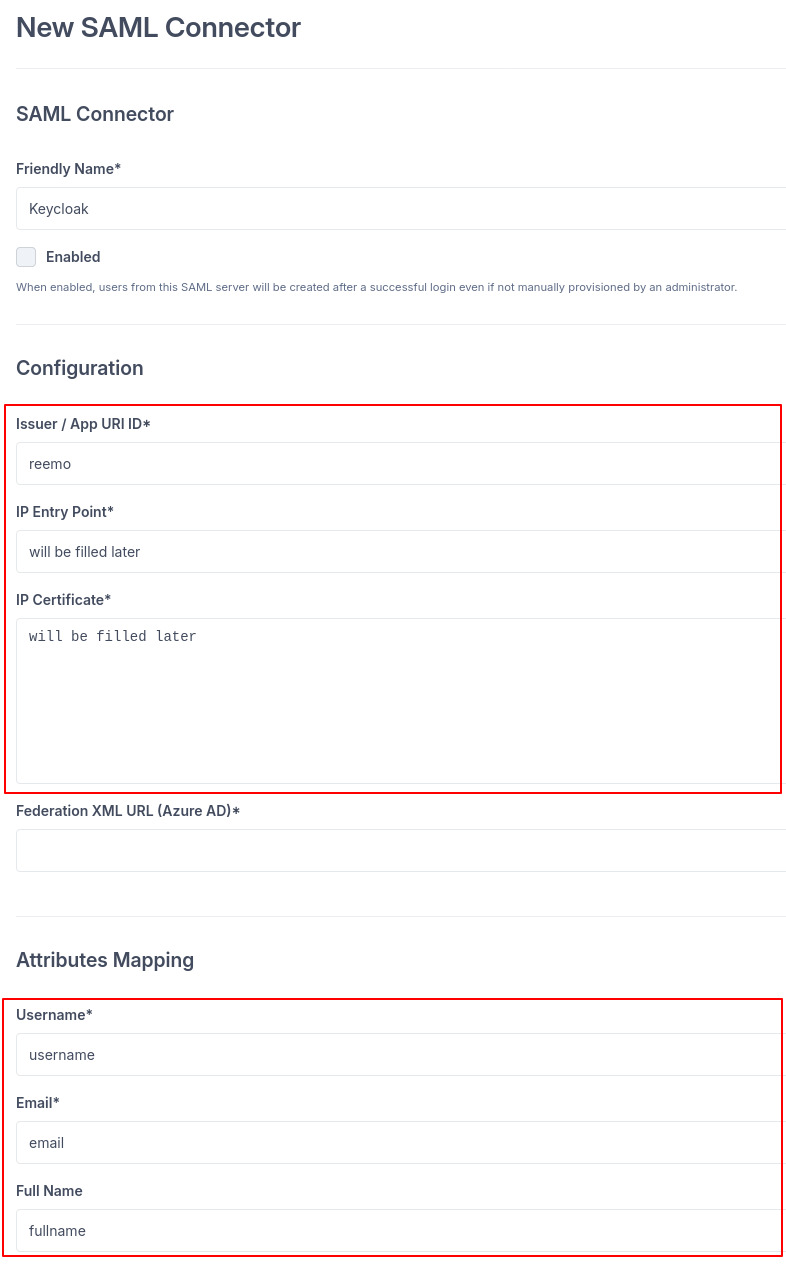
Fill in the basic fields of the SAML connector.
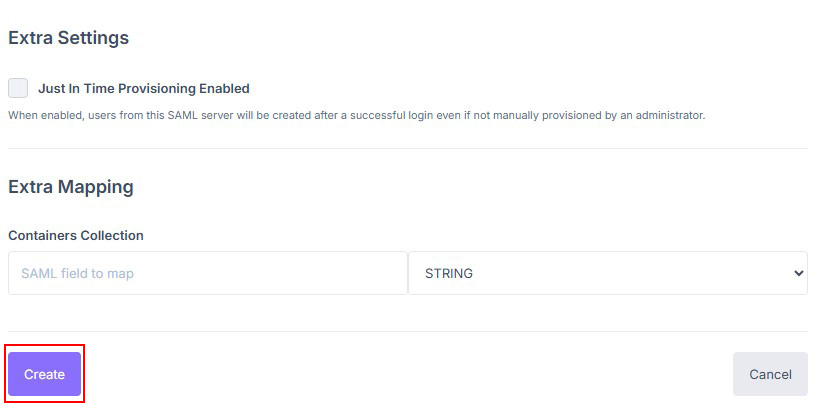
Enter the friendly name and the Issuer (reemo), then save.
Click Create to generate the connector’s callback URL. You will need it in Keycloak.

Copy the callback URL generated by the SAML connector.
Configure the SAML client in Keycloak
Log in to your Keycloak Admin Console.
Select the target Realm from the dropdown in the top left.
In the left menu, go to Clients > Create client.
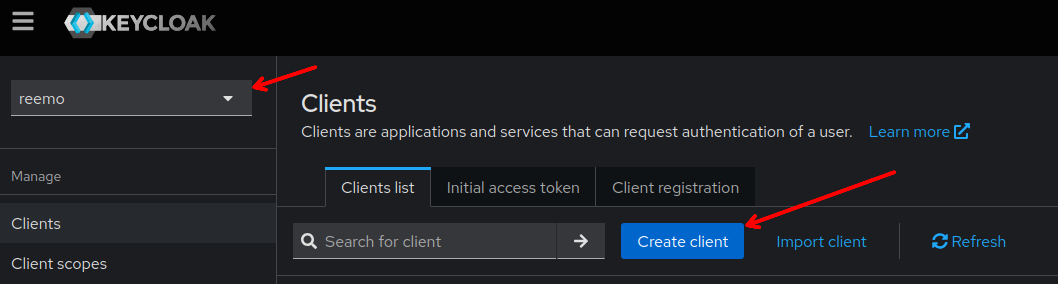
Create a new SAML client in Keycloak.
Fill in the client parameters:
Client type: SAML.
Client ID:
reemo.
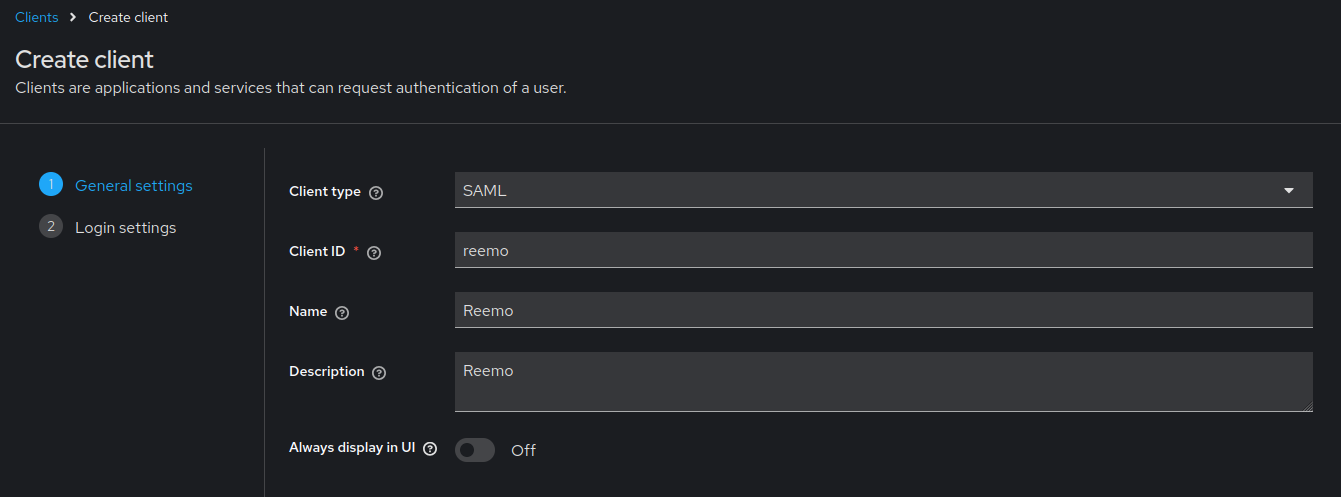
Set the client type and Client ID.
In the client settings, configure:
Valid redirect URIs: paste the callback URL from the Reemo connector.
Master SAML Processing URL: paste the callback URL from the Reemo connector.
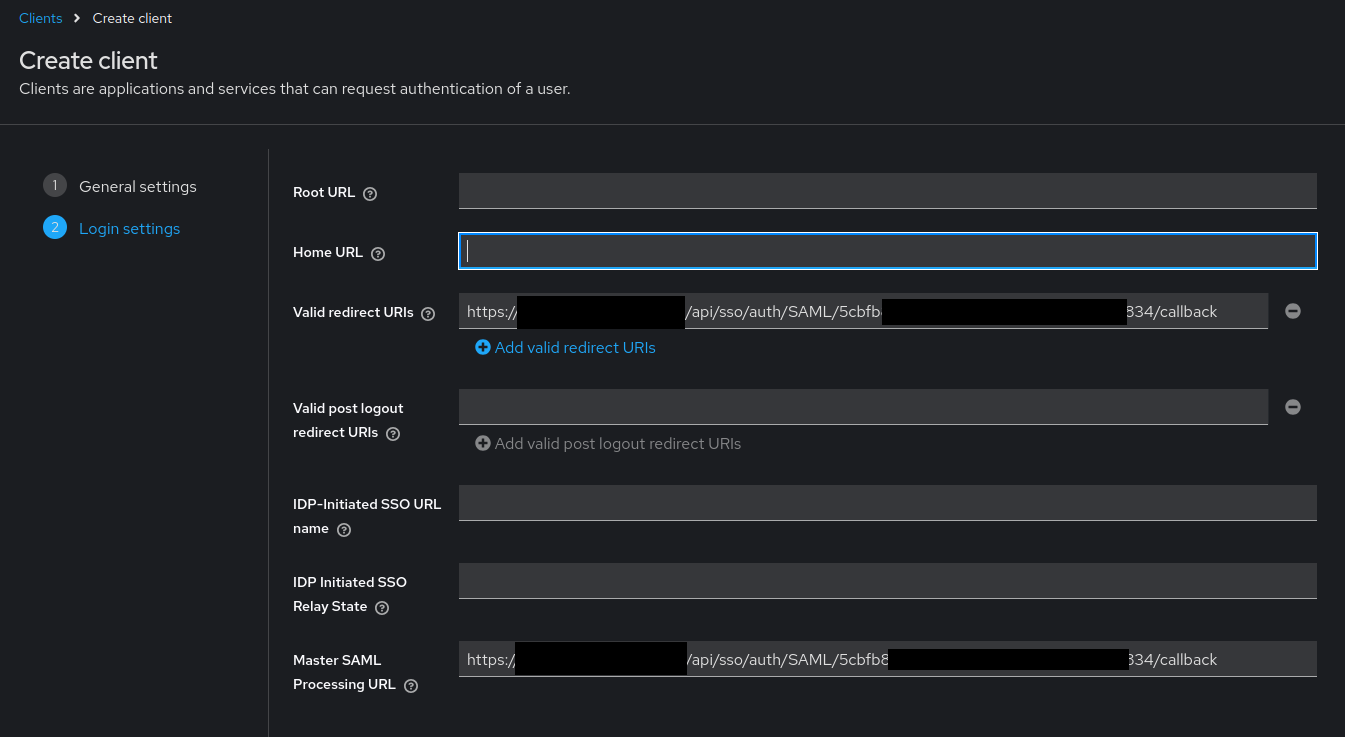
Fill in the redirect URIs and the Master SAML Processing URL.
Sign documents: ON.
Sign assertions: ON.
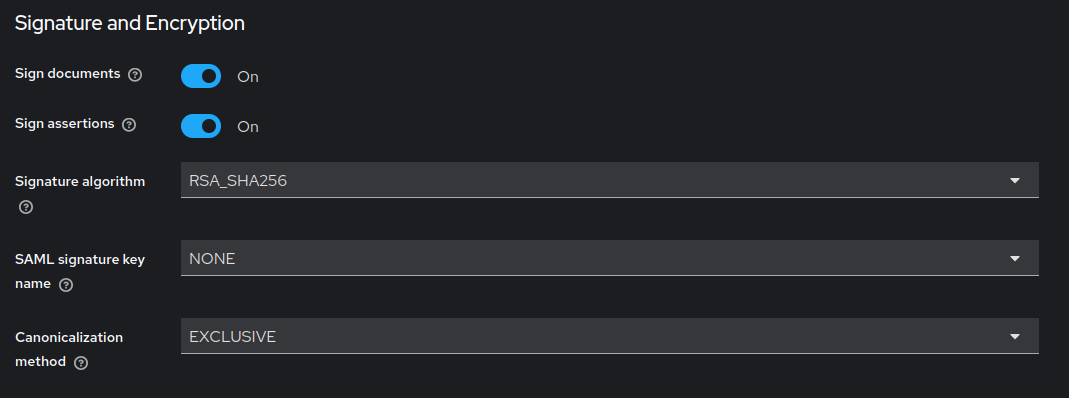
Enable Sign documents and Sign assertions.
Go to the client’s Keys tab and disable the Client signature required option.
Warning
Reemo does not sign outgoing SAML requests. If Client signature required remains enabled, Keycloak will reject authentication requests.
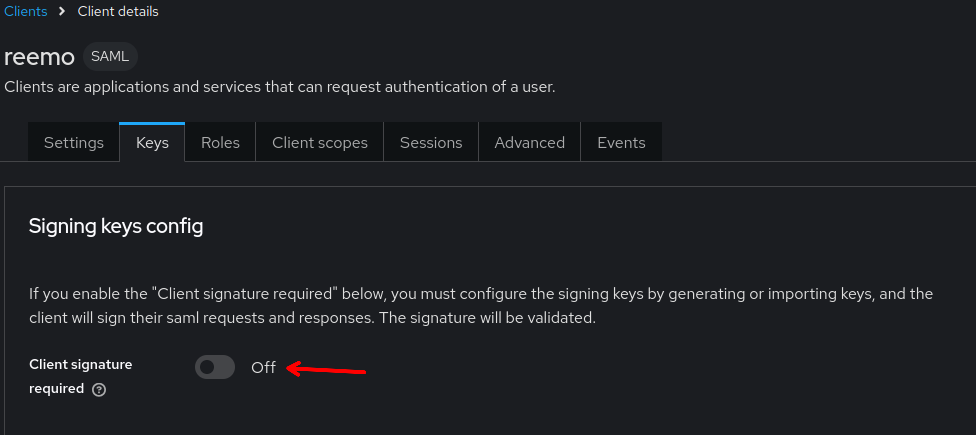
Disable Client signature required in the client Keys tab.
Go to the Client scopes tab > click on the dedicated scope (e.g.
reemo-dedicated) > Add mapper > By configuration.Add the following attribute mappers:
Mapper type
Name
Property
SAML Attribute Name
User Property
username
usernameusername
User Property
email
emailemail
User Attribute
fullname
fullnamefullname
Warning
The SAML Attribute Name field is mandatory on each mapper. Without it, attributes arrive anonymous in the SAML response and Reemo rejects them.
Warning
Keycloak does not natively concatenate first name and last name. You must create a custom fullname attribute on each user in the Keycloak console.
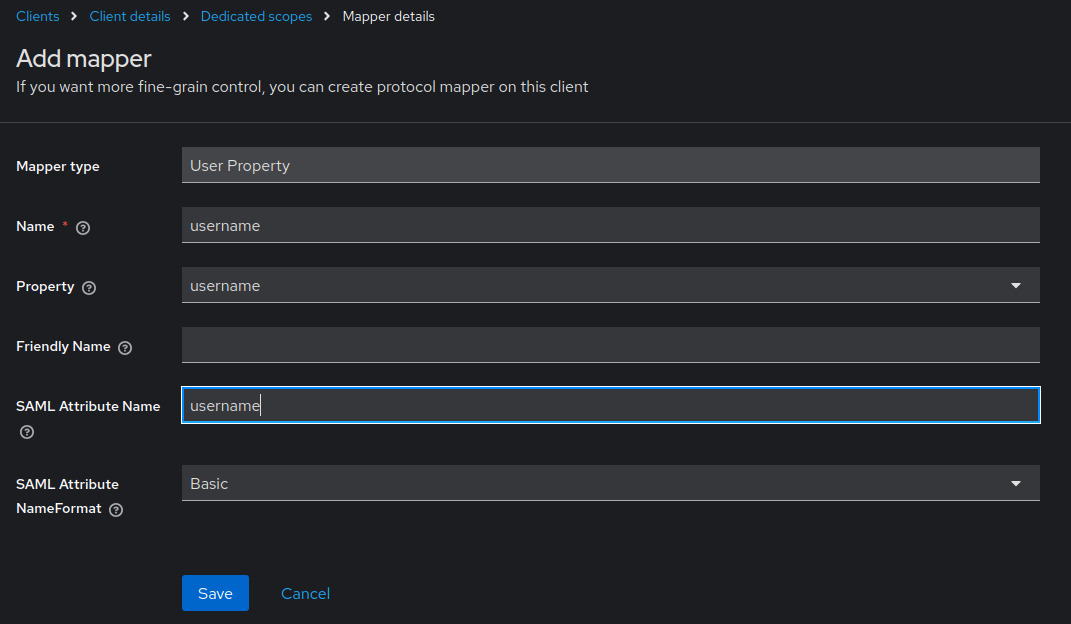
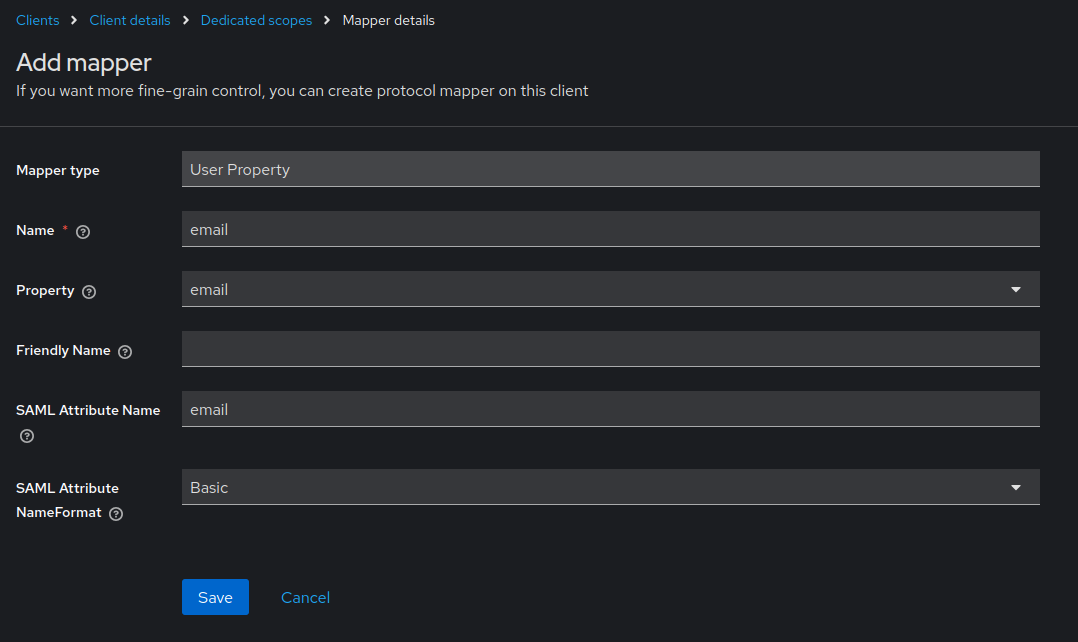
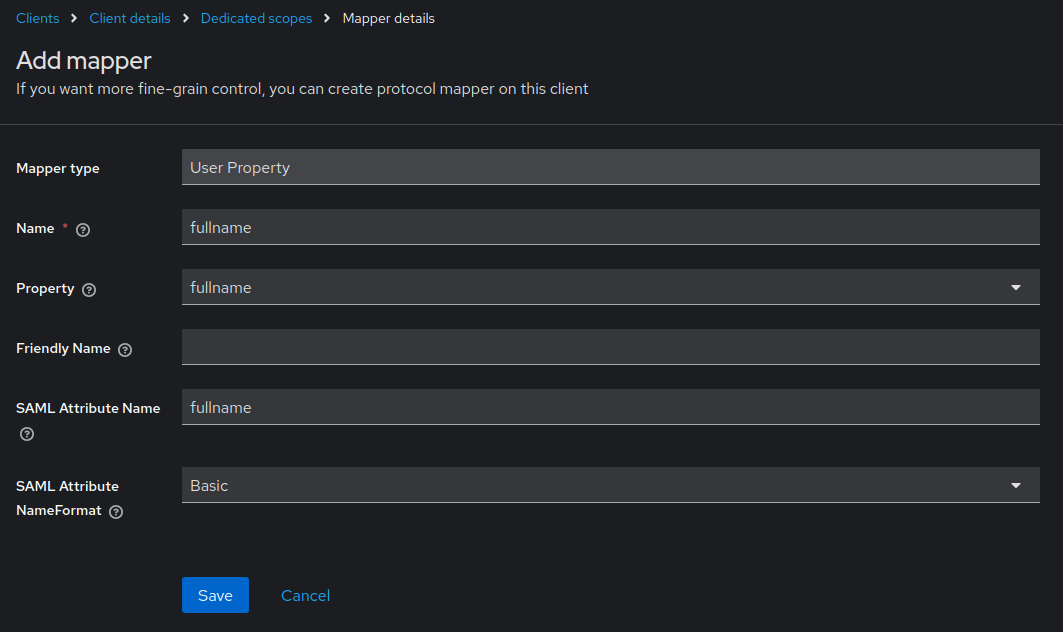
Configure the email, username and fullname mappers in Client scopes.
Retrieve the X.509 certificate and the Entry Point (SSO URL):
Certificate: from Realm settings > Keys > RS256 row > Certificate button. Copy the raw base64 content.
Entry Point: follows the format:
https://[keycloak_url]/realms/[realm]/protocol/saml
Warning
Use the RS256 certificate from the Realm, not from the client. Paste only the raw base64 without headers, otherwise Reemo will not be able to validate the signed assertions.
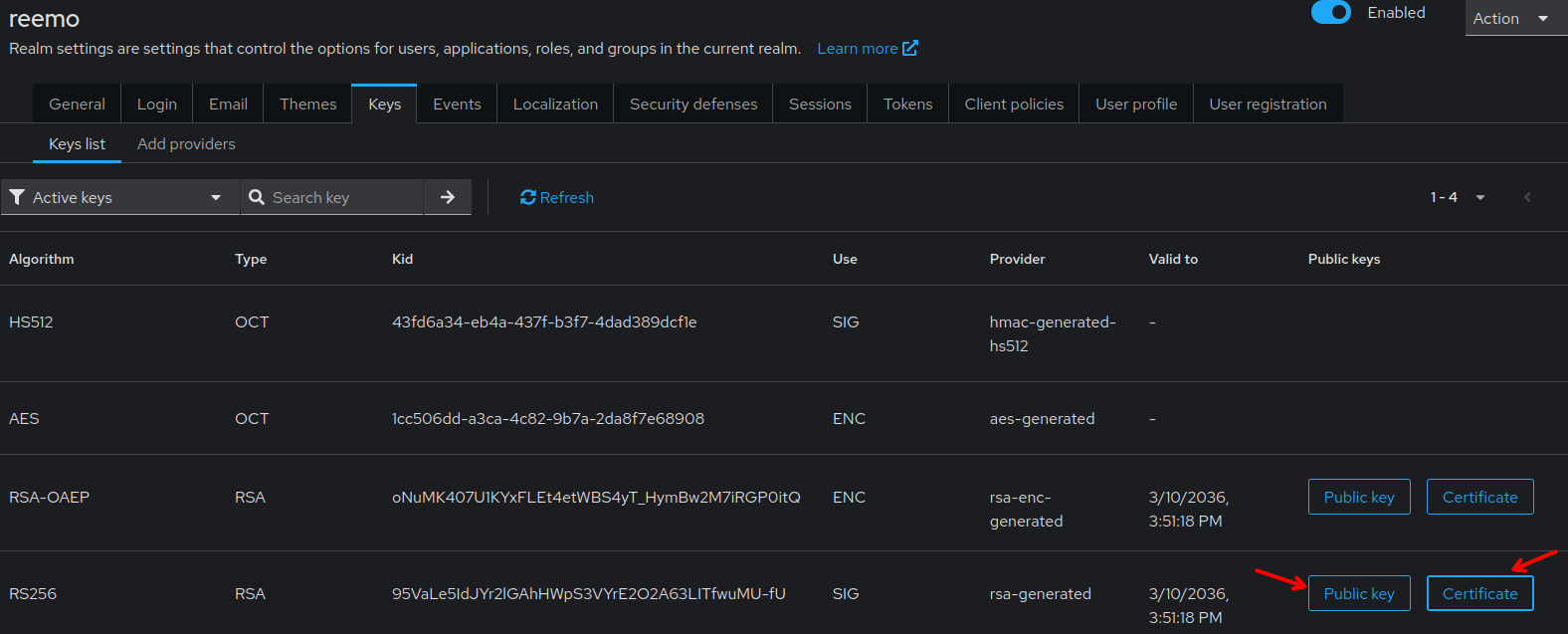
Retrieve the RS256 Realm certificate from Realm settings > Keys.
Complete the Reemo SAML connector with this information. Enable the connector (check Enabled) then click Update to save.
Declare users
Two approaches are available to grant SSO access to users.
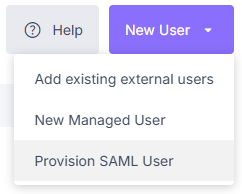
Select Provision SAML User from the New User menu.
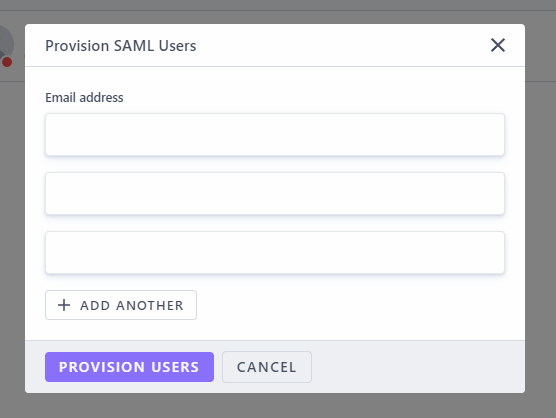
Add users by email via the provisioning popup.

Enable Just In Time Provisioning to create accounts on first login.
Manage rights dynamically from the directory
This configuration lets Reemo read each user’s group membership from your corporate directory and automatically assign access to the corresponding collections — without manually provisioning rights in Reemo.
In Keycloak
In the Clients menu, open your client (e.g.
reemo), go to the Client scopes tab and click on the dedicated scope (e.g.reemo-dedicated) > Add mapper > By configuration.Select Group list from the mapper configuration dialog.
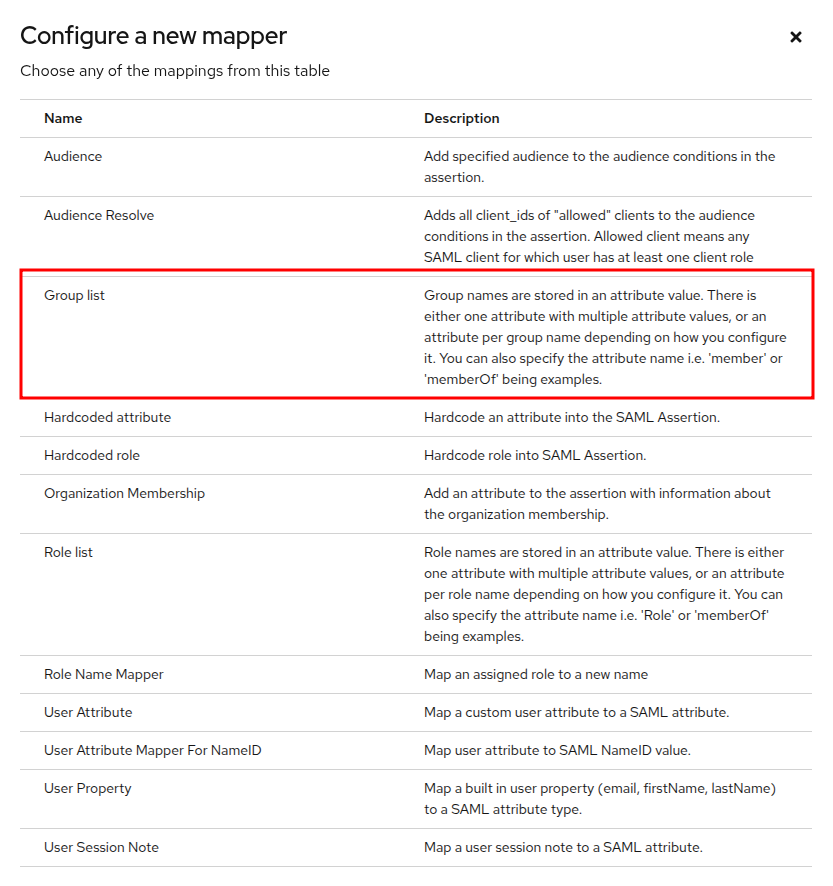
Select Group list in the mapper configuration dialog.
Configure the mapper with the following fields:
Name: a label for this mapper (e.g.
groups).Group attribute name: the attribute name sent in the SAML assertion (e.g.
groups).Single Group Attribute: Off.
Full group path: Off.
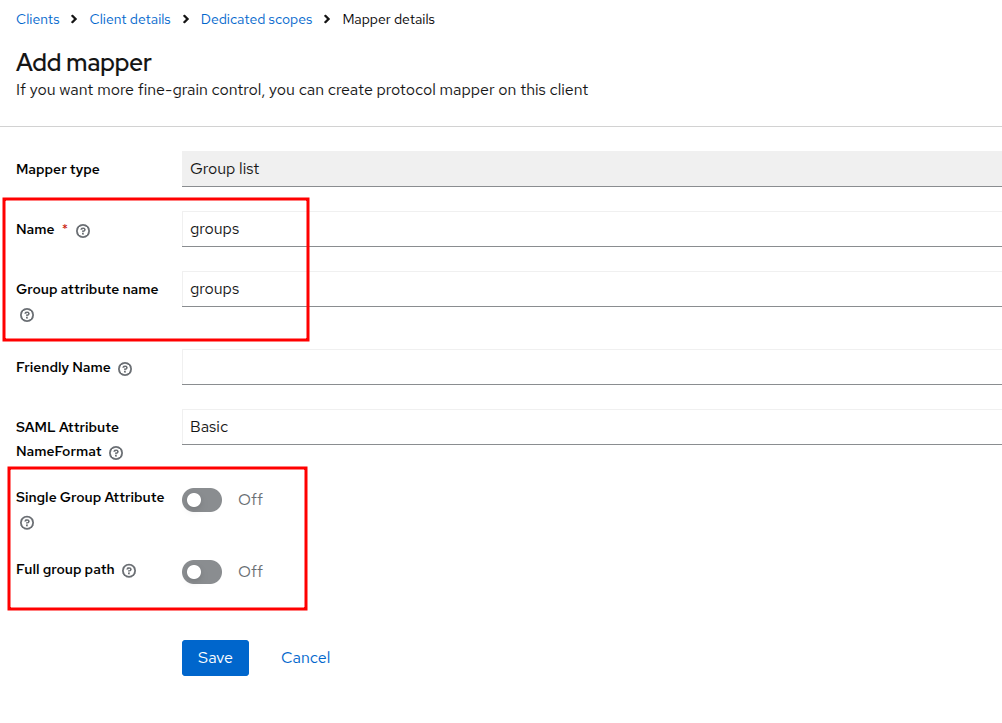
Set the Name, Group attribute name, and leave both toggles Off.
Save the mapper. It now appears in the mapper list alongside the other attribute mappers.
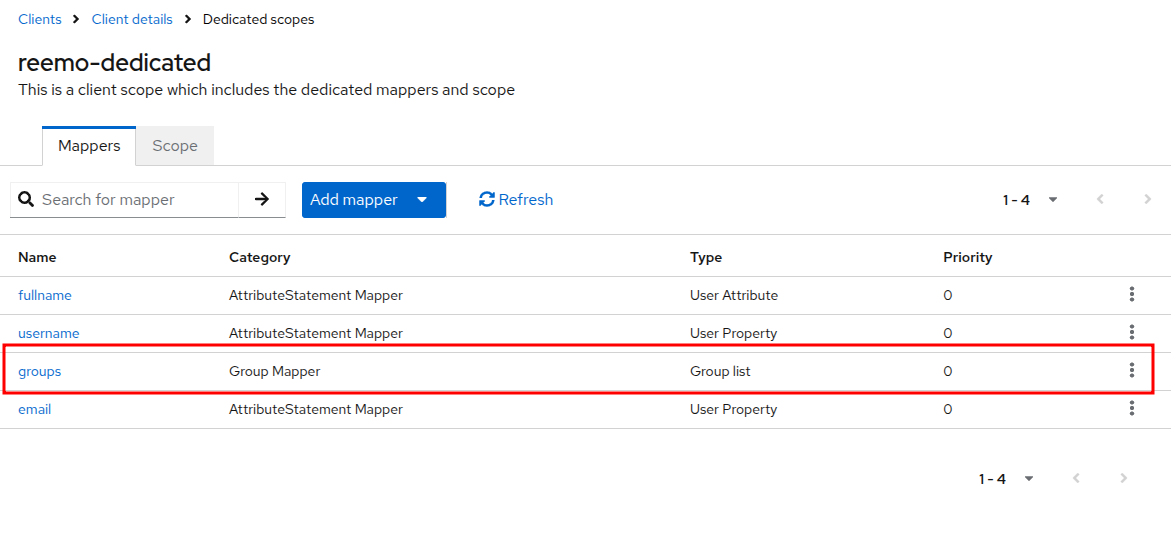
The groups mapper appears as Group Mapper / Group list.
In Reemo
Open the SSO connector form by going to Admin Area > General > SSO Connectors.
In the connector settings, open the Extra mapping section.
In the Collection field, enter the group attribute name configured in Keycloak (e.g.
groups), then click Update.
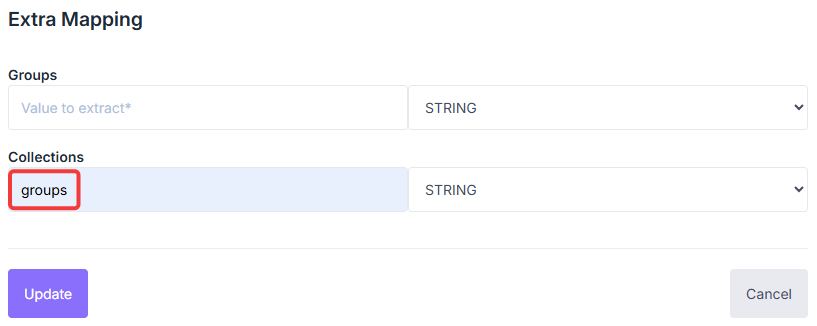
Enter the group attribute name in the Collection field of Extra Mapping.
In Inventory > Collections, select a collection and click Edit. In the SSO Mapping Identifier field, enter the corresponding group name from your directory.
When a user logs in via SAML, Reemo reads the groups sent by Keycloak and applies collection rights automatically.
Log in via SAML
Once the connector is active and users are declared (or JIT is enabled), your users can log in:
General access to your portal (Private Cloud / On-Prem):
https://[portal_url]/
Direct access to the organization (Public Cloud):
https://[portal_url]/login/[organization_shortname]
On the login screen, select the SSO tab, then click Login to be redirected to the identity provider.
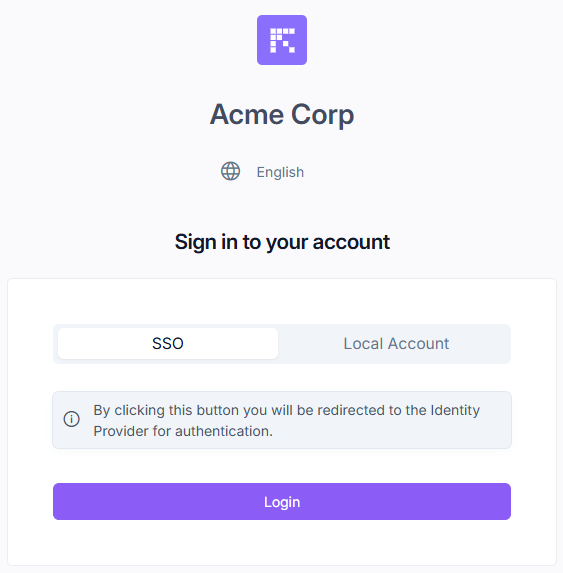
Select the SSO tab, then click Login.