Security Settings
The Security section of the organization allows you to configure and strengthen the security rules applied to all users and resources (computers, containers). These settings are defined at the global organization level and apply to all members.
Access: domain Organization > dashboard General > tune Settings > Security.
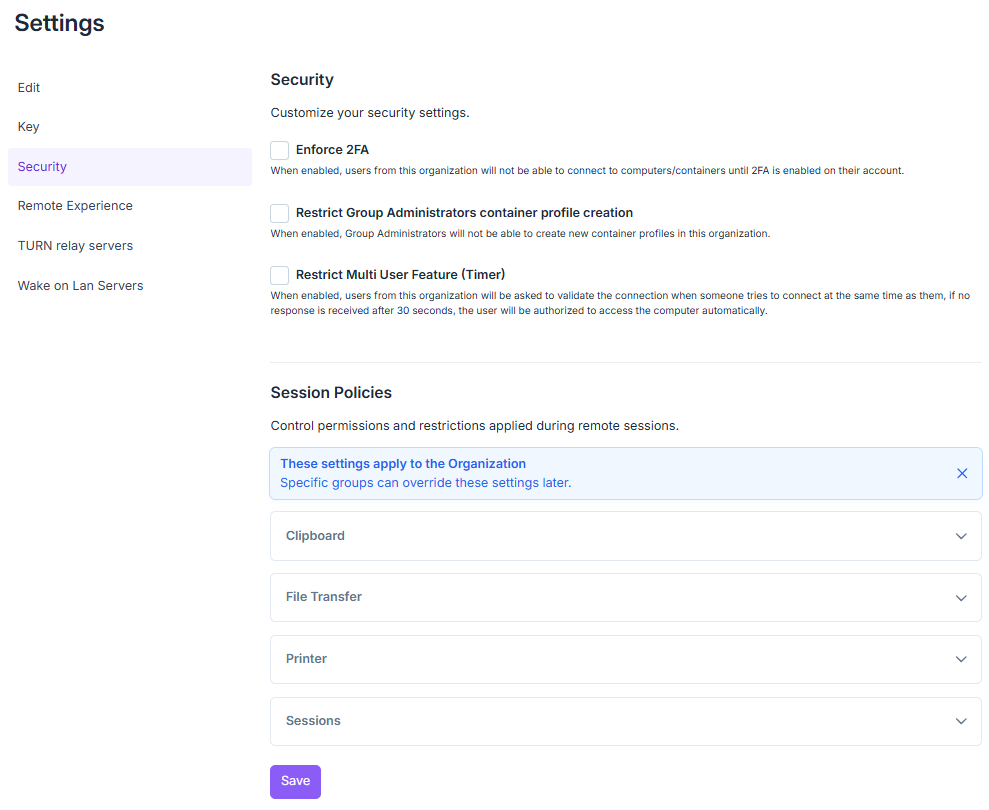
Organization security settings page.
This page groups four blocks: the organization’s global security settings, the approval workflow, its notifications, and the session policies applied to computers and containers.
Security
Enforce 2FA
Enables mandatory two-factor authentication (2FA) for all organization users.
As long as 2FA is not enabled on their account, users cannot connect to computers or containers.
Recommended to comply with security best practices (stronger protection against credential theft).
Tip
2FA should always be enabled: it’s the most critical security measure to protect the organization’s accounts.
Restrict Container Profile Creation by Group Admins
When enabled, group administrators will no longer be able to create new container profiles in this organization.
Restrict Multi User Feature (Timer)
When another user tries to connect to a computer/container already in use, a confirmation message is displayed to the current session user.
That user must confirm whether to allow the simultaneous connection.
If no response is given within 30 seconds, access is automatically granted to the second user.
This mechanism makes it possible to:
control concurrent access to machines,
avoid blocking a user from joining a session,
maintain productivity while keeping a level of human validation.
Tip
In environments where confidentiality is a priority (audit, finance…), it’s recommended to limit multi-user sessions.
Approval Workflow
Set the default rules for resources that require approval. Each computer or container profile can override them from its Approvers tab (see Configure Approval for a Resource). See Default Settings and Per-Resource Settings for the settings available at each level.
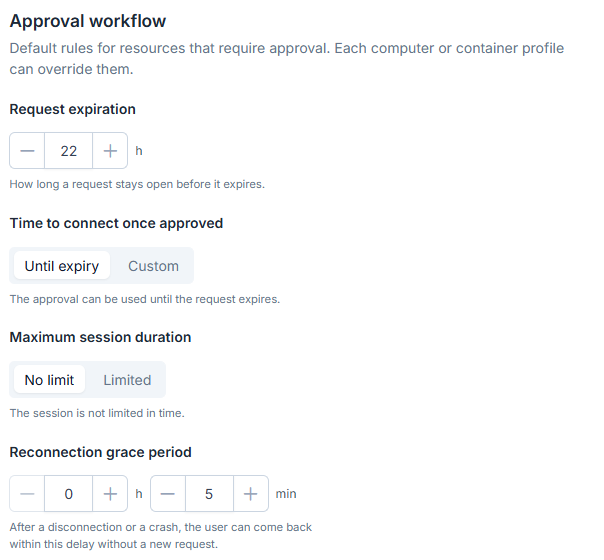
Approval workflow block.
Request expiration: defines how long a request stays open before it expires (24 hours by default).
Time to connect once approved: defines how long the user can use an approved request. Until expiry (default) keeps it usable until the request expires; Custom sets a duration in hours and minutes, counted from the approval. After this time, a new request is required. It does not apply to scheduled requests.
Maximum session duration: No limit (default) does not limit the session in time; Limited ends the session after the duration you enter, counted from the first connection, unless an extension is approved (see Extend a Time-Limited Session).
Reconnection grace period: defines how long (in hours and minutes) a user can return to the resource after a disconnection or a crash without a new request (5 minutes by default). This period is capped at the maximum session duration.
Regardless of approval, you can ask users to justify their connection: see Connection Forms.
Limit a Session’s Duration
Choose Limited for Maximum session duration: the session is cut at the deadline, counted from the first connection. The user is warned 10 minutes before the end and can ask for 15 min, 30 min, 1 h or 2 h more, without reconnecting. The request follows the usual approval flow (see Extend a Time-Limited Session). The reconnection grace period is capped at this duration.
Request Notifications
Choose how approvers are notified of requests waiting for them.
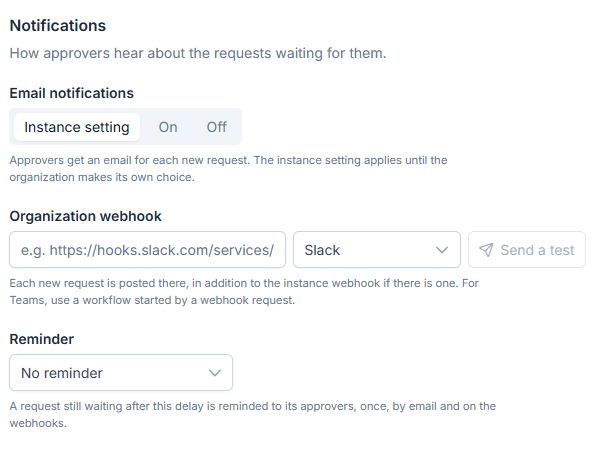
Notifications block.
Email notifications: Instance setting (default) follows the instance administrator’s setting; On or Off forces a choice for the organization (see Global Settings).
Organization webhook: sends each new request to this address, in addition to the instance webhook if there is one. Choose the Slack, Microsoft Teams (Adaptive Card) or JSON format, then click Send a test to check delivery. The address does not appear in clear text in the security logs or for regular members.
Reminder: sends approvers a single reminder, by email and on webhooks, for a request still pending after a delay of 15 minutes to 24 hours. No reminder is the default.
See also
Approval Workflow — Overview of the approval workflow and the pages that detail it.
Session Policies
Manages the permissions and restrictions applied during remote sessions.
Note
These settings apply to the organization and inherit by default from the policies defined at the instance level. Specific groups can override them later (see Group Settings).
Note
Each setting has a three-state dropdown (showing the value inherited from the instance in parentheses, e.g. Disabled (Instance)) and a Not Locked / Locked toggle.
Reemo settings cascade through five levels — each can inherit a setting from the level above, and lock it for the levels below.
Level |
Inherit from above |
Lock for levels below |
|---|---|---|
Instance |
— |
Yes |
Organization |
Yes |
Yes |
Group |
Yes |
Yes |
Computer |
Yes |
Yes |
Computer-User assignment |
Yes |
— |
Clipboard
Setting |
Description |
|---|---|
Clipboard Read |
Controls whether users of this organization can read the clipboard of remote devices. |
Clipboard Write |
Controls whether users of this organization can write to the clipboard of remote devices. |
Tip
In sensitive or regulated environments (production data, the financial sector…), it’s recommended to restrict clipboard access.
File Transfer
Setting |
Description |
|---|---|
File Transfer |
Allows file transfer with remote devices. |
Printer
Setting |
Description |
|---|---|
Printer |
Allow printing (Windows only, requires a RAW TCP printer on port 9100). |
Sessions
Setting |
Description |
|---|---|
Auto Disconnect on Idle Sessions |
Defines whether a session should automatically end after a period of inactivity. |
Tip
The auto-disconnect delay is worth adjusting to context: 15 minutes for critical environments, 30 minutes or more for standard use.
See also
Securing Your Organization — Overview of the controls that protect your organization.