Container Profiles
Container Profiles act as templates. They define the image, constraints, and options applied to the containers generated from them. When a user assigned to this profile logs in, their container automatically appears in their list.
List of Profiles
Access: inventory_2 Inventory > box_edit Container Profiles.
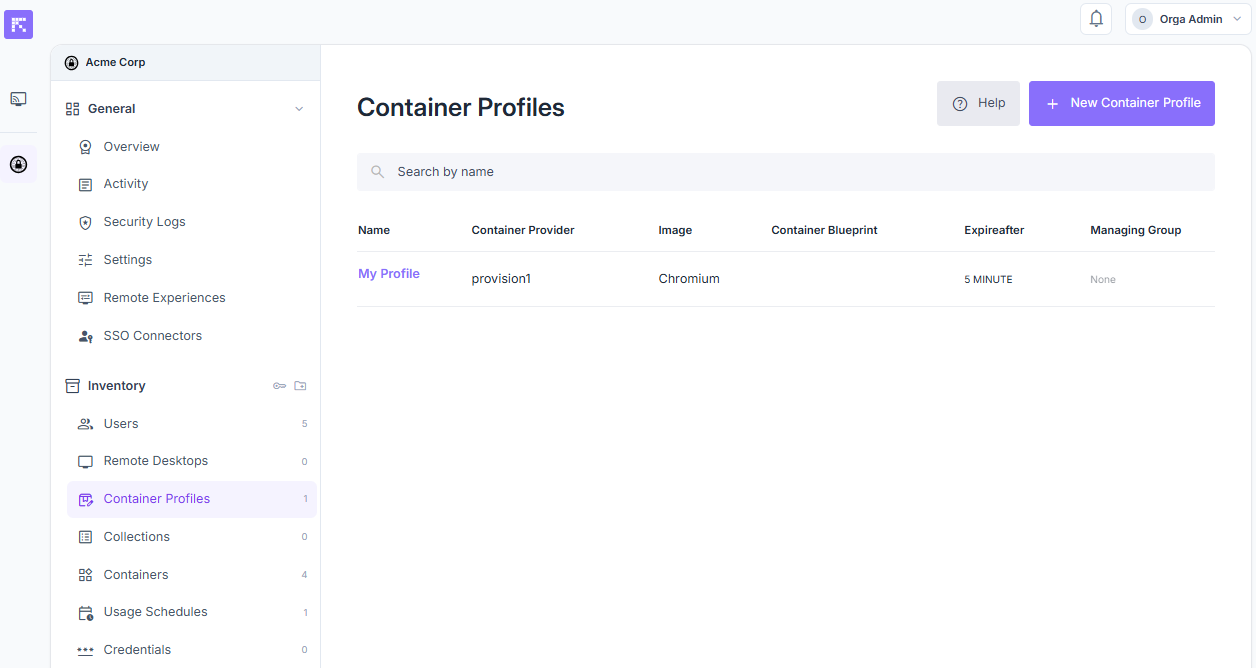
Overview of available container profiles.
The Container Profiles page lists all container profiles defined in the organization. Each table row displays the following information:
Name: the profile’s name.
Container Provider: the infrastructure used to run the container (e.g. Reemo SWARM1).
Image: the base image used (e.g. Chromium).
Container Blueprint: the container blueprint used as a base for this profile, if defined.
Expire after: the time limit before the container automatically stops after disconnection.
Managing Group: the group responsible for managing the profile, if defined.
Create a New Profile
Navigate to your organization and open box_edit Container Profiles.
Click New Container Profile.
Select the source of your profile:
Instance Administrator: Select a Provider, an Image, and optionally a Container Blueprint (if defined).
Organization Administrator: Select a Container Blueprint (pre-configured environment template).
Configure the remaining steps (Settings, Options, Clipboard restrictions, File transfer, Sessions, Constraints, and Labels), clicking Next after each one — see Configuration Steps in Detail below.
Click Create to finalize the Container Profile.
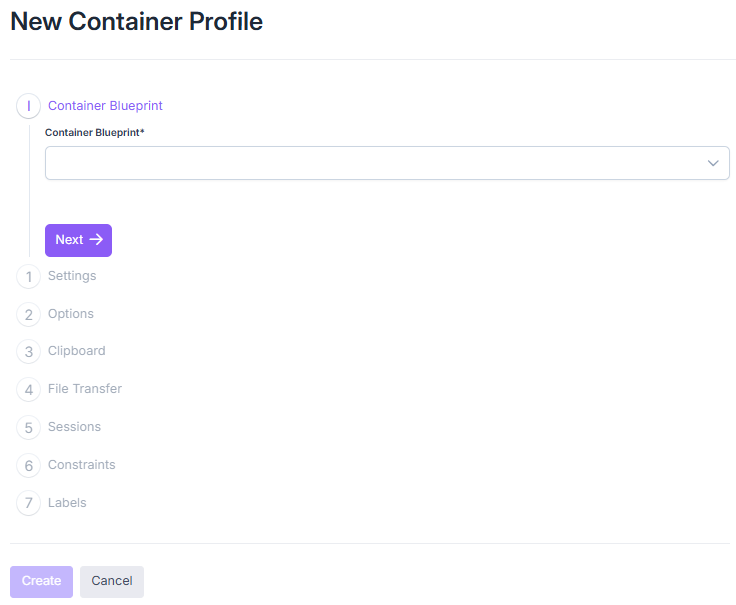
Container profile creation screen.
Configuration Steps in Detail
Settings: Define the container profile settings such as its name, its Control level (Full Control or View Only — see User Settings below), and the container expiration delay after disconnection. For an image with a volume on a Kubernetes provider, the Storage settings section also lets you enable the Persistent disk (see Create an ALU Image with a Persistent Disk).
Options: Configure the image deployment options. Note: These options depend on the selected image and are defined by the instance administrator who manages deployed images.
Each field’s behavior depends on the Value Mode set by the instance administrator:
A fixed field is filled in directly here.
A field requested at launch does not appear in the profile at all (the user provides it on connect).
A field configurable per profile shows a dropdown to choose, for this specific profile, between the two other behaviors.
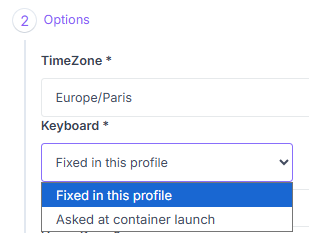
The Keyboard field, set to “Configurable per container profile”, shows a dropdown.
Clipboard restrictions: enable/disable read and write access.
File transfer: Enable or disable file transfers (see File Transfer for the full list of options).
Sessions: Set the idle timeout behavior to auto disconnect idle sessions.
Constraints: Define specific rules such as placement rules (e.g. location) for the profile (see Container Placement Constraints).
Labels: Add labels to your containers to filter or identify them in your cluster. A label consists of a key and a value (e.g.,
environment=production).
Warning
Do not confuse these Labels, attached to the container to filter or identify it, with the node labels used by placement Constraints (see Container Placement Constraints): the latter are attached to cluster nodes, not to containers.
Assign Users to a Profile
Users must be associated with a container profile in order to launch containers.
Open the container profile.
Click Assign users.
Select the users and confirm.
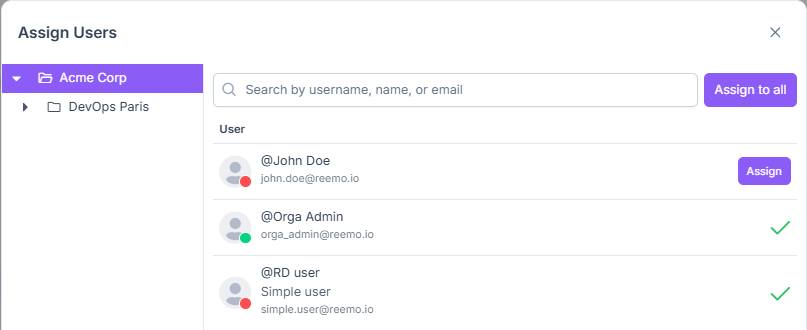
User assignment window for a profile.
Managing Assigned Users
Each user listed in the profile’s Users tab displays:
Role badge: account-level info about the user, next to their username (e.g. Managed, Org. Administrator, when applicable).
Collection: the collection associated with this assignment, if any. See Collections.
Association State: the current status of the assignment (e.g. Active).
Control level badge: shown only when this user’s control level is overridden for this profile (e.g. View Only) — see User Settings below.

Control level badge (View Only) next to the association state.
Two actions are available per user:
Settings: configures this user’s settings for this profile, see User Settings below.
Remove: unassigns the user from the profile.
User Settings
Click Settings next to an assigned user to configure the Profile-User assignment.
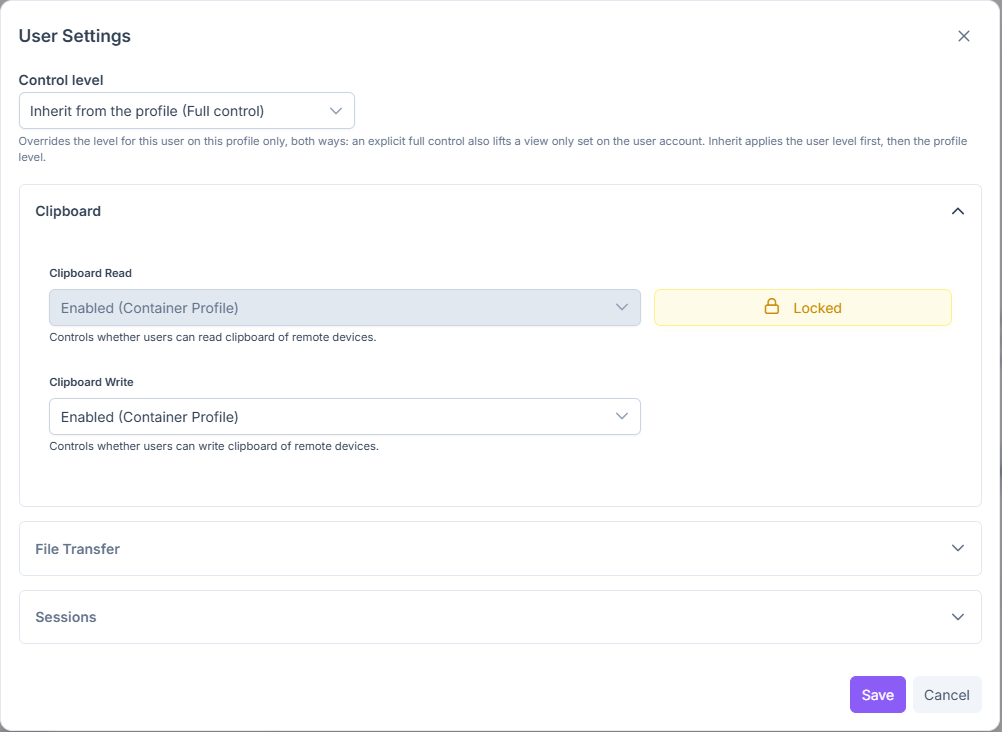
User Settings window for a container profile assignment.
At the top of the window, the Control level selector sets the effective level for this specific user-profile assignment:
Inherited from profile: combines the account-level default with the profile’s default, applying the account level first and the profile level next.
Full Control or View Only: overrides both the account and profile defaults for this assignment only, in either direction — e.g. an explicit Full Control here lifts a View Only defined on the user’s account.
Available categories: Clipboard (read/write), File Transfer, and Sessions. Each setting inherits from the Container Profile level by default (e.g. Enabled (Container Profile)) and can be overridden for this specific user.
Click Save to apply, or Cancel to discard.
Profile View
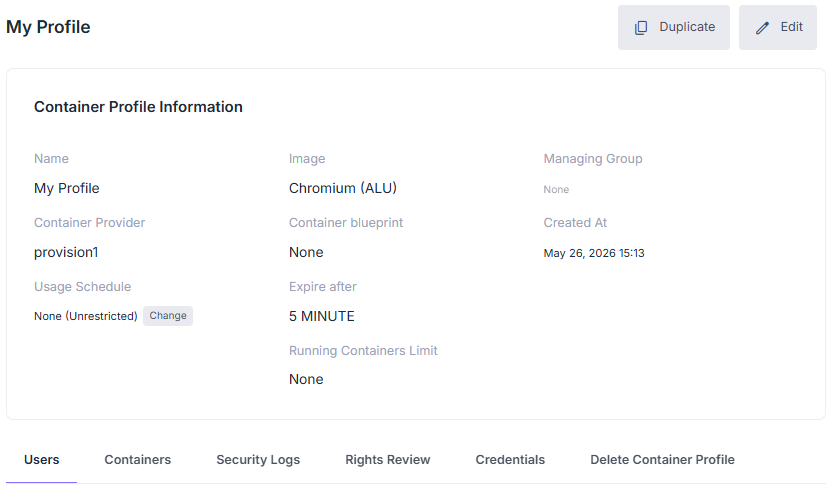
Container profile record.
A container profile record displays the following information:
Name: the profile’s name.
Container Provider: the infrastructure on which the containers of this profile will be created (e.g. Reemo SWARM1).
Image: the image used to run the container (e.g. Chromium).
Container Blueprint: the container blueprint used as a base for this profile, if defined.
Managing Group: group responsible for the profile (if defined).
Usage Schedule: usage schedule applied to the profile (default: None = unlimited).
Expire after: maximum container lifespan after disconnection.
Created At: date and time of profile creation.
Running Containers Limit: maximum number of containers that can run simultaneously for this profile (default: None = unlimited).
Two actions are available at the top of the record:
Duplicate: creates a new profile pre-filled with this profile’s configuration.
Edit: opens the edit form (same fields as Create a New Profile).
Available Tabs
Users: users assigned to this profile — see Assign Users to a Profile and Managing Assigned Users above.
Containers: active containers from this profile — see Containers.
Security Logs: history of actions related to this profile — see Security Logs.
Rights Review: tree of access rights linked to this profile — see Rights Review.
Credentials: secrets assigned to this profile — see Manage Credentials.
Delete Container Profile: permanently deletes the profile.
See also
Collections — Group several container profiles into a Collection to distribute them to a set of users.