Group Settings
Use the Edit Group page to define a group’s identity, manage SSO authentication mappings, and enforce security policies for remote sessions.
To access these settings, navigate to your organization in the Reemo Studio and click Edit Group next to the group you wish to configure.
Common UI Controls
Most sections of the Edit Group dialog share the same two controls: a three-state Setting State dropdown (e.g. Disabled (Organization) to inherit the organization’s policy, or explicitly Enabled / Disabled for this group), and a Not Locked / Locked toggle.
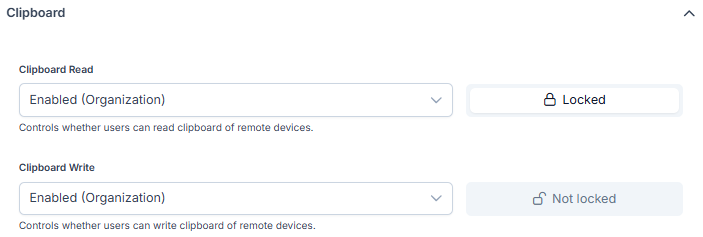
Clipboard setting inherited from the organization, shown locked and unlocked.
Reemo settings cascade through five levels — each can inherit a setting from the level above, and lock it for the levels below.
Level |
Inherit from above |
Lock for levels below |
|---|---|---|
Instance |
— |
Yes |
Organization |
Yes |
Yes |
Group |
Yes |
Yes |
Computer |
Yes |
Yes |
Computer-User assignment |
Yes |
— |
Edit
Manages the core identity and structural behavior of the group.
Setting |
Description |
|---|---|
Name |
The display name for the group. |
Direct Members Only |
When enabled, users assigned to the parent organization automatically inherit access to this group. |
Pool mode |
Defines the group as a “Pool” of computers rather than a static list. Users are dynamically assigned to any available machine upon connection rather than a static assignment. |
Important
Click Save at the bottom of the Edit section to apply changes to the group name, parent membership, or pooling status.
SSO Mapping
This section defines how users are automatically provisioned into the group via an external Identity Provider (IdP) and what level of authority they are granted.
Field |
Description |
|---|---|
Identifier |
The SSO identifier values (e.g., Group IDs) that map to this group. Users with a matching claim in your SSO connector are added automatically. |
Role |
The permission level assigned to mapped users. Options include: Member, Support, Admin, or Extended Admin. |
For more information on roles, see Define User Roles in a Group.
License Limits
Setting |
Description |
|---|---|
Limit Remote Desktop Licenses |
Enforces a maximum number of concurrent full desktop sessions allowed for this group. |
Limit Container Licenses |
Specifies the maximum number of concurrent application container sessions allowed for this group. |
Delete group
Action |
Description |
|---|---|
Delete Group |
Permanently removes the group and immediately revokes access for all members. This action cannot be undone. |
Sessions
Setting |
Description |
|---|---|
Auto disconnect idle sessions |
Determines if a session terminates after user inactivity. |
Override inactivity threshold |
Visible only when Auto disconnect is Enabled. Allows a custom timeout (default: 30 minutes) instead of the global value. |
Tip
Setting a strict inactivity threshold is recommended for groups accessing sensitive data or using shared hardware.
Clipboard
Setting |
Description |
|---|---|
Clipboard read |
Manages copying data from the remote host to the local client. |
Clipboard write |
Manages copying data from the local client into the remote host. |
File Transfer
Enabling File Transfer reveals detailed controls for upload and download.
Setting |
Description |
|---|---|
File Upload / Download |
Toggles the specific direction of file movement. |
File types whitelist |
Visible when Enabled. Allows an Override of allowed file extensions (e.g., |
Limit size |
Visible when Enabled. Allows an Override of the maximum file size (default: 1MB). |
Tip
Restricting file types to non-executable formats (like avoiding .exe or .sh) is a common security practice to prevent the introduction of malicious software into the remote environment.
Printer
Setting |
Description |
|---|---|
Printer |
Enables the Reemo Virtual Printer for PDF redirection to the local browser. |
See also
Manage Groups and Roles — Overview of group management and rights delegation.
Define User Roles in a Group — Detailed breakdown of user permissions within a group.