Request Access to a Resource
Note
This workflow is different from the connection approval described in Starting a Session for Support-tagged devices, granted ad hoc by the device’s owner. See Manage Workstations to configure approvers on a resource.
If your organization has configured an approval workflow for a resource, its Connect button is replaced with Request Access. Organization administrators bypass this workflow and connect directly.
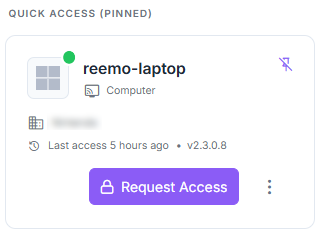
Request Access button.
Request Access opens a dialog with the When choice and an optional Reason field. If the resource has a connection form, its questions replace the Reason field (for example Motif de la connexion). In both cases, your answers accompany the request so approvers can read them.
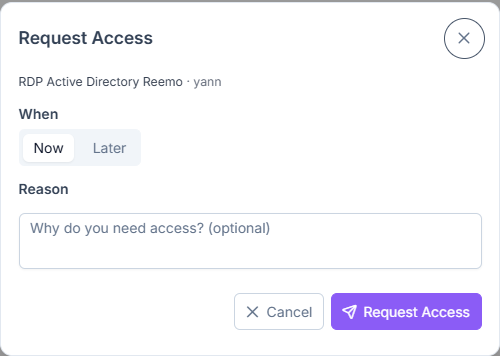
Request Access dialog, without a connection form.
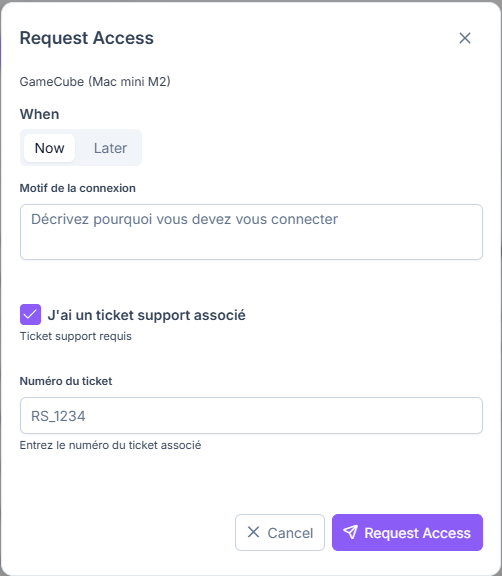
Request Access dialog, with a connection form (a question appears when the box is checked).
Choose Now, or Later to schedule your connection: pick a day and a time, within the next 30 days.
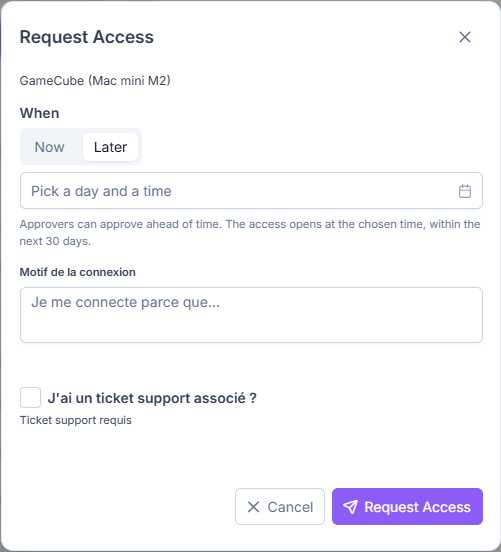
Scheduled request with Later.
Approvers see the requested slot and can approve in advance. The access is only usable from the planned time; before then, the card shows From followed by the time.
Submitting your request puts the resource’s card into a Pending Approval state. Click the card to track your request status or cancel it — pending and answered requests also appear in the Notifications menu — see Notifications.
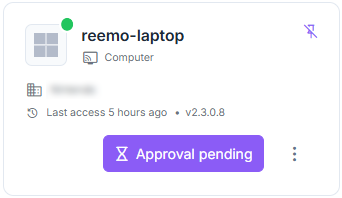
Pending Approval state on a resource card.
Once approved, a dialog allows you to connect immediately. If rejected, you will see a message with the approver’s reason, if provided. If no approver responds in time, the card shows Request expired.
An approved request that has not been used yet can be canceled so you can make a new one, for example to connect earlier than the planned slot. An approver or an administrator can also revoke an approved request: your session is then cut with a dedicated message, and you can no longer reconnect with that request. To ask for more time during a time-limited session, see Extend a Time-Limited Session. If you are an approver on a resource, you handle these requests from My Approvals.
See also
Approval Workflow — Overview of the approval workflow and the pages that detail it.