Alerting
Get notified as soon as a security event deserves your attention, and follow each alert through to its resolution.
Access: verified_user Admin Area > shield Network & Security > notification_important Alerting.
Note
Alerting is available for Private Cloud and On-Premises deployments only.
Before you can use it, Alerting must be enabled for the instance, then for each organization that needs it. See Enable Alerting on the instance.
Set up rules to watch for specific security events (for example, a new administrator created). When a rule triggers, an alert is sent to the channel or channels of your choice (email, Slack, webhook…).
Track each alert in the console: acknowledge it to show you are handling it, then resolve it once the issue is fixed.
Alerting respects the existing role model (ADMIN at instance level, OWNER/ADMIN at organization level). There is no separate alerting role.
Enable Alerting on the instance
Enable Alerting once for the whole instance.
Go to verified_user Admin Area > build System > settings Global Settings > Features.
Check Alerting enabled.
Click Save.
Alerting must then be enabled for each organization that needs it. See Enable alerting.
Warning
Unchecking Alerting enabled turns Alerting off for everyone, including the organizations that had already enabled it.
Overview
Get an at-a-glance view of your instance’s alerting activity: active alerts, trends, most-triggered rules, and channel health.
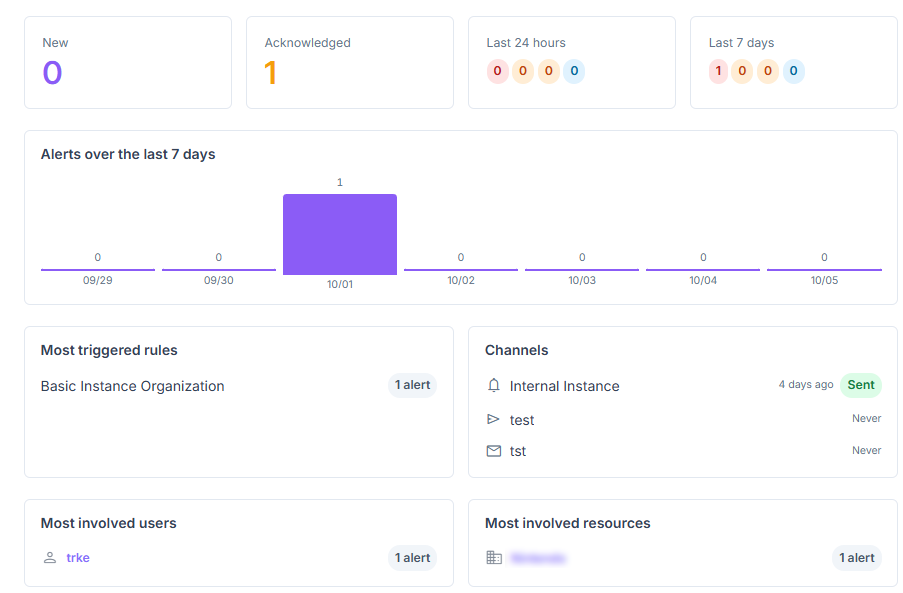
Alerting overview.
New / Acknowledged: alerts awaiting action or already being handled.
Last 24 hours / Last 7 days: alert trends by severity (Info, Warning, Error, Critical). Useful for spotting activity spikes.
Alerts over the last 7 days: a daily timeline of opened alerts.
Most triggered rules: the top 5 most active rules over the last 7 days, to highlight the most frequent events.
Most involved users / Most involved resources: the top 5 of each over the last 7 days, rendered the same way as in Security Logs (type icon, resolved label, clickable link if the object still exists, or a “deleted” badge with its UUID otherwise).
Channels: check whether each channel is enabled or disabled, along with the status of its last delivery.
Available Tabs
notifications_active Alerts: review, acknowledge, and resolve alerts. See Alerts.
rule Rules: define what triggers an alert. See Alert Rules.
hub Channels: choose where alerts are sent. See Notification Channels.
notifications_paused Maintenance: pause notifications during a planned operation. See Maintenance Windows.
settings Settings: adjust alert retention for the whole instance (instance administrators only). See Alerting Settings.
See Also
See also
Alerting Event Catalog — List the events rules can watch for.