Manage Composites
A Composite groups screens from one or more source computers into a single virtual resource, which then behaves like a regular workstation, visible in the Remote Desktops list and assignable to users, groups, and collections. Composites are commonly used to replace a physical KVM switch, for example to display a video feed and a monitoring feed side by side.
Access: inventory_2 Inventory > tv Remote Desktops.
Use the All / Computers / Composites toggle to filter the list to composites only (see Manage Workstations).
Creating a Composite
Go to inventory_2 Inventory > tv Remote Desktops.
Click New Composite.
Fill in the form fields.
Click Create.
The composite appears in the Remote Desktops list with the type Composite. Assigning it to users, groups, or collections works the same way as for a computer (see Assign Users to a Computer).
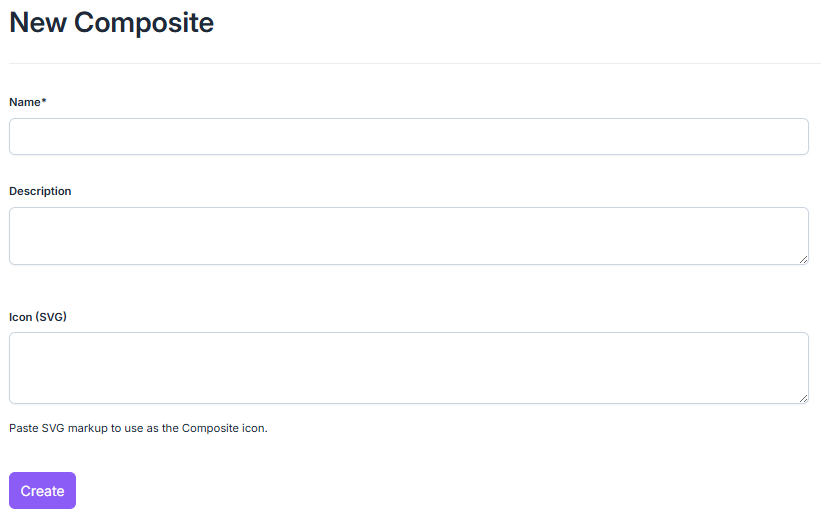
New Composite form.
Form Fields
Name (required): the composite’s label.
Description: optional.
Icon (SVG): optional, paste an SVG to use as the composite’s icon.
View and Edit a Composite
Click a composite’s name to open its profile. The Composite Information card gives its state (see Composite Status below), the number of sources and machines (a machine used as more than one source is counted once), its managing group, its creation and last access dates, and its description.
From the profile:
Edit the name, description, and icon with Edit.
Update the information and state with Refresh.
Configure the projected screens in the Sources tab (see Configuring Sources).
Manage access and settings in the other tabs (see Available Tabs).
Available Tabs
The Sources tab is specific to composites: see Configuring Sources. The other tabs are the same as on a computer profile. The Approvers, Connection Form, and Alerting tabs appear only if the matching feature is enabled.
Users: users assigned to the composite.
Approvers: users who approve connection requests (see Define the Resource’s Rules).
Connection Form: questions asked at each connection (see Choose a Resource’s Form).
Groups: groups associated with the composite.
Collections: collections associated with the composite (see Assign Workstations to a Collection).
Alerting: quick alerts on the composite (see Create a Quick Alert from a Resource).
Delete: permanently deletes the composite.
Composite Status
Since a composite aggregates several source computers, its status reflects the combined state of all its sources:
Online: all source computers are online.
Busy: at least one source computer has an active session. The number shown is the number of people connected to the resource; hover over the status to see their names.
Partial: some, but not all, source computers are online.
Offline: all source computers are offline.
In the Remote Desktops list, the status bar filters resources, computers and composites together, and shows the number of resources in each status. It combines with the All / Computers / Composites toggle.

Status filters of the Remote Desktops list.
Configuring Sources
Open the Sources tab of a composite’s profile to add, remove, or reorder the screens it projects. Changes are saved automatically.
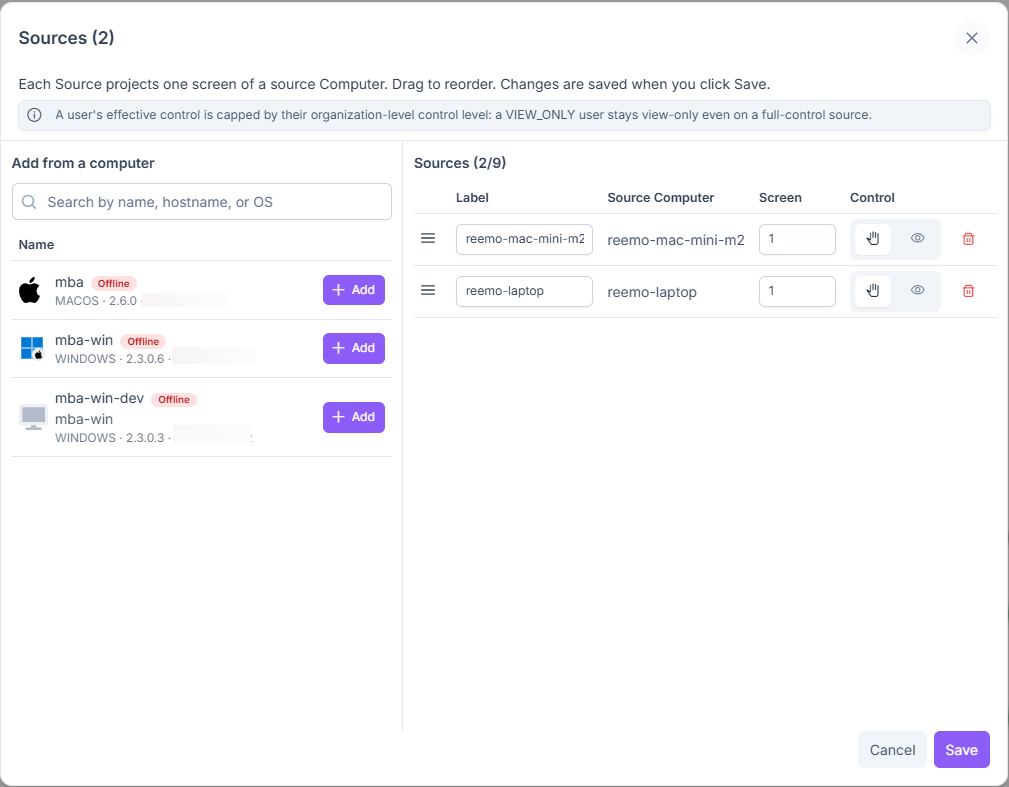
List of the sources of a composite.
To add sources:
Click Assign more sources.
In the Assign sources window, browse the groups or search for a computer by name, hostname or OS.
Click Assign next to the computer you want.
Each assignment adds a new source. The same computer can be assigned more than once, one source per screen: a badge (for example ×2) shows the number of sources that already use it. A composite can hold up to 9 sources.
Note
The sources of a composite are computers (remote desktops). Containers do not appear in the assignment window.
For each source, the list offers:
Label: editable name shown in place of the source, for example in the toolbar.
Screen: the screen number to project from the source computer.
Control: whether users connecting through this source get full control () or view-only access ().
Drag a source using its handle (☰) to reorder it. Click the trash icon to remove it.
Note
A user’s effective control on a source is capped by their organization-level control setting: a VIEW_ONLY user stays view-only even on a source configured for full control (see Starting a Session in View-Only Mode).
Enable Cluster Mode
Cluster mode unlocks every computer of a composite in one go: you unlock the main computer, and the other computers unlock with it. The main computer is the first one in the list of sources, marked with a Main badge. To change it, drag another source to the first position.
Note
Cluster mode works with Windows computers. The toggle is visible on every composite, but it has no effect unless the computers meet the requirements below.
Requirements
Every computer of the composite, main computer included:
A Windows computer
A Reemo Service version 2.9.0.3 or later (see Update)
Every other computer, to follow the main computer:
The Reemo Credential Provider, called Reemo Autologon in the interface (see Configure Auto-Logon)
A credential assigned to the computer (see Assigning a Credential)
Full control () on the source (see Configuring Sources)
A source that is shown when the composite launches, that is, not placed in the Not shown area
The main computer needs neither the Credential Provider nor a credential, except to use the Log in to session button.
To enable cluster mode:
Open the Sources tab of the composite’s profile.
Turn on the Cluster mode toggle.
Once cluster mode is enabled:
Unlocking the main computer also unlocks the other computers, and stops them from locking due to inactivity.
When the main computer locks, the other computers lock too.
Another computer you lock by hand stays locked until the next time the main computer is unlocked.
When you connect to the composite, a window offers to sign in with the assigned credential: click Log in to session. With Later, sign in afterwards from the toolbar (see Session).
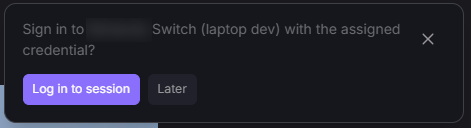
Window offering to sign in to the session.
Launching a Composite Session
When you connect to a composite with more than one source and your local machine has multiple screens, a dialog appears before the session starts. Use it to choose which source appears on which of your screens.
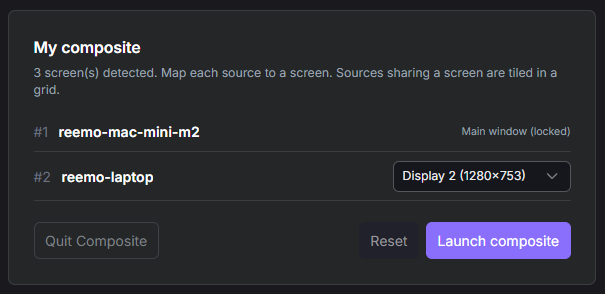
Composite launch dialog in Auto mode.
Each of your screens is shown as a frame, and each source as a numbered tile. The frame marked this window is the screen where the Reemo window is open.
Auto: each screen shows one source, then the extra sources share the last screens in a grid, 4 at most on each. The layout adjusts to the screens available.
Manual: place the sources yourself. Drag a source onto the screen of your choice. Up to 4 sources can share a screen in a grid. Source 1 stays in this window.
To hide a source, drop it in the Not shown area. Click Quit Composite to cancel, or Launch composite to start the session with this layout.
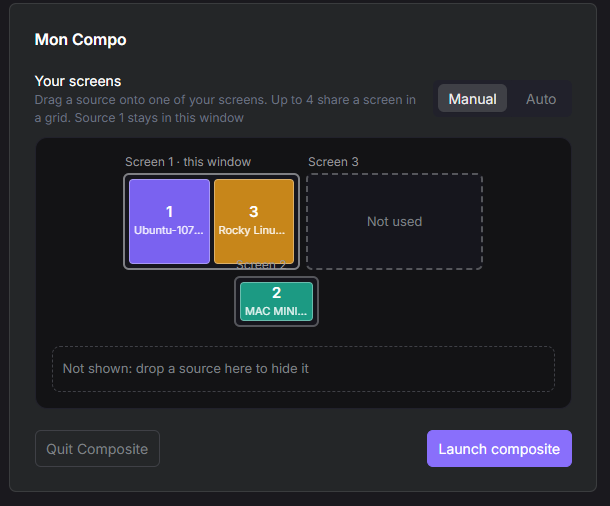
Manual mode: sources 1 and 3 share screen 1, and screen 3 is not used.
Note
The layout is chosen when the composite is launched. You cannot rearrange the screens in the web client once the composite is open.