Configure Approval for a Resource
Require the agreement of one or more approvers before a user connects to a resource, and set the rules specific to that resource.
Assigning at least one approver to a resource (remote desktop, composite or container profile) activates its approval workflow: see the flow of a request.
Note
As long as no approver is assigned, the Approvers tab indicates that this resource does not require approval, and connections remain direct.
Assigning Approvers
Open the resource and go to the Approvers tab.
Click person_add Assign approvers.
Select one or more users in the selection window, then confirm.
The assigned approvers appear in the Assigned approvers table.
Assigning an Approver Group
In addition to individual approvers, add an organization group: click Add a group, under Approver groups, then choose it in the Choose a group list.
Members of the group, and members of the groups above it (same rule as everywhere in the organization), can vote.
Each person counts only once toward the quorum, even if they are both an individual approver and a group member.
An assigned group, even an empty one, keeps approval mandatory on the resource.
The number of required approvals is capped at the number of people who can vote: if approvers leave, it is lowered to that number and a pending request is no longer blocked.
Set the Number of Required Approvals
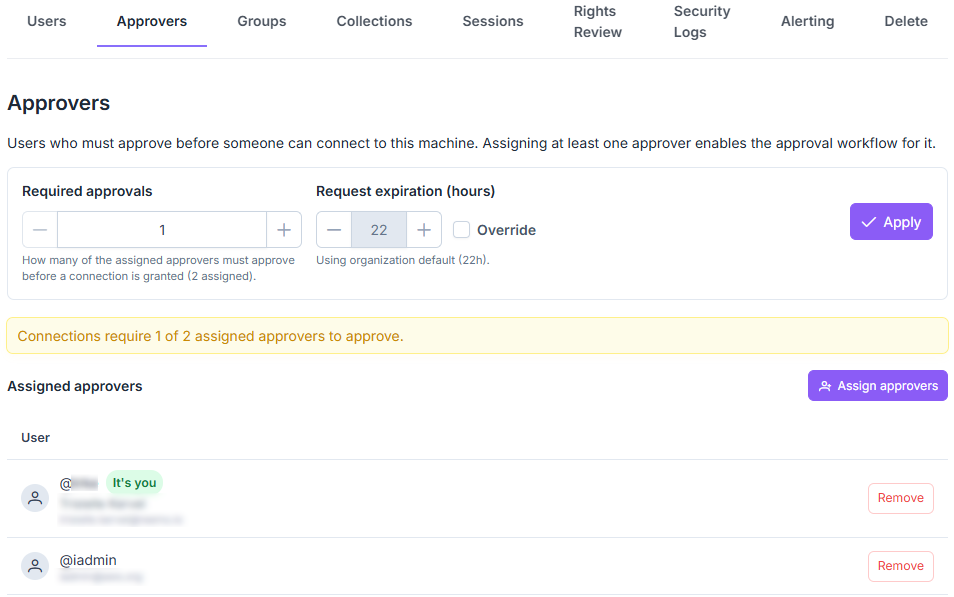
To require several approvals, increase Required approvals, then click Apply. This setting sets the quorum: with a single approver, one approval is enough; a single rejection is enough to refuse the request.
A banner reminds you of the effect, for example “Connections require 2 of the 2 assigned approvers to approve.”

Banner of the Approvers tab and the Assign approvers button.
Define the Resource’s Rules
These rules follow the organization’s by default (Organization default, see Approval Workflow). See Default Settings and Per-Resource Settings for the settings available at each level. Choose Custom to set a value specific to the resource; durations are entered in hours and minutes.
Request expiration: how long a request stays open, in hours.
Time to connect once approved: how long the user can use an approved request.
Maximum session duration: ends the session at the deadline, counted from the first connection (see Limit a Session’s Duration).
Reconnection grace period: how long the user can come back after a disconnection without a new request, capped at the maximum session duration.
Click Apply to save these settings.
Rules of a resource’s Approvers tab.
Exempting Groups from Approval
Click Add a group, under Exempted groups, then choose a group in the Choose a group list. Its members connect to the resource without an access request. To exempt everyone during certain time slots, use No approval during instead: choose a usage schedule, the resource will not require approval during its time slots, then click Apply. Never: always ask is the default.
These settings are carried over when a container profile is duplicated.
To follow the organization’s requests, see Access Requests.
See also
Approval Workflow — Overview of the approval workflow and the pages that detail it.