Connection Forms
Ask users to justify their access to a resource by answering questions at each connection, then review every answer in the organization.
Access: domain Organization > inventory_2 Inventory > Connection Forms.
The connection form is shown before every connection to a resource, organization administrators included. If the resource also requires approval, the answers accompany the access request so approvers can read them (see Request Access to a Resource). Each answer is kept and can be reviewed in the Responses tab (see Review the Answers), whether or not the instance security logs are enabled. It also appears in those logs when they are enabled.
The organization defines a shared form; each resource can reuse it, replace it with its own, or ask for nothing, and its choice takes precedence over the organization’s.
Configure the Organization Form
Open domain Organization > inventory_2 Inventory > Connection Forms, Configuration tab.
Turn on Use an organization form.
In the Applies to list, choose which resources the form targets (see Form Scope).
Add, reorder and adjust the fields.
Click Save the form.
The Preview panel shows what users see when they connect. Discard changes restores the last saved form. Turn off Use an organization form if the organization has no shared form: each resource then asks only for its own form, if it has one.
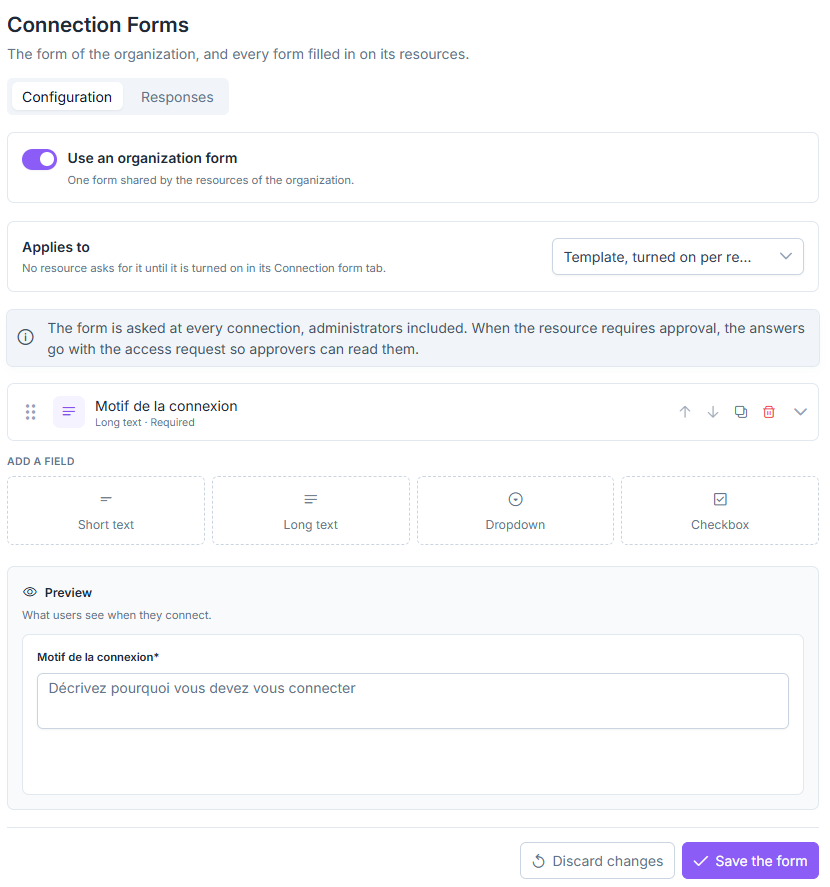
Configuration tab of the Connection Forms page.
Form Scope
In the Applies to list, choose the behavior of the organization form:
All resources (default): the form is requested on every resource that has no custom form.
Template, turned on per resource: no resource requests the form until it enables it in its Connection form tab.
Form Fields
Click a type under Add a field to add it to the form:
Short text: single-line answer.
Long text: multi-line answer, for example a connection reason.
Dropdown: choice among values you define.
Checkbox: confirmation to check, for example an attestation.
Each field moves with the handle on the left, or with the up and down arrows. The buttons on the right duplicate or delete it, and the expand arrow opens its options: label, help text, whether it is required, and the rules below.
Show a Field Conditionally
Show a field only if a previous checkbox is checked or unchecked, or if a previous dropdown has a given value. A hidden field is neither required nor saved; the rule is also checked on the server.
Validate a Text Answer
On a text field, require a minimum length or an expected format as a regular expression. The whole answer must match the format, and the error message shown can be customized. Validation applies in the form and on the server.
Choose a Resource’s Form
In the Connection form tab of each remote desktop, composite or container profile (see Available tabs), choose the form mode:
Organization form: the resource uses the shared form.
Custom: the resource has its own form, which starts as a copy of the organization’s. It replaces the organization form.
None: the resource asks for no form.
The default mode follows the organization’s Applies to setting, and an explicit choice on a resource is kept if that setting changes. A container follows its profile’s form, then the organization’s. In the container profile creation wizard, the Approval step offers the same modes.
In the remote desktops list and in the container profiles list, an Approval badge marks resources that require approval, and a Form badge those that request a form.
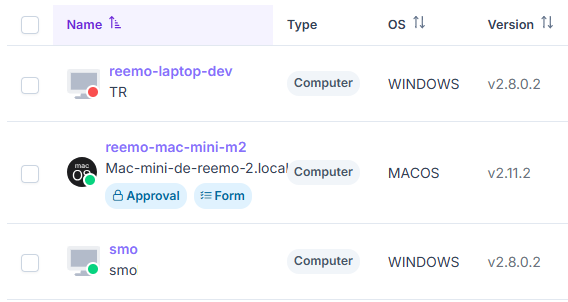
Approval and Form badges in the remote desktops list.
Review the Answers
Review the answers given before each connection, newest first, in the Responses tab of the Connection Forms page; a resource’s Responses tab lists only its own answers. Search a user or a resource, filter by Period, then click Export CSV (one column per question). The Origin column shows whether the answers came with a direct Connection or an Access request.
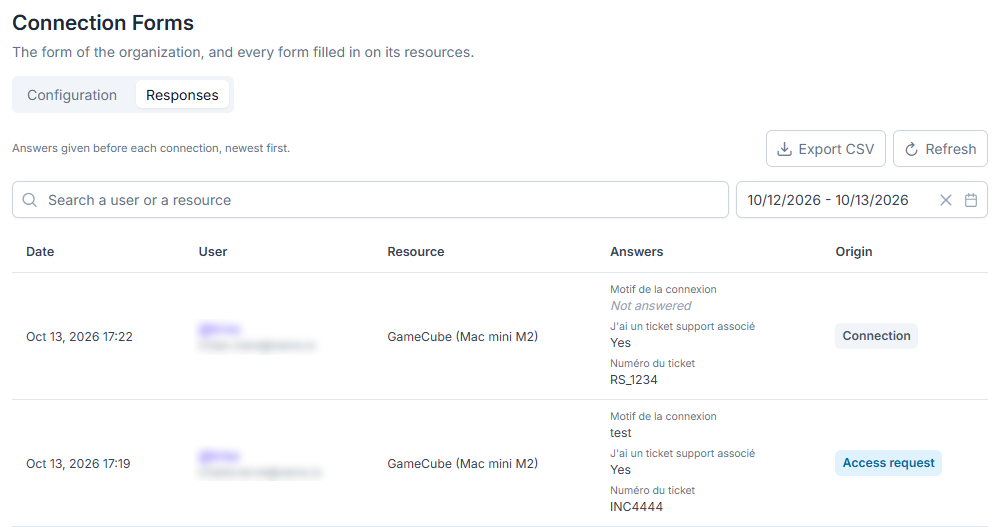
Responses tab of the Connection Forms page.
Note
For a resource subject to approval, the answers also appear in the Reason column of the Access Requests page.
See also
Approval Workflow — Overview of the approval workflow and the pages that detail it.
See also
Securing Your Organization — Overview of the controls that protect your organization.