Storage & Status
Monitor the space used by recordings, anticipate disk saturation, and check that the recording service responds.
Access: verified_user Admin Area > shield Network & Security > videocam Session Recordings > hard_drive Storage & status.
Follow the space used by recordings in the Status and Statistics views, available through the buttons of the same name. Recordings are deleted once their retention period has elapsed. The retention period is set at the infrastructure level and can be changed at any time: see Record API.
Anticipate Disk Saturation
Spot in advance whether the disk will fill up and how much space the retention will free.
In the Status view, read the status badge and the percentage of space used in Recording storage.
In Saturation forecast, check whether the disk is likely to fill up at the current pace.
In Recording age, check how much space the retention will free within 7 days and within 30 days.
If usage approaches the Warning threshold, reduce the retention period at the infrastructure level or add storage space.

Recording storage block of the Status view.
On each chart, use Chart and Table to switch between the visual representation and the values. Use the download icon to export the data.
Check That Recording Works
Make sure the recording service responds and the storage is mounted.
In the Status view, check that the Recording service is Reachable.
In Recording storage, check that the Mount is Present.

Recording service block of the Status view.
Identify What Uses the Space
Find the organizations, containers, users, and sessions that use the most space.
In the Status view, click an organization in Disk occupancy to list its sessions for the selected period.
To see the space used over the period:
Switch to the Statistics view.
In Consumption, choose Organizations, Containers, or Users.
Click a line of Consumption to list its sessions.
In Largest sessions, click a session to open it in the player.
To change the display of the Space used chart, choose Per slot or Cumulative.
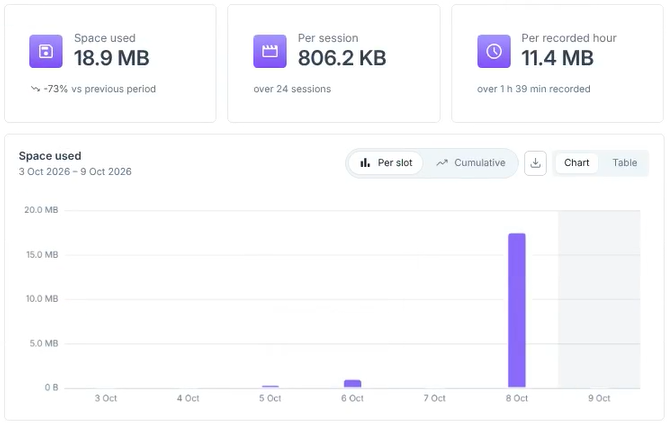
Indicators and Space used chart of the Statistics view.
Storage Indicators
Status View
Recording storage: percentage of space used, amount used out of the total, and status badge (for example OK).
Saturation forecast: estimate at the current pace, with the daily consumption (averaged over 30 days) and the level at which usage should stabilize, given the retention.
Mode: the storage mode (for example SMB).
Mount: the state of the mount (for example Present).
Warning threshold: the usage percentage from which the storage moves to the warning state (for example 80%).
Directory: the location where the recordings are stored.
Recording service: shows whether the service responds (Reachable) and its version.
Age and Occupancy
Recording age: the space used, by when the sessions ended, by range (under 7 days, 7 to 30 days, 30 to 90 days, over 90 days, in progress). A dashed line marks the retention limit.
Disk occupancy: the space used per organization, for all the recordings stored, regardless of the period.
Statistics View
Space used: the space used by the recordings of the period, with the change compared with the previous period.
Per session: the average space of a session, with the number of sessions involved.
Per recorded hour: the average space of an hour of recording, with the recorded duration.
Consumption: the breakdown of the space used by Organizations, Containers, or Users.
Largest sessions: the sessions that use the most space in the period.
See also
Session Recording Player — Open a session from the list of the largest sessions.