Sessions
Find a recorded session, spot the ones that contain alerts, and analyze activity over a period.
Access: verified_user Admin Area > shield Network & Security > videocam Session Recordings > video_library Sessions.
Switch between List and Statistics to find a session or analyze activity. These views apply to the period chosen at the top of the page: see Session Recordings.
Find and Open a Session
In the List view:
Narrow the list with the filters (User, Organization, Container, Severity, To review).
Click Columns to choose the columns to display.
Click the Date header to reverse the sort order.
Click play_arrow in the Replay column to open the session in the player.
The filters combine with the period and the Alerts card of the page. For a description of each column, see Columns, Filters, and Charts.
Analyze the Activity of the Period
Click Statistics to display the charts of the period, then use the following options:
Drag across a chart to narrow the period.
Click Table to read the values of a chart, or Chart to return to the visual representation.
In the Rank by section, choose Alerts, Sessions, Duration, or Commands.
Click a row (a user, a container, or an organization) to list its sessions.
To widen the period again, double-click a chart. The download icon exports the data of the chart.
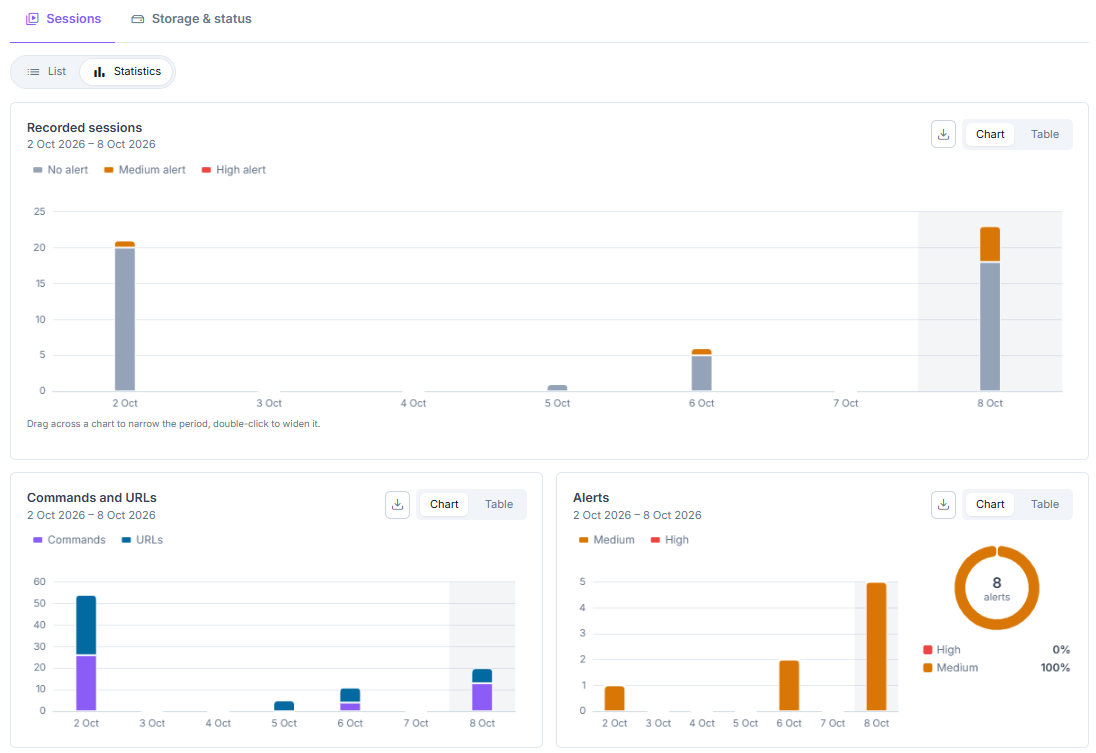
Statistics view of the Sessions tab.
Columns, Filters, and Charts
The filters and the columns are in the List view; the charts are in the Statistics view.
List Filters
User: show only the sessions of one user.
Organization: show only the sessions of one organization.
Container: show only the sessions of one container.
Severity: show only the sessions whose alerts have a given severity (all by default).
To review: show only the sessions that have an alert in the period and that nobody has opened since that alert. Their play button is highlighted.
List Columns
Session Identification
Date: the start of the session.
Duration: the length of the recording.
User: the user who opened the session.
Container: the container that was recorded.
Organization: the organization of the container.
Activity Measures
Frames: the number of screen frames kept.
Size: the space used by the recording.
Commands: the number of commands entered, followed by the number of URLs visited. For example,
0 · 4 URLsmeans 0 commands and 4 URLs.Alerts: the number of alerts in the session by severity (for example “1 medium”), or a dash if there are none.
State Tracking
Status: In progress while the session is being recorded, Ended afterwards.
Content: the types of content recorded (Video, Text).
Replay: the play button opens the session in the player.
Charts of the Statistics View
Recorded sessions: the number of sessions per day, split among no alert, medium alert, and high alert.
Commands and URLs: the number of commands and URLs per day.
Alerts: the number of alerts per day, and the share of high and medium alerts over the period.
Day and hour: a heat map of activity times, with a choice between Commands, URLs, or Alerts.
Session length: the average, median, and longest duration, with the distribution of sessions by duration range.
Rank by: the most active users, containers, and organizations, according to Alerts, Sessions, Duration, or Commands.
Alerts to review: the alerts whose session has not been opened since, split into under 24 h, from 1 to 7 days, and over 7 days, with the date of the oldest one.
See also
Session Recording Player — Replay a session and spot its alerts.