General
The General tab of the Settings panel groups video quality options and overall toolbar behavior. An administrator can also define some of these settings for a team in a Remote Experience, and lock them.
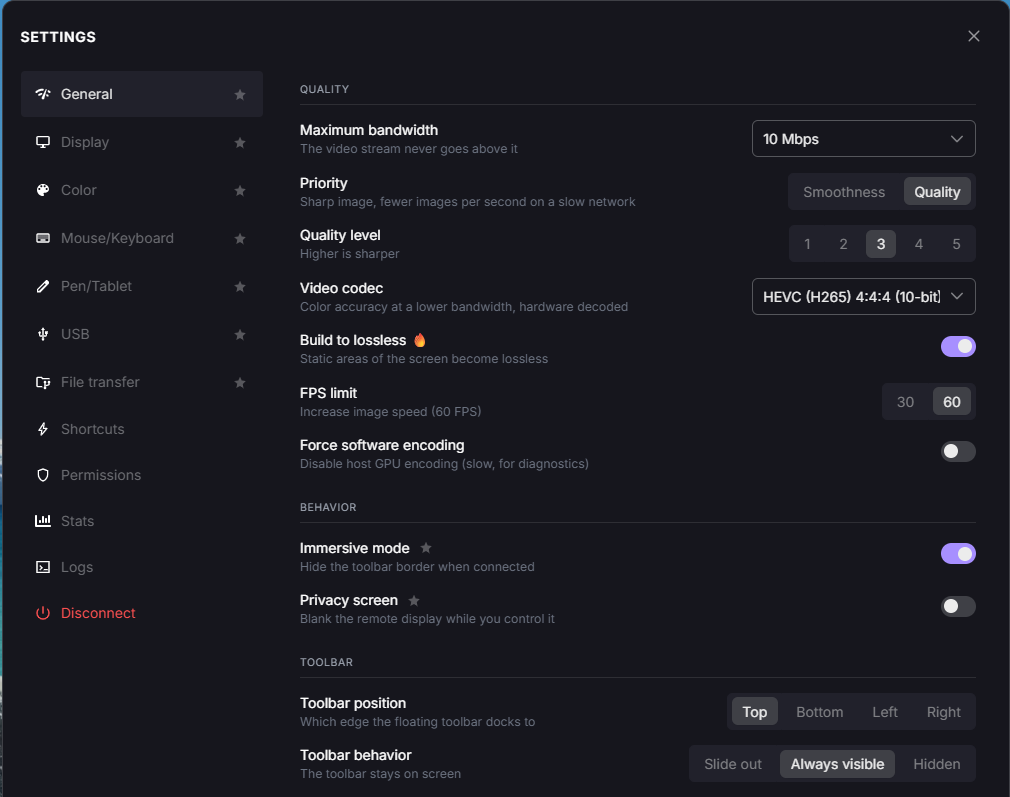
Settings panel, General tab.
Quality
Adjust how the video stream is encoded and sent to your screen.
Note
Some settings in this section need an up-to-date Reemo Service (the Reemo agent) on the remote computer (see Update). When it is too old, a warning icon warning appears next to the setting: update the Reemo Service to use it.
Maximum Bandwidth
Caps the bitrate of the video stream: it never goes above the value you choose.
Automatic: Reemo adjusts the bandwidth to your screens and your connection (see Automatic Mode).
2 Mbps: Low bandwidth, high compression artifacts.
5 Mbps: Mobile connection, visible compression artifacts.
7 Mbps: ADSL connection.
10 Mbps: Stable Wi-Fi connection (default).
20 Mbps: Fiber connection.
40 Mbps: Good fiber connection.
80 Mbps: Very good fiber connection.
200 Mbps: Local connection.
Note
Automatic Mode
With a fixed value, you have to guess what your connection can carry. In Automatic mode, Reemo chooses the cap for you and adjusts it during the session:
At the start: the cap is sized to the streamed screens. The more pixels (resolution, number of screens) and the higher the frame rate, the higher the cap.
On a congested network: when the connection starts dropping video packets, the cap goes down within a few seconds to keep the stream fluid.
When the network recovers: the cap goes back up on its own.
The field then shows the cap currently in use (for example Adapts to your screens and network, 12.0 Mbps now). The measured cap is not saved: each session starts over, but your choice of Automatic is remembered.
Automatic mode also keeps to the limits that apply to you: the bandwidth limit of your plan, the bounds set by your organization in a Remote Experience, and the technical caps of the connection (200 Mbps direct, 60 Mbps through a relay, 60 Mbps per screen).
Note
Important
Automatic needs a WebRTC connection and a Reemo Service that sends the video over RTP (see Update). If one of these conditions is not met (older Reemo Service, WebSocket relay, multi-computer session), Automatic is not available and the session uses 10 Mbps by default.
Priority
Choose what gives way first on a slow network:
Smoothness: keeps the frame rate and accepts visible compression artifacts on a slow network.
Quality: keeps the image sharp and lets the frame rate drop instead.
Note
Quality requires an up-to-date Reemo Service on the remote computer and a WebRTC connection.
Quality Level
Choose a level from 1 to 5: the higher the level, the sharper the image. This setting is available only when Priority is set to Quality.
Video Codec
Allows choosing the video codec to optimize compatibility or image quality.
AVC 4:2:0: A widely used codec, ensuring broad compatibility with most devices (best compatibility).
AVC 4:4:4: Provides better color fidelity, ideal for content with lots of text or detailed graphics. It is always decoded in software (SW badge).
HEVC 4:2:0: A more recent codec offering better compression (higher quality at equivalent bitrate), but may require more powerful hardware for decoding.
HEVC 4:4:4: Provides the color fidelity of 4:4:4 with the HEVC codec, on compatible machines.
Note
HEVC 4:4:4 requires an up-to-date Reemo Service, a hardware encoder on the remote computer and a compatible browser. For now, hardware encoding works with NVIDIA and Intel GPUs on Windows, Intel GPUs on Linux and Apple Silicon (M1, M2, etc.) on macOS, but not with AMD. On your computer, you need Chrome (on Windows and macOS) or Safari (on macOS): Firefox and Edge do not offer it, and no browser offers it on Linux.
Note
Remote screen in HDR: even without turning on the HDR option, Reemo applies tone-mapping and the session stays usable, but color fidelity may drop. Tone-mapping follows the chosen depth: at 8 bits, the stream is converted to 8-bit SDR; at 10 bits, to 10-bit SDR.
Linux: a remote computer running Linux does not support HDR (Reemo uses Xorg, which does not handle it), but it supports 10 bits (Build to Lossless or HEVC 4:2:0). A local computer running Linux with Wayland and Chrome, in HEVC 4:2:0, can display a Windows or macOS machine in HDR.
Build to Lossless
When enabled, the static areas of the screen (the “tiles”) become lossless, for sharp text and exact colors. They can be in 10 bits, but never in HDR.
FPS Limit
Sets the maximum number of frames per second for the video stream, prioritizing either smoothness or image quality.
30 FPS: Prioritizes image quality.
60 FPS: Prioritizes motion smoothness (default).
120 FPS: Prioritizes maximum responsiveness.
Force Software Encoding
Forces video encoding to be performed by the CPU, even if hardware (GPU) encoding is available on the remote machine. This disables host GPU encoding and is slower — use it only for diagnostics, for example to rule out a GPU encoder issue.
Behavior
Set how the session starts and how it is displayed on your computer.
Immersive Mode
When enabled, no border is displayed around the Reemo window while connected. Disable it to display a border around the window, useful to quickly know whether you are working locally or remotely.
Privacy Screen (Windows and macOS only)

Box indicating that Privacy Screen is active.
Note
On Windows, an administrator can hide this box with the watermark option of the Agent configuration.
An administrator can also remove the privacy screen for a team in a Remote Experience.
Credentials
Sign in to the remote computer with the credential your administrator assigned to it.
Session
The Log in to session button signs in to the remote Windows session with the assigned credential, so you do not have to type it. If the computer belongs to a composite in cluster mode, it also unlocks the other computers of the cluster: see Cluster Mode.
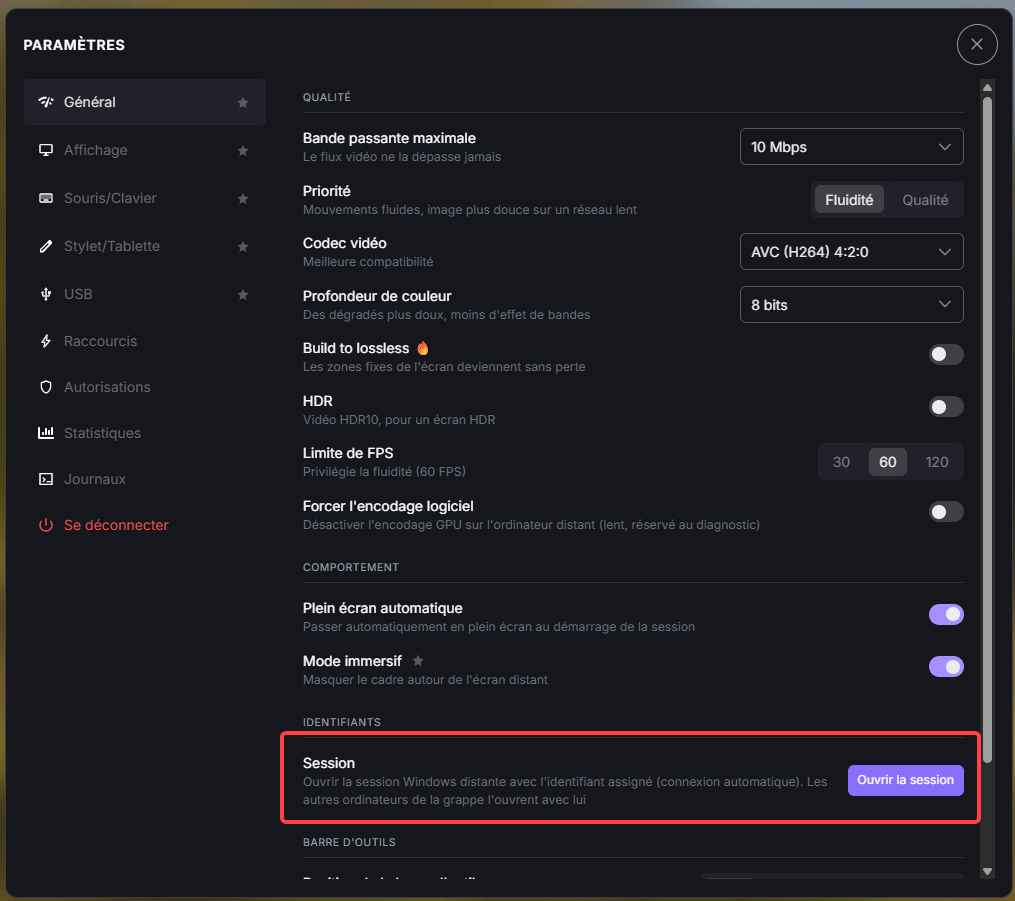
Log in to session button in the Credentials section.
It requires a credential assigned to the computer and auto-logon configured: see Configure Auto-Logon.
Toolbar
Choose where the toolbar sits on the screen and when it is shown.
Toolbar Position
Sets which edge of the screen the floating toolbar docks to: Top, Bottom, Left, or Right.
Toolbar Behavior
Choose how the toolbar behaves during a session:
Slide out (default): the toolbar slides out when idle and leaves a handle on the edge of the screen to bring it back.
Always visible: the toolbar stays on screen.
Hidden: the toolbar is hidden. A message confirms it and reminds you that Ctrl+Alt+B (Ctrl+Option+B on macOS) shows it again.

Handle left on the edge of the screen when the toolbar has slid out.
Back to the Settings panel overview.