Reemo Support
Reemo Support is a companion application that lets a member of your support team connect remotely to a device, with the device owner’s explicit consent, to help diagnose or resolve an issue.
Important
Reemo Support is provided on request. Contact your sales representative to enable this feature for your organization.
Enabling Support Mode
Support mode is enabled per device, through the Agent configuration file:
Open
reemo.iniand add the[support]section withenabled = true— see Configuration for the full list ofreemo.inioptions.Install and launch the Reemo Support companion application on the device to assist. The installer is provided by your Reemo contact.
Minimum versions:  Windows
 1.18.0.2,  macOS
macOS 1.9.0 and  Linux
Linux 1.18.2.
Silent Installation
During a silent installation of the Windows Agent (see Installation), the /SUPPORT="true" option enables support mode directly, without having to manually edit reemo.ini (step 1 above):
"C:\Program Files\Reemo\reemo.setup.x64.exe" /S /SECRETKEY="<PRIVATE_KEY>" /SERVER="<SIGNAL_SERVER>" /SUPPORT="true"
Note
/SUPPORT : Enables support mode at install time (equivalent to enabled = true under the [support] section of reemo.ini).
Once enabled, the device appears with a Support tag in the Reemo portal.
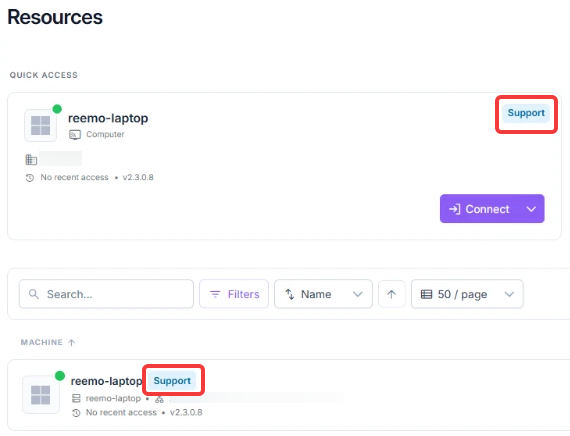
Support tag on a resource card and in the resource list.
See Resource Status Indicators for the full list of resource indicators.
Who Can Connect
A support-enabled device can be reached by:
Any user individually assigned to the device — see Manage Workstations.
Any user holding the Organization Support or Group Support role, which grants access to every support-enabled device in the organization or group, without needing individual assignment — see User Roles.
In both cases, connecting requires the device owner’s approval, as described below, unless automatic approval is enabled (see Automatic Approval).
Approving a Support Session
When a member of your support team requests to connect, a Remote Support Request window appears on the assisted device.
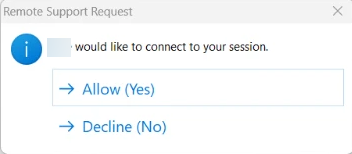
Remote Support Request window.
Choose Allow (Yes) to start the session, or Decline (No) to refuse it.
Once approved, the Reemo Support window shows Support session active. The session can be ended at any time with Disconnect.
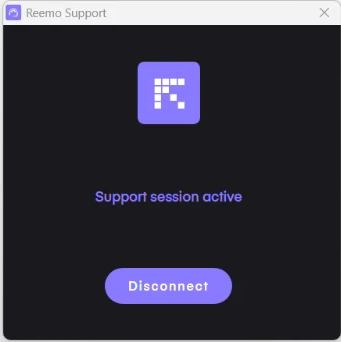
Support session active.
Automatic Approval
The Remote Support Request window is displayed in the user’s Windows session. If no session is open (login screen, user logged out), or if the session is locked, nobody can approve the request: the connection waits and is eventually dropped.
To assist these devices, enable automatic approval in the [support] section of reemo.ini (see [support]):
autoaccept_nosession = true: authorizes the connection when no Windows session is open.autoaccept_locked = true: also authorizes the connection when the session is locked or disconnected through Fast User Switching. This option also covers the no-session case.
Available on Windows 2.4.0.2 and later.
Warning
With automatic approval, the connection starts without the device owner’s consent in the cases above.
See also
Starting a Session — Connecting to a resource with support mode enabled.