Session Recording Player
Replay a session, spot the alerts on the playback bar, and find the command you need quickly.
Access: verified_user Admin Area > shield Network & Security > videocam Session Recordings > video_library Sessions, then click play_arrow in the Replay column.
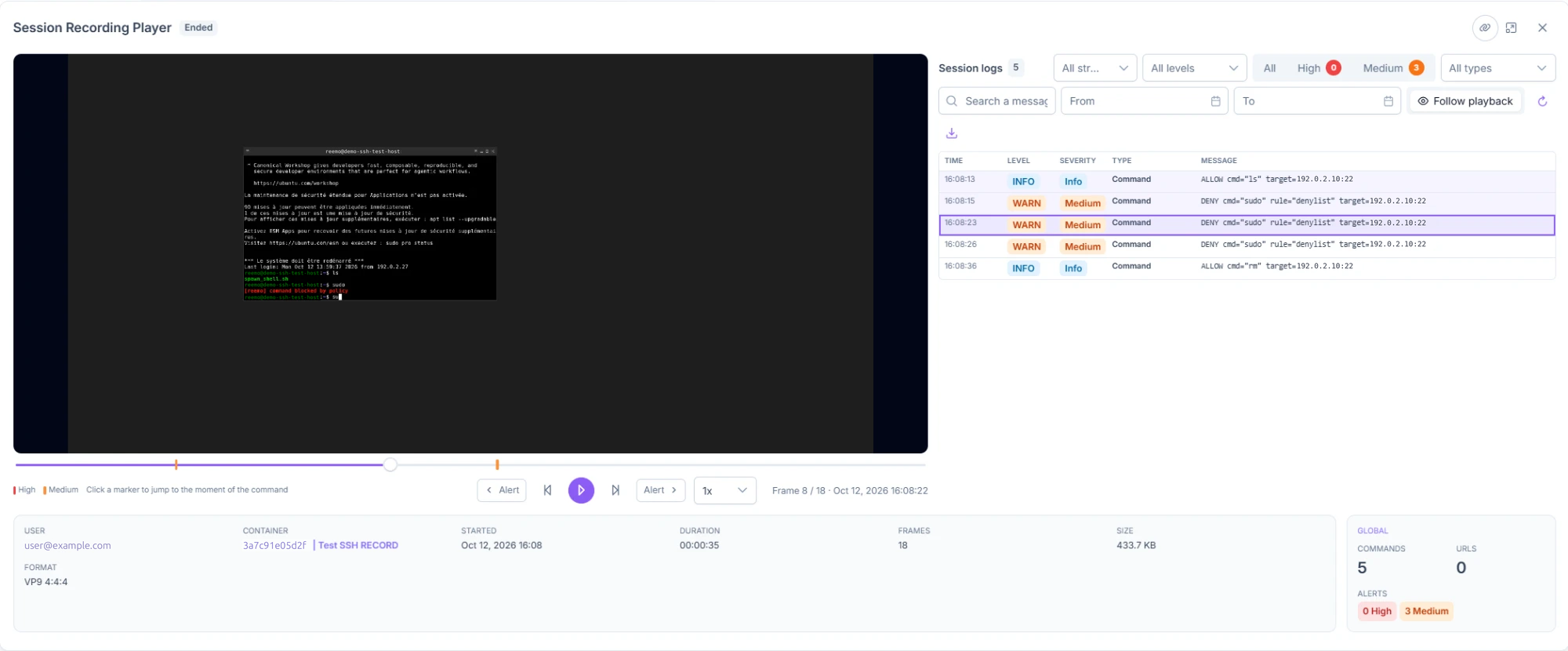
Session Recording Player.
Replay a Session
Click the play button to start, then click it again to pause.
Choose the playback speed from the list (1x by default).
If needed, move forward or back one frame with the buttons on each side of the play button, or drag the playhead along the playback bar.
Below the bar, the player shows the current frame, the total number of frames, and the timestamp (for example, “Frame 5 / 12 · Oct 8, 2026 14:37:48”).
Spot the Alerts
Find the alerts of a session with the colored markers on the playback bar. Each marker sits at the moment of an alert: red for High severity, orange for Medium. The legend below the bar explains the colors.
Hover over a marker to see its time, severity, and the start of the related command.
Click a marker to place the playhead at the moment of the command.
Click Alert (with the arrow pointing left or right) to jump to the previous or next alert.
The button is grayed out when there is no alert before or after the current position.
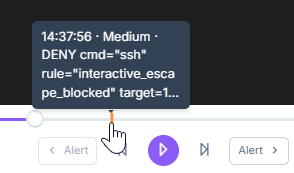
Tooltip of an alert marker: time, severity, and start of the command.
Find an Event in the Logs
In Session logs, filter the list of events (see Logs and Session Information).
Click an event to place the playhead at the moment it occurred.
Turn on Follow playback to highlight the row of the current frame during playback.
Click the refresh icon to reload the logs.
Click the download icon (Download as text) to save the session logs to a
.logfile.
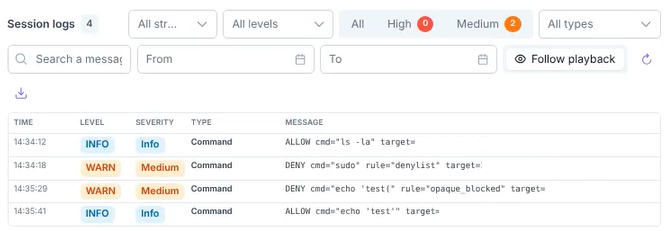
Session logs panel: filters and events.
Copy the Link of a Session
To copy the session link to the clipboard, click the link icon at the top right of the player, to the left of the expand icon.
Link icon, to the left of the expand icon and the close icon.
Stop the Container of a Live Session
To stop the container of a live session, use Stop the container. This button only appears when you watch a live session.
At the top of the player, click Stop the container.
To stop the container and block the user’s account, click the arrow on the button, then Stop and block the account.
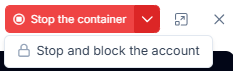
Stop the container button and the Stop and block the account option.
Logs and Session Information
Log Filters
Each log event shows its Time, Level, Severity, Type (for example URL), and Message. The number of events appears next to the Session logs title.
All streams: show only the events of one stream (Audit or Diagnostic).
All levels: show only the events of one level (DEBUG, INFO, WARN, or ERROR).
All, High, and Medium: show only the events of a given severity. A badge shows the event count for each severity.
All types: show only the events of a given type.
Search a message: filter the events by the text in their messages.
From and To: limit the events to a date range.
Session Information
Check the panel below the player for session details: User, Container, Started, Duration, Frames, Size, and video Format. The session status (for example Ended) appears next to the player title.
The Global section shows the number of Commands, URLs, and Alerts of the session. The counters match those in the sessions list. A session without alerts shows “0 alerts”.
See also
Sessions — Find a session and analyze the activity of the period.