Alert Rules
Define which security events trigger an alert, at what severity, and through which channels. For example, get alerted as soon as an administrator is created, or as soon as sign-ins fail several times in a row.
Access: verified_user Admin Area > shield Network & Security > notification_important Alerting > rule Rules.
The Rules tab lists all your rules, enabled or not, with their severity, event types, channels, and status. The description appears under the name. Filter the list by severity, event type, or status (All, Enabled, Disabled) to find the rules you need.
Create a Rule
Open verified_user Admin Area > shield Network & Security > notification_important Alerting > rule Rules, then click + New rule.
Name the rule, then choose what it watches (Event types), the Alert severity, and the Notification channels that must be notified.
Optionally, narrow the rule with a threshold, conditions, or given hours, then click Dry run to check the rule before creating it.
Click Create.
Dry run replays the rule against the last 7 days of history, including events that predate its creation. It shows the number of events analyzed, matching events, and notifications that would have been generated, a sample, and flags a truncated history if applicable. Use it to fine-tune a rule that would trigger too many alerts.
Tip
To change a rule, click Edit in its row.
To start from an existing rule, click Duplicate: the copy is created disabled.
To remove a rule, click Delete.
Create a Quick Alert from a Resource
From the Alerting tab of a resource, you can create an alert rule without opening the rule form. This is available to instance and organization administrators.
Open inventory_2 Inventory > tv Remote Desktops (or box_edit Container Profiles), select the resource, then open its Alerting tab.
Check the events you want to be alerted about: Resource access denied, Session opened on a resource, First access to a resource, or Session closed on a resource.
Optionally, choose the Quick alert channels that receive the alerts. If you choose none, the alerts stay visible in the console.
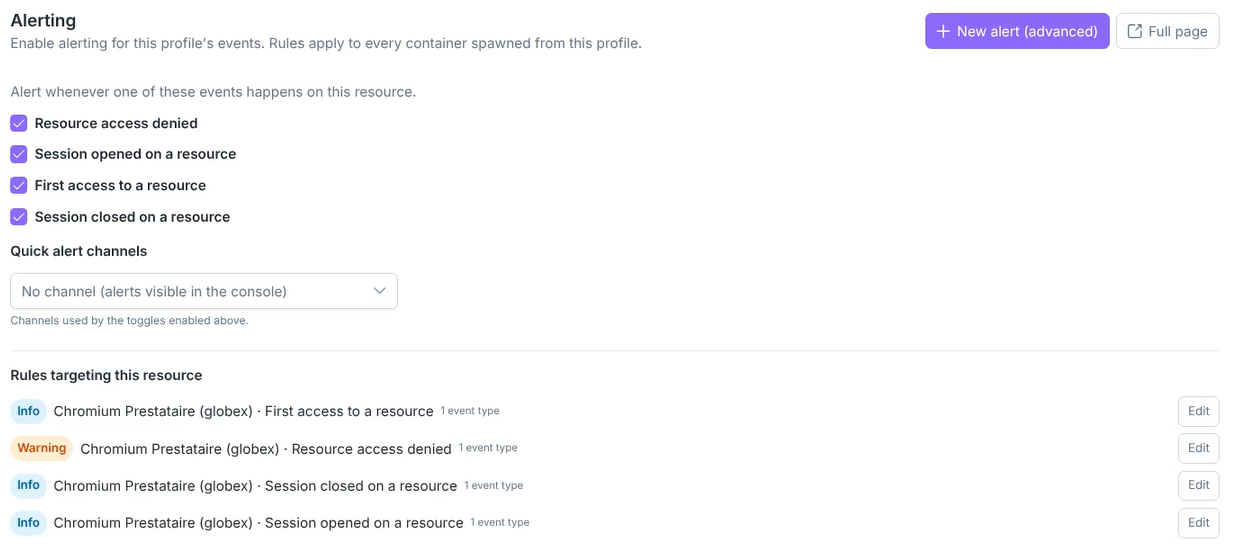
Alerting tab of a container profile: each checked event has its rule.
Each checked box creates a rule for this resource. On a container profile, the rule applies to every container of the profile. Unchecking a box deletes its rule.
The rules are listed under Rules targeting this resource and in the Rules tab. Click Edit to fine-tune one.
For a more specific rule (threshold, conditions, or given hours), click New alert (advanced): the rule form opens with the resource already targeted. Full page opens the Alerting console.
Rule Examples
These examples apply the procedure above to common needs. They use event types from the catalog.
Get Notified When an Administrator Is Created
Know right away when a new administrator account appears on your instance. This example assumes you already have an Email channel (see Notification Channels).
Click + New rule in the Rules tab.
Name the rule, for example “New administrator”.
In Event types, select Admin created. Set Alert severity to Critical, then select your Email channel in Notification channels.
Click Create.
Detect a Brute-Force Attempt
Be alerted when sign-ins fail several times in a short time, rather than on every single failure.
Click + New rule, then name the rule, for example “Repeated failed sign-ins”.
In Event types, select Sign-in failed, choose an Alert severity and your Notification channels.
Check Only alert above a threshold, then enter 5 in Occurrences and 300 in Within (seconds). Keep Counted on Per user.
Click Dry run to see how often the rule would have triggered, then click Create.
To be notified of the lockout itself, select the Bruteforce lockout event type instead.
Monitor Weekend Sign-ins
Be alerted when someone signs in on days when nobody should.
Click + New rule, then name the rule, for example “Weekend sign-ins”.
In Event types, select Sign-in succeeded, choose an Alert severity and your Notification channels.
Check Only alert during given hours, then select Sat and Sun in Days, and set From to 00:00 and To to 23:59.
Click Create.
Form Fields
Identity and Severity
Name: identifies the rule in lists. Required.
Description: document what this rule watches and why (optional). Helps you remember its purpose when reviewing later.
Alert severity: how urgent these alerts are (Info, Warning, Error, or Critical; this scale differs from the 3 levels of Security Logs). Warning by default.
Cooldown (seconds): how long an alert stays quiet after it notifies, even if more matching events occur, to avoid a flood of identical messages. 300 by default.
Events and Channels
Event types: which events trigger this rule (for example, “Sign-in failed” or “Admin created”). Required. See the event catalog.
Targeted organizations (instance rules only): send alerts only for these organizations. Leave empty to monitor all organizations.
Targeted resources (organization rules only, shown for resource-related event types): send alerts only for these machines or Composites. Leave empty to monitor all resources.
Notification channels: where to send alerts from this rule (Email, Slack, in-app, etc.). A channel only receives alerts matching its minimum severity. See Notification Channels.
Trigger Options
These options are all optional. Each one is turned on by a checkbox, and its fields appear once it is checked.
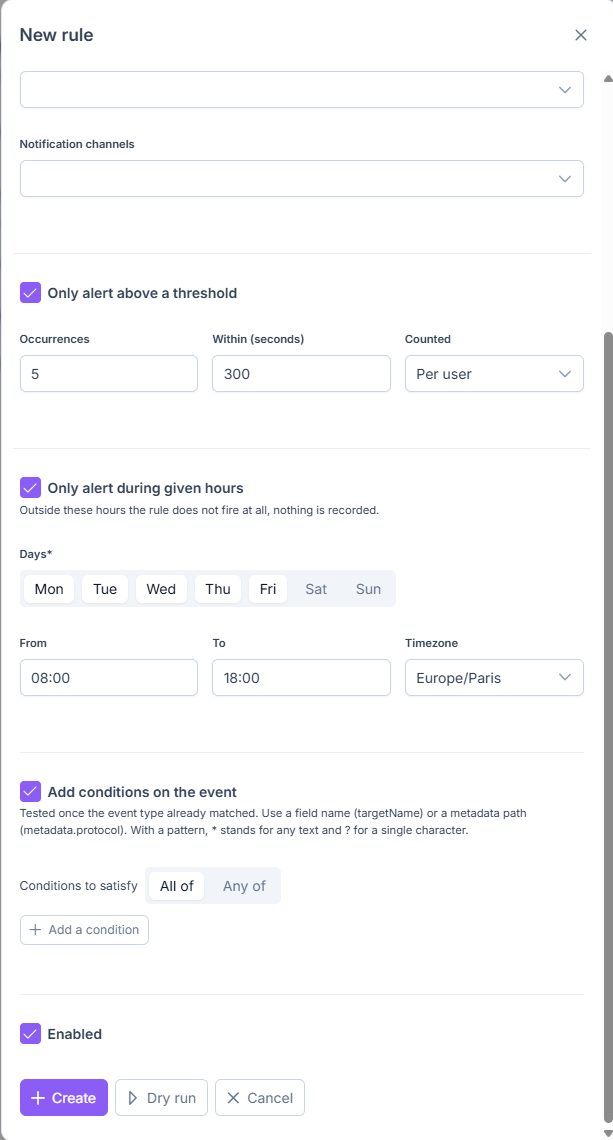
Trigger options: threshold, given hours, and conditions.
Only Alert Above a Threshold
Avoid being alerted for an isolated event: the rule alerts only after several occurrences. For example, 5 failed sign-ins in 5 minutes help spot a brute-force attempt.
Occurrences: number of occurrences to reach. 5 by default.
Within (seconds): length of the sliding window in which these occurrences must happen. 300 by default.
Counted: what is counted: Per user (default), Per target, Per organization, or Globally. Counting per user keeps each user’s failures separate: five failed sign-ins from five different users do not add up to one count.
Add Conditions on the Event
Narrow the rule so that it reacts only to certain events of the chosen type. Conditions are checked once the event type already matches.
Conditions to satisfy: All of (every condition must be true) or Any of (at least one).
Each condition combines a field, an operator, and a value. Use an event field or a metadata path, for example
metadata.protocol.The operator compares the field with the value: is, is not, contains, does not contain, starts with, ends with, matches the pattern, does not match the pattern, is one of, is none of, is present, is absent, is greater than, or is less than. With is present or is absent, no value is needed.
A condition takes a single value: a comma does not separate several values. To test several values, add one condition per value and choose Any of.
In a value,
*stands for any text and?for a single character.
The available fields are action, instigatorEmail, organizationName, targetType, targetName, targetLinkedType, targetLinkedName, and any metadata.<path>.
The metadata are the same as those shown in the Security Logs: click the details icon of an event to see them. Write the path with dots to reach a nested value. For example, metadata.role.new is ADMIN keeps only the events where the new role is ADMIN.
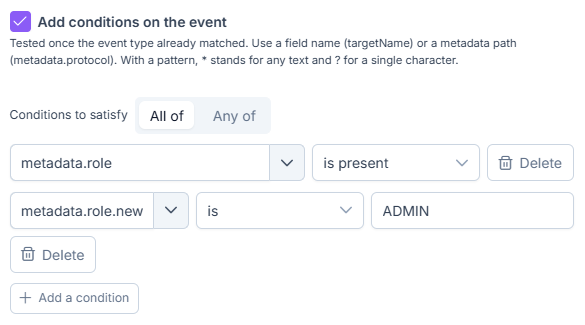
Two conditions: a metadata path that must be present, and a nested path compared with a value.
Only Alert During Given Hours
Limit the rule to certain days and hours. Outside this range, the rule does not trigger at all and nothing is recorded.
Days: days on which the rule is active. Required.
From / To: start and end hours.
Timezone: timezone in which these hours are read.
Status
Enabled (checkbox): turns the rule on or off without deleting it. Enabled by default.