Alerts
Review the alerts that were generated, understand the event that triggered them, and follow each one through to its resolution.
Access: verified_user Admin Area > shield Network & Security > notification_important Alerting > notifications_active Alerts.
Handle an Alert
In the Alerts tab (a badge shows the number of unresolved alerts), click an alert to open its detail.
If needed, choose who takes care of it in Assigned to and add a Handling note.
Click Acknowledge or Resolve.
An alert moves from New to Acknowledged, then Resolved. Each action has a precise meaning:
Acknowledge shows the alert has been seen and is being handled, without closing it. The detail then shows who acknowledged it.
Resolve closes the alert once the underlying problem has been dealt with.
Close goes back to the list without changing anything.
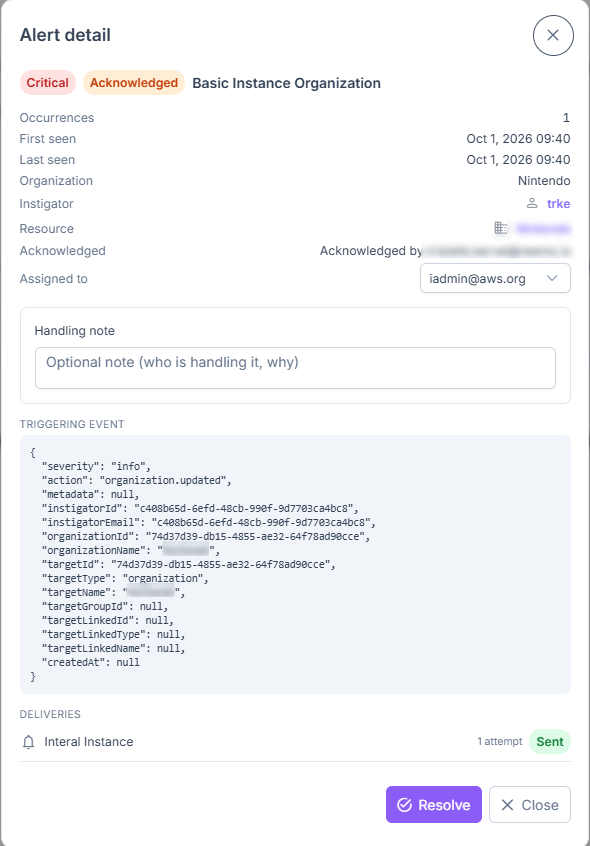
Detail of an acknowledged alert.
Handle Several Alerts at Once
In the list, check the alerts you want to handle.
In the bar that shows the number of selected alerts, click Acknowledge or Resolve.
The action applies to every selected alert.
Export Alerts
Apply the filters you need.
Click Export, then choose CSV or JSON.
The export is capped at 10,000 rows, and truncation is flagged explicitly.
Filters
Narrow the list by Severity, Status, Rule, Event type, Period, Instigator, or Resource. The Instigator field autocompletes on username, name, or email, as in Security Logs. It filters by identifier, so it stays compatible with log anonymization.
Click Refresh to reload the list. To reset the filters, click Clear filters (visible as soon as a filter is applied).
Alert Detail
If a maintenance window suppressed the notifications, a banner at the top of the detail names it. The detail recaps the number of Occurrences, the dates (First seen, Last seen), and the context of the event (Organization, Instigator, Resource, clickable as long as the object exists). It also includes:
Acknowledged: once the alert is acknowledged, who took it in charge.
Assigned to: who handles the alert (nobody by default). Only accounts that can act within the alert’s scope are proposed (instance administrators, or organization owners and admins).
Handling note: an optional note, sent with the acknowledgment or the resolution and kept afterwards with the alert and its author.
Triggering event: the raw event that produced the alert, useful for in-depth troubleshooting.
Deliveries: attempts and status per channel, with the failure reason when a delivery failed. If a maintenance window suppressed the notifications, the section says the alert was not routed to any channel.
When Does an Alert Notify?
Not every event sends a message. An alert notifies its channels according to these principles:
Repeated occurrences of the same alert are grouped: they update Occurrences and Last seen instead of creating a new alert.
After it notifies, an alert stays quiet for the Cooldown (seconds) of its rule.
A channel ignores alerts below its Minimum severity.
During a maintenance window, alerts are recorded but no channel is notified.