Configure File Transfer
The File Transfer feature allows users to exchange files between their local machine and a container during an active session. It is configured at the container profile or organization level, and supports independent upload and download controls, file type restrictions, size limits, and log anonymization.
Access: inventory_2 Inventory > box_edit Container Profiles > Edit a profile > File Transfer step.
Configuration Options
Each setting uses a dropdown with three states:
Enabled: The setting is active for this profile.
Enabled (Organization): The setting is active and inherits the configuration defined at the organization level.
Disabled: The setting is turned off for this profile.
Some settings reveal additional sub-options when set to Enabled.
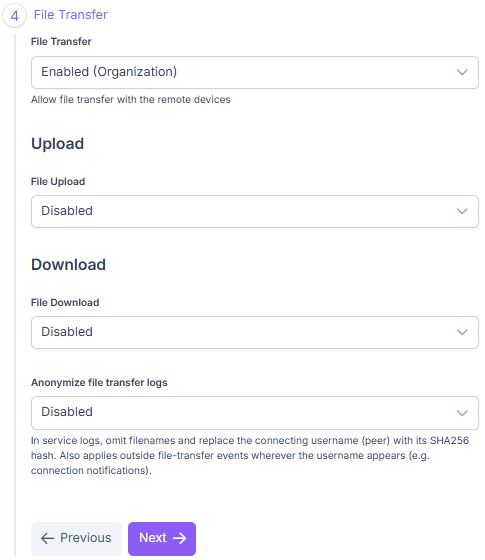
File transfer configuration in a container profile.
Note
Enabling File Transfer reveals the Upload and Download sections but does not activate them. Upload and Download must each be enabled individually to take effect.
Upload
File Upload: Enables or disables file upload for users of this profile.
File types Whitelist: Restrict uploads to specific file types. When set to Enabled, the organization-level list of authorized types applies automatically.
Override allowed file types (checkbox): When checked, replaces the organization-level list with a custom selection. Use the dropdown that appears to select the authorized file types for this profile.
Limit Upload Size: Restrict uploads by file size. When set to Enabled:
Override Max Upload Size (1 MB) (checkbox): Override the organization-level size limit. When checked, specify the maximum file size per upload (in MB).
Download
File Download: Enables or disables file download for users of this profile.
File types Whitelist: Restrict downloads to specific file types. When set to Enabled, the organization-level list of authorized types applies automatically.
Override allowed file types (checkbox): When checked, replaces the organization-level list with a custom selection. Use the dropdown that appears to select the authorized file types for this profile.
Limit Download Size: Restrict downloads by file size. When set to Enabled:
Override Max Download Size (1 MB) (checkbox): Override the organization-level size limit. When checked, specify the maximum file size per download (in MB).
Log Anonymization
Anonymize file transfer logs: In service logs, omits filenames and replaces the session user with their SHA256 hash. Also applies outside file-transfer events wherever the username appears (e.g., connection notifications).
User Workflow
Once enabled in the container profile, file transfer is accessible via the Reemo toolbar during an active session.
Files are exchanged through the /home/reemo/Downloads directory inside the container.
File Transfer Mechanism
Files in the /home/reemo/Downloads directory appear automatically in the File Transfer menu of the Reemo toolbar as available downloads.
Conversely, when you upload a file via the toolbar, it is automatically saved to the same directory.
Warning
The /home/reemo/Downloads directory is ephemeral: its contents are permanently lost when the container stops.
Users must download any files they need to their local machine before ending their session.
Note
Transfers are subject to the restrictions configured in the container profile (allowed file types, size limits). A transfer that exceeds the configured limit or uses a non-allowed file type will be rejected.
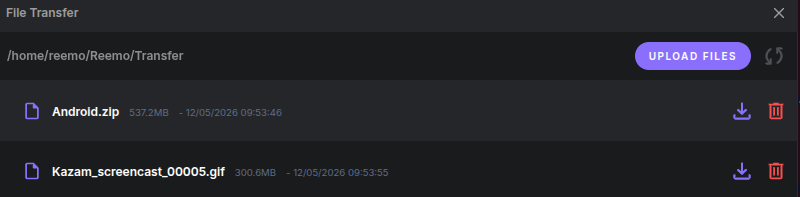
File transfer menu in the Reemo toolbar.
To upload a file (local machine → container):
During an active container session, open the File Transfer menu in the Reemo toolbar.
Select the file(s) to upload from your local machine.
The uploaded files appear in the
/home/reemo/Downloadsdirectory inside the container.
To download a file (container → local machine):
In the container, move or save the file(s) you want to retrieve to
/home/reemo/Downloads.Open the File Transfer menu in the Reemo toolbar.
The files stored in
/home/reemo/Downloadsappear in the menu. Select the file(s) to download. They are saved to your local machine’s default download folder.
To delete a file:
Open the File Transfer menu in the Reemo toolbar.
Click the delete button (
 ) next to the file.
Confirm the deletion in the dialog that appears.
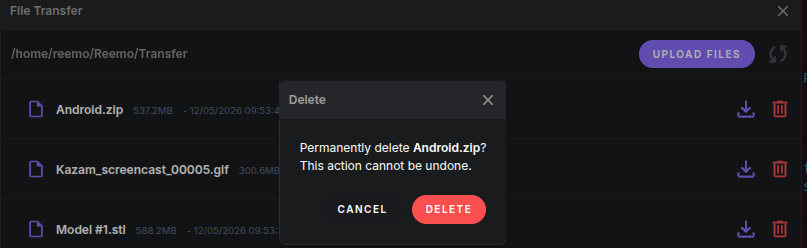
Delete confirmation dialog.