Session Recordings
Replay the container sessions recorded on your instance and spot sensitive commands at a glance.
Access: verified_user Admin Area > shield Network & Security > videocam Session Recordings.
Each recorded container session is stored as screen frames and logs (commands entered, URLs visited).
Note
Session recording relies on the Record API service, which is enabled when the infrastructure is deployed. See Record API.
Choose the Period to Analyze
Choose a period at the top of the page. The summary, the list of sessions, and the statistics apply to that period.
Click 24 h, 7 days, 30 days, or 90 days, or enter a Custom range.
To shift the period, click the arrow toward the past or toward the future. The arrow toward the future is grayed out when the period ends at the present moment.
To widen the period, click the magnifying glass icon.
Click Refresh to reload the data.
Shift the period toward the past or the future, or widen it.
Period Summary
Click a card in the period summary above the tabs to filter the content displayed. The exception is Live sessions.
Live sessions: number of sessions being recorded and number of provision nodes involved.
Recorded sessions: number of sessions recorded during the period, total recorded duration, and change compared with the previous period. The “opened in the period” mention counts only the sessions that started during the period; the others started earlier (for example the day before) and continued.
Commands: number of commands entered, number of sessions involved, number of URLs visited, and change compared with the previous period.
Alerts: number of alerts by severity (high, medium), number of alerts to review (those whose session has not been opened since), and change compared with the previous period.
Storage: storage mode (for example SMB), percentage of space used, and amount used out of the total.
Spot the Sessions to Review
Start with the period summary, which shows the state of the period at a glance.
Read the Commands and Alerts cards to gauge the sensitive activity of the period.
Click the Alerts card to filter the list to the sessions that contain alerts.
Open a session in the player (see Sessions).
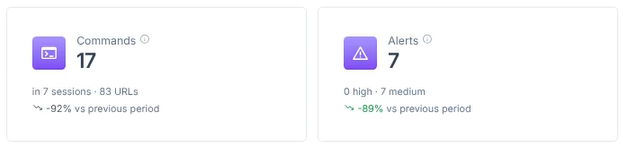
Commands and Alerts cards of the period summary.
Export the Data
Export the list of sessions or the data of the selected period. Each export is a CSV file.
To export the list of sessions, click Export the list.
To export the data of the selected period, click Export all.
Available Tabs
video_library Sessions: find the recorded sessions, view their statistics, and open the player. See Sessions.
hard_drive Storage & status: monitor disk usage, the status of the recording service, and consumption. See Storage & Status.
To replay a session, see Session Recording Player.