Advanced Appliance Deployment
This mode separates the Connector part (management) from the Provisioning part (execution). Ensure you have validated the hardware and network prerequisites before starting.
Step 1: Installation of the orchestration environment
Install and configure your orchestration server/cluster using Kubernetes or Docker Swarm.
Manage or generate an SSL key pair (certificate and private key) dedicated to communication between the Connector and the Provisioning part (your orchestration environment).
Ensure these certificates are in the format expected by your infrastructure (Kubernetes Secrets, Docker Swarm Configs, or local files).
Step 2: Create the provider in the interface
From the Instance Administration Console, go to Container providers.
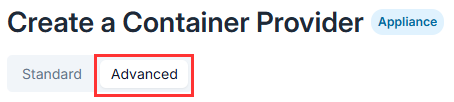
Click on New provider > Appliance mode provider and activate the Advanced mode.
Fill in the necessary information, such as the name and visibility of the provider, then click Next.
In the Configuration section, set up the connection according to your architecture:
If you are using certificate authentication, enable the option and then choose:
Use an existing certificate: select a certificate already registered in the portal.
Specify a certificate: fill in the three fields Key, Certificate, and CA using the elements from the key pair generated in the previous step.
Disable certificate verification: check this box only if the mTLS connection cannot be established.
If you are using the Docker socket: fill in the connection URL and the Server Name.
(Optional) If you have enabled other specific settings (such as custom signaling servers), click Next again and follow the interface prompts to configure these additional screens.
Click Create to validate.
Step 3: Retrieve the configuration file
Open the newly created provider’s page.
Click the Generate appliance configuration button.
(Optional) Provide a custom certificate in the modal if your company requires it.
Click Download. The
config.jsonfile will download to your workstation.Copy this file to the Connector machine.
Forward the necessary configuration information to your Provisioning environment (Cluster or orchestration machine).

Step 4: Verify connectivity on the servers
From the Connector:
# Connectivity to the Reemo portal
curl -k --connect-timeout 5 https://< PORTAL URL >:8444/
From the Provision machine or cluster (the Provisioning environment):
# Connectivity to the Reemo portal
curl -k --connect-timeout 5 https://< PORTAL URL >:8443/

# Connectivity to the registry
curl -I --connect-timeout 5 https://registry.reemo.io/v2/

# Connectivity to TURN (if using direct WebRTC mode)
nc -zv turn.cloudflare.com 3478
If any of these commands fail (timeout), fix your firewall before proceeding.
Step 5: Run the installation
Execute the script on the Connector by pointing to your configuration file:
curl -fsSL https://download.reemo.io/appliance/appliance.sh | sudo bash -s -- \
  -u YOUR_USERNAME \
  -p YOUR_PASSWORD \
  -c config.json \
  install
These credentials must be inserted into your Provisioning environment; they will allow the retrieval of sandbox images (chromium, ssh, etc.) from the Reemo registry.
Step 6: Verification
Once the installation is complete, check the service status on your hosts:
sudo bash appliance.sh status
You should see all three services in a running state:
[✓] applianceprovision : running ✓
[✓] applianceproapi    : running ✓
[✓] applianceproxy     : running ✓
Your appliance will also appear as active in the Reemo portal.
Next step: Operations and Maintenance
Now that your appliance is functional, consult the maintenance guide to manage its lifecycle (updates, logs, advanced options).