Create a Direct Container Provider
Access: verified_user Admin area > view_in_ar Containers & Workstations > dns Container Providers.
Click New provider > Direct provider.
Fill out the provider details by referring to the Configuration Fields section below.
Configure your endpoints by referring to the Cluster Configurations section below.
Save your provider.
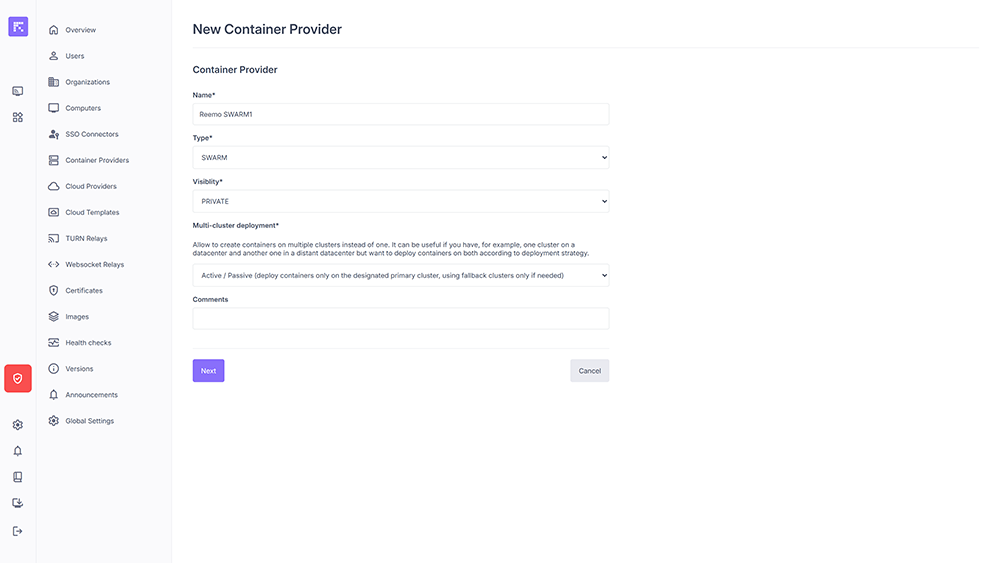
Container Provider creation form
Configuration Fields
Name: provider name.
Type: choose SWARM or KUBERNETES.
Visibility: Public or Private.
Multi-cluster deployment: enable or disable multi-cluster management (Active/Passive or Active/Active mode).
Comments: administrative notes.
Tags: comma-separated keywords used to filter the portal display via the CONTAINER_PROVIDERS_TAGS variable.
Official: indicates a Reemo-managed provider. This setting can only be modified by a Reemo administrator.
Use for workspace services: reserves this provider exclusively for deploying video conferencing services (Jitsi). It cannot be used to launch user containers (RBI, Bastion, etc.).
Virtual: indicates the provider is not linked to real infrastructure (no underlying Swarm or Kubernetes cluster). This mode is used for deploying file servers.
Cluster Configurations
You can deploy containers on a simple cluster or by using a multi-cluster configuration. A multi-cluster configuration allows you to create containers on multiple clusters instead of just one. This can be useful if, for example, you have a cluster in one datacenter and another in a remote datacenter, but you want to deploy containers on both depending on the deployment strategy.
Simple cluster: Deploys containers only on this cluster.
Multi-cluster Active/Passive: Deploys containers only on the designated primary cluster, using the other clusters as a fallback if necessary.
Multi-cluster Active/Active: Deploys containers randomly across multiple clusters.
URL: API access point of the cluster. It can be an internal address or a public DNS name. In the latter case, an Ansible installation of the infrastructure will be required.
Server Name (SNI): optional field corresponding to the Common Name of the provider environment SSL certificate.
Cert Auth: enables certificate-based authentication, if required.
- Certificate:
Use an Existing Certificate: allows selecting an existing certificate from the Certificates module.
Specify a certificate: allows manually entering the KEY, CERT, and CA contents.
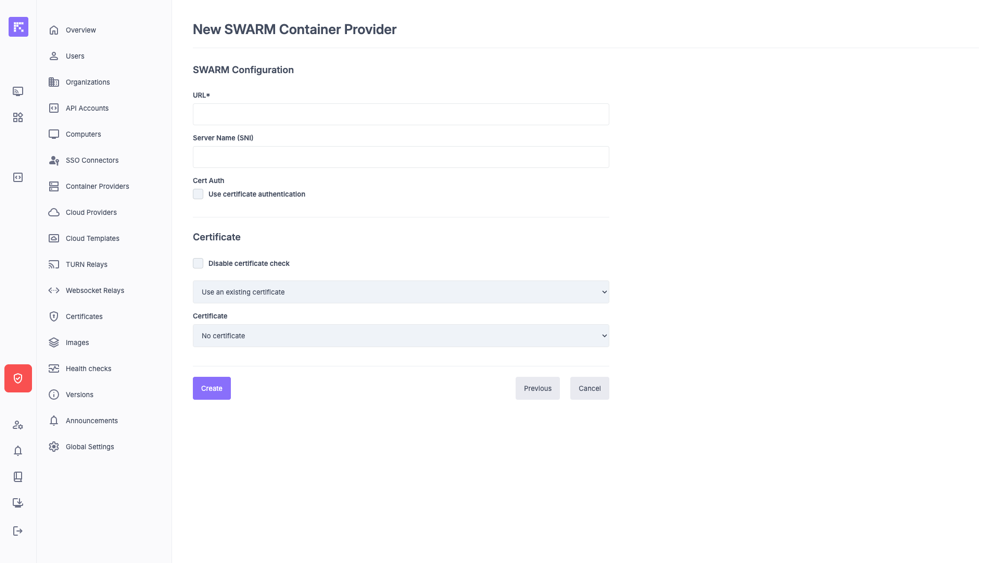
Example of a SWARM cluster configuration
URL: API access point of the cluster. It can be an internal address or a public DNS name. In the latter case, an Ansible installation of the infrastructure will be required.
Server Name (SNI): optional field corresponding to the Common Name of the provider environment SSL certificate.
NAMESPACE: namespace used for deployments.
Cert Auth: enables certificate-based authentication, if required.
- Certificate:
Use an Existing Certificate: allows selecting an existing certificate from the Certificates module.
Specify a certificate: allows manually entering the KEY, CERT, and CA contents.
Add Cluster: allows adding a new cluster to the provider (option available only if multi-cluster mode is enabled).
Master cluster: field visible only when Active/Passive multi-cluster mode is enabled. It defines the main (master) cluster used for deployments. Other clusters will be considered secondary (fallback) and used only if the main cluster is unavailable.
Cluster name: internal identifier of the cluster (displayed only if multi-cluster mode is enabled).
URL: API access point of the cluster. It can be an internal address or a public DNS name. In the latter case, an Ansible installation of the infrastructure will be required.
Server Name (SNI): optional field corresponding to the Common Name of the provider environment SSL certificate.
Cert Auth: enables certificate-based authentication, if required.
- Certificate:
Use an Existing Certificate: allows selecting an existing certificate from the Certificates module.
Specify a certificate: allows manually entering the KEY, CERT, and CA contents.
Remove the Cluster: removes the cluster (option available only if multi-cluster mode is enabled and at least 2 clusters are configured).
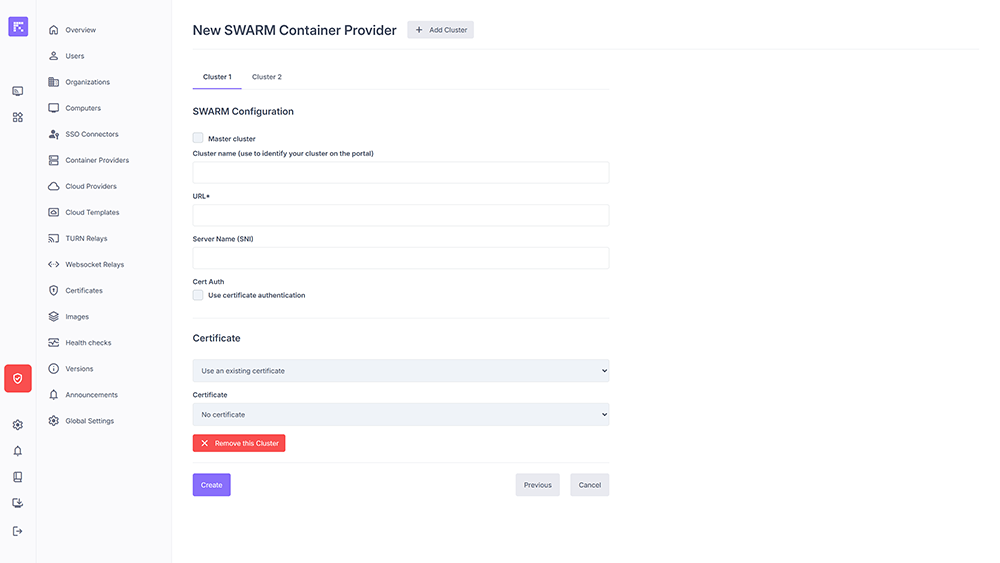
Example of a SWARM cluster configuration in multi-cluster mode
Add Cluster: allows adding a new cluster to the provider (option available only if multi-cluster mode is enabled).
Cluster name: internal identifier of the cluster (displayed only if multi-cluster mode is enabled).
URL: API access point of the cluster. It can be an internal address or a public DNS name. In the latter case, an Ansible installation of the infrastructure will be required.
Server Name (SNI): optional field corresponding to the Common Name of the provider environment SSL certificate.
NAMESPACE: namespace used for deployments (only applicable for Kubernetes).
Cert Auth: enables certificate-based authentication, if required.
- Certificate:
Use an Existing Certificate: allows selecting an existing certificate from the Certificates module.
Specify a certificate: allows manually entering the KEY, CERT, and CA contents.
Remove the Cluster: removes the cluster (option available only if multi-cluster mode is enabled and at least 2 clusters are configured).
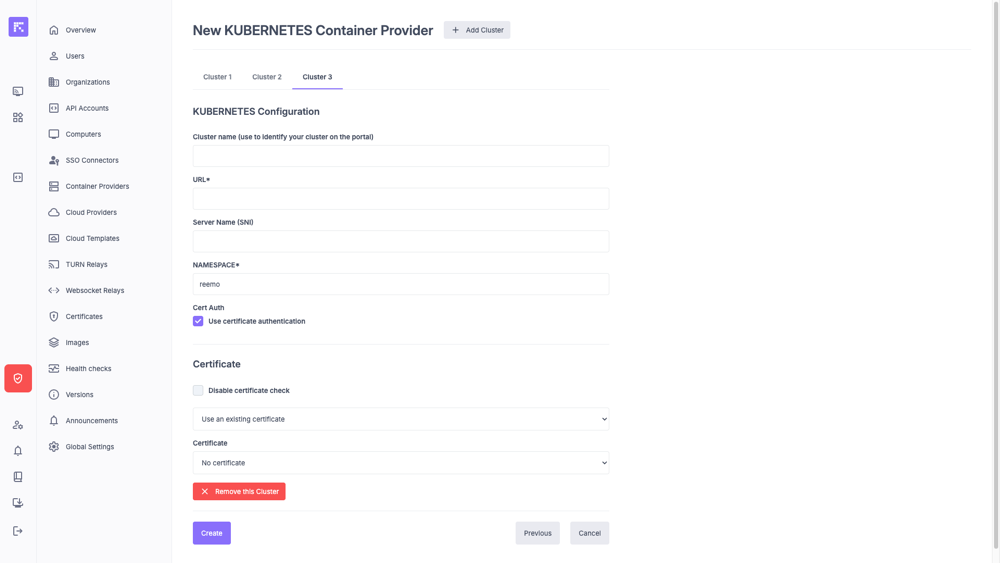
Example of a KUBERNETES cluster configuration in multi-cluster mode
See also
Configure Container Providers: overview and concepts.
Manage Provider Resources: to manage nodes, secrets, and images.
Provision the Appliance: for hybrid deployment.