Configure Credential Providers
Securely store and inject passwords and SSH keys into your remote sessions using a Vault-compatible backend.
Credential management allows you to hide credentials from end users and automate logins for Web interfaces (RBI) or servers (Bastion).
Accessing Credential Providers
Navigate to the verified_user Admin Area > key Credentials and select enhanced_encryption Credential Providers.
The page displays a list of your vaults and their current lock status.
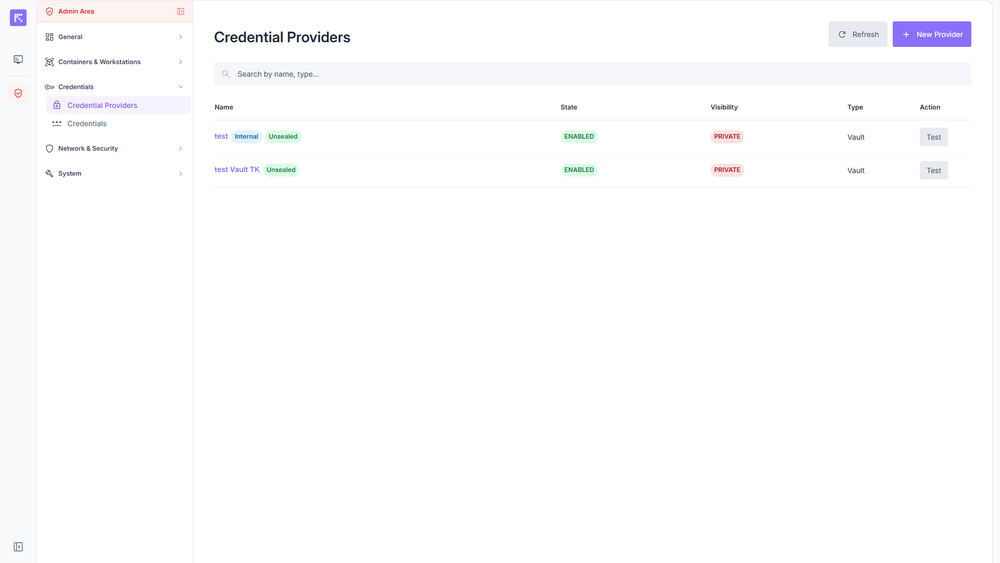
General view of credential provider management.
Configuring a Credential Provider
Connect Reemo to a Vault instance to host your credentials.
On the Credential Providers page, click New Provider.
Choose the tab corresponding to your infrastructure:
Use the Vault instance natively managed by Reemo.
Enter the Name.
Choose the Visibility:
Public: Available to all organizations.
Private: Must be explicitly assigned to specific organizations.
Check the Internal Vault box.
Click Create.
Connect Reemo to your own Vault instance (OpenBao or Hashicorp Vault).
Enter the Name and Visibility (Public or Private), then click Next.
Enter the server URL and the Token.
(Optional) Configure the TLS certificate if required by your infrastructure.
Click Create.
Unsealing and Testing the Vault
Make the vault operational if it is locked due to a restart or a security policy.

Locate the Sealed (red) status on your provider.
Click Unseal and enter your Unseal key. Repeat this process if multiple keys are required by your security configuration.
Once the status turns to Operational (green), click Test.
Tip
Hovering over the tag displays the unseal progress (e.g., “Threshold 3 - Shares 5 - Remaining 2”).
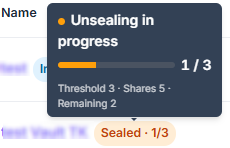
A Success tag confirms that the connection between Reemo and the vault is active.

Defining and Mapping Credentials
Create your credentials and map them to your organizations or container profiles.
Creating a Credential
From the providers list, click the name of your vault, go to the Credentials tab, then click New Credential. Follow the same steps as Create a Credential — the Provider field will be pre-filled automatically with this vault.
Mapping a Private Provider to an Organization
If you configured your provider or credential as Private, you must explicitly authorize it for the target organization.
Note
Ensure that your credential provider is currently enabled before attempting to map it.
Navigate to verified_user Admin Area > dashboard General > domain Organizations and select the target organization.
Go to the admin_panel_settings Administration tab > enhanced_encryption Credential Providers.
Click Add Private Provider.
Select the provider from the pop-up window, then click Save.
See also
Assign a Credential to a Container Profile — as an instance administrator, go to Organizations > select the relevant organization first, then follow the same steps.
Managing a Credential Provider
To edit, enable/disable, or delete a provider, click its name in the Credential Providers list.
Warning
Deleting a provider is permanent. Two conditions will block deletion:
One or more credentials are linked to the provider — delete all credentials associated with this provider first.
A container profile uses a credential from this provider — dissociate the credential from the profile first, then delete the credential.
Once both conditions are resolved, deletion becomes possible.
Edit: Click Edit to change the name, visibility, or connection settings.
Status: Use the Enable or Disable buttons to change the provider’s availability.
Delete: Access the Delete tab and confirm the action.