Image Details
An image’s detail page includes an action bar and several tabs. Create editable variables to give flexibility to organization administrators, and reserve static variables for technical parameters. Use the UI Priority field to logically order options in the form. Assign each image to a provider to make its execution possible, and use image links to model complex multi-container environments.
Actions and Tabs
Update Configuration: reloads the image configuration from the registry.
Duplicate: creates a copy of the image.
Export: generates the image’s JSON file (see Container Images).
Enable / Disable: toggles the image’s availability.
Edit: modifies the image’s general information.
The Links, Providers, and Delete tabs respectively let you manage links between images, provider assignment, and image deletion (see the corresponding sections below).
The image profile (Template tab) groups its general information: registry reference, state, comments, and creation and update dates, as well as its configuration variables, which customize the container’s behavior and define the form presented to organization administrators. See Configuration Variables for the full list of fields, their options, and concrete examples.
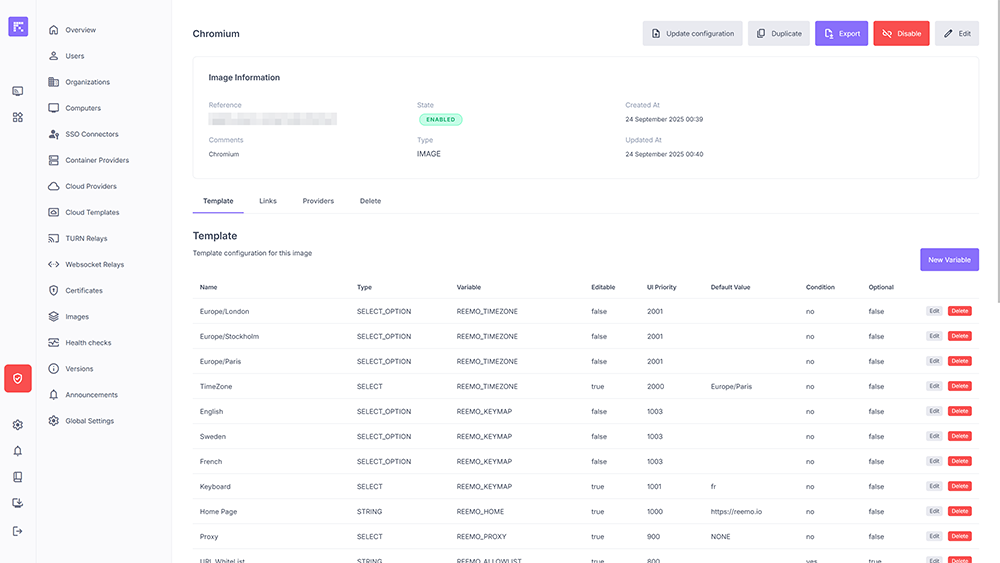
Detailed profile of a container image.
Image Links
It is possible to link an image to other images. When a container is launched from this image, the linked containers will automatically be deployed in parallel.
This is particularly useful if the main container requires dependencies (e.g., a database, an auxiliary service).
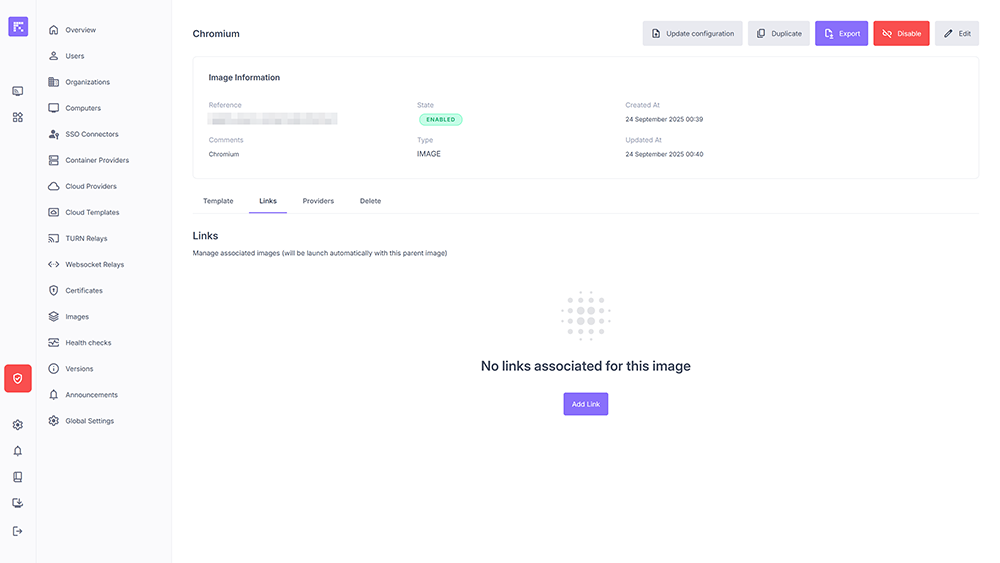
Managing image links.
Assigning to a Provider
An image must be assigned to a container provider (Swarm or Kubernetes) to be usable. The provider is responsible for deploying containers based on this image, also considering placement constraints.
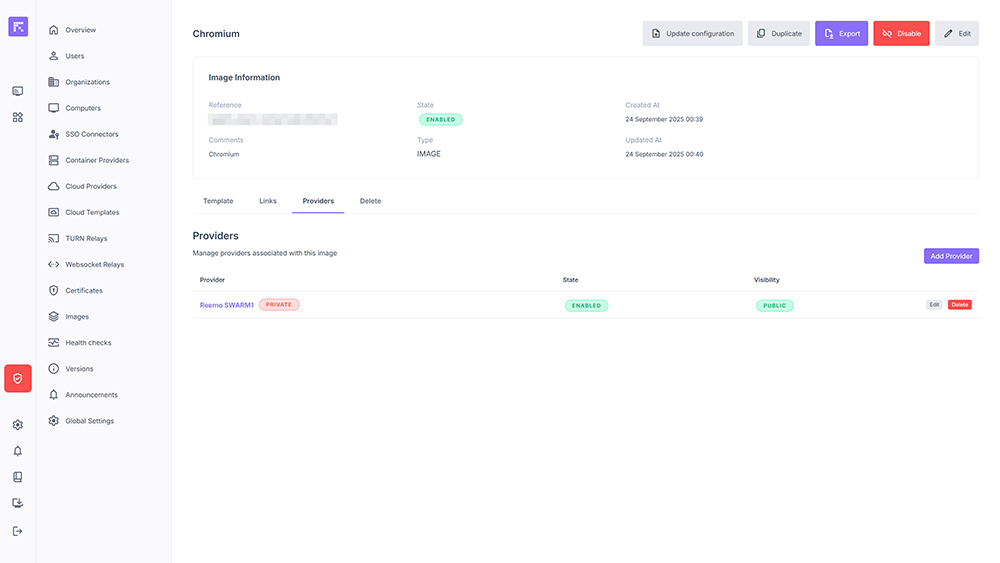
List of providers associated with an image.
During assignment, you define:
Provider: target infrastructure (Swarm/Kubernetes).
State: Enabled or Disabled.
Visibility: Public (usable by all organizations) or Private.
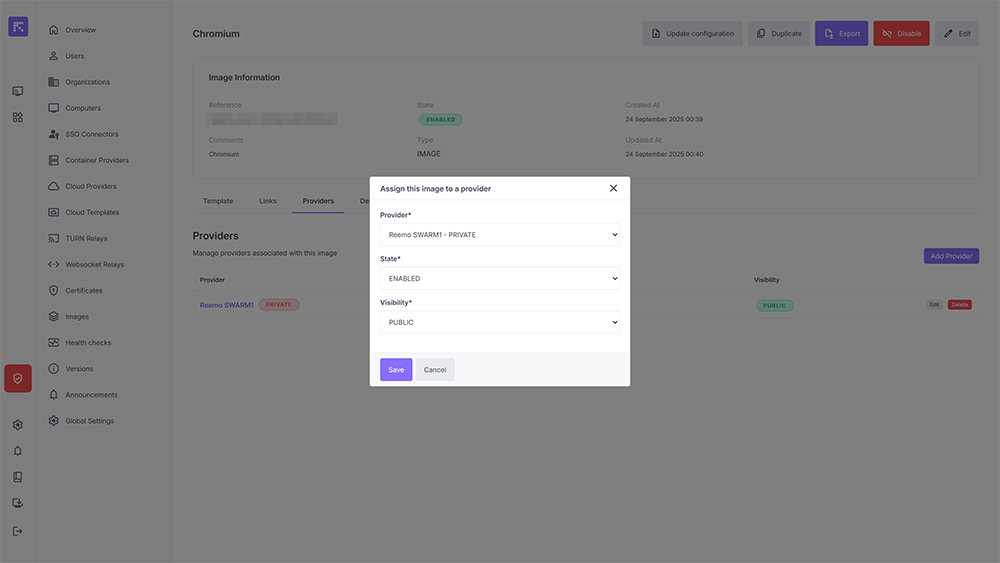
Window for assigning an image to a provider.