Manage Workstations
The Remote Desktops section lists your organization’s computers and lets you view their status, assign users, and edit their information.
Access: inventory_2 Inventory > tv Remote Desktops.
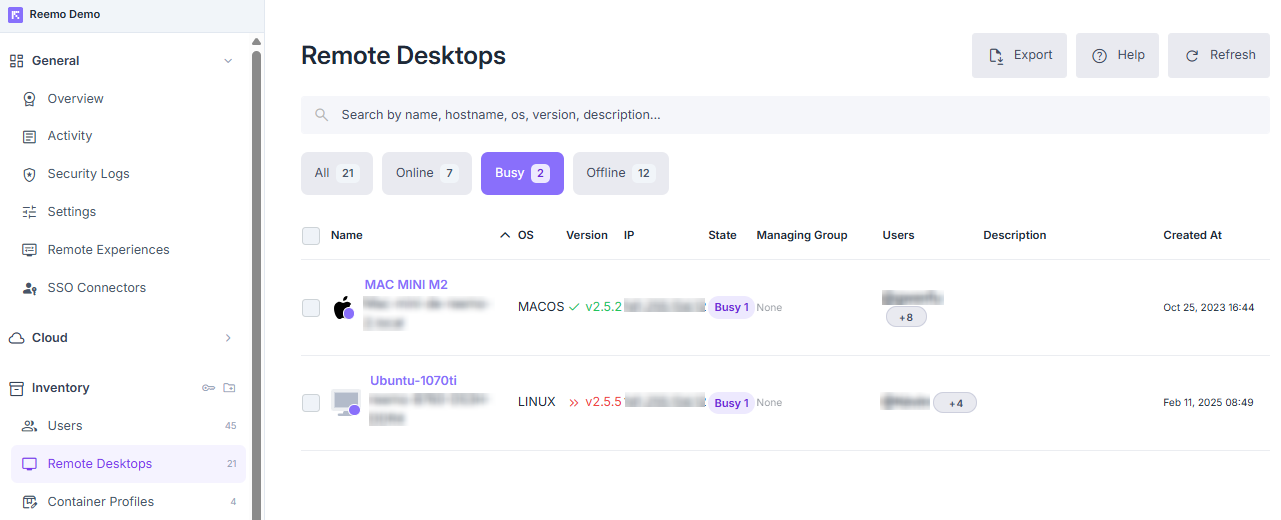
Overview of remote desktops.
The columns display:
Name and Hostname
OS and version
IP address
Status (Online, Offline, Busy)
Associated group
Assigned users
Creation date
View a Computer Profile
Access: inventory_2 Inventory > tv Remote Desktops > computer name.
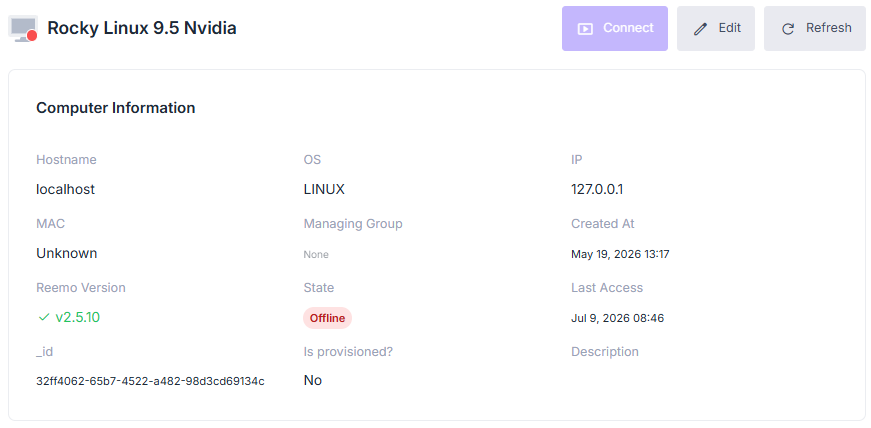
Computer profile showing main information.
The profile displays the machine’s status in real time (Online, Offline, Busy — session in progress), Last access, and Managing Group.
Available actions
Connect — opens a remote session to this workstation (only available when the machine is Online).
Edit — modify the name or MAC address. Click Update to confirm.
Refresh — updates the machine’s information and status.
Available tabs
Users: users assigned to this workstation — see Assign Users to a Computer below.
Groups: groups associated with this workstation.
Collections: collections associated with this workstation — see Collections.
Sessions: remote session logs — see Activity (Sessions).
Rights Review: access tree for this workstation — see Rights Review.
Security Logs: history of security events related to this workstation.
Delete: permanently deletes this workstation.
Assign Users to a Computer
Open the computer’s profile.
In the Users tab, click Assign users.
Select one or more users in the selection window.
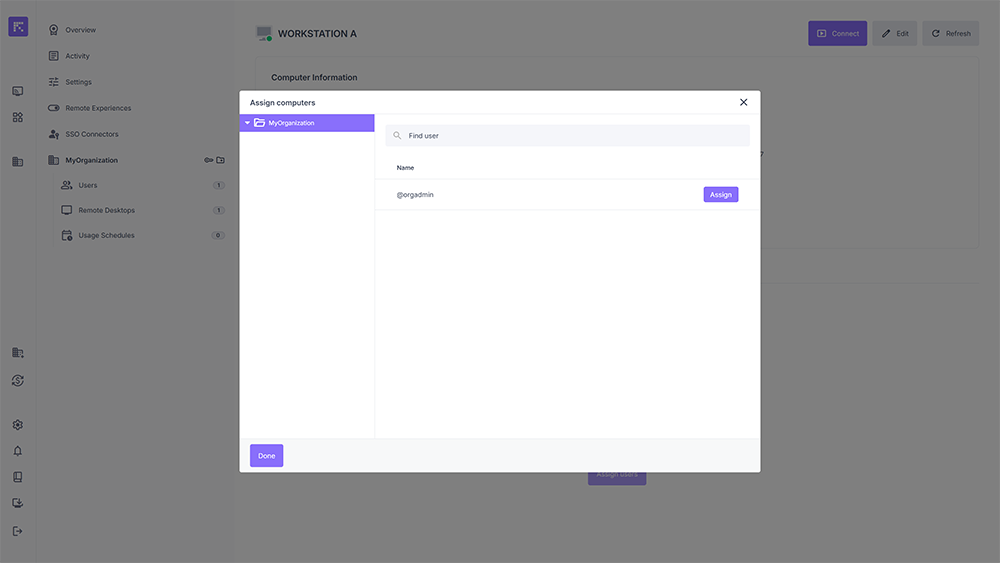
User selection window for assignment.
Click Assign, then close the window.
The assigned users now appear in the computer’s Users tab.
See also
Rights Review — Visualize which users and collections have access to a remote desktop.