Container Images
Managing container images is an essential feature for instance administrators. It allows importing, configuring, and assigning images to container providers (Swarm or Kubernetes) in order to provide ready-to-use working environments for organizations. Remember to always manually enable an image after import to make it available.
Overview of Images
The list of available images is accessible through the Images menu. Each imported image appears with its status, type, and configuration.
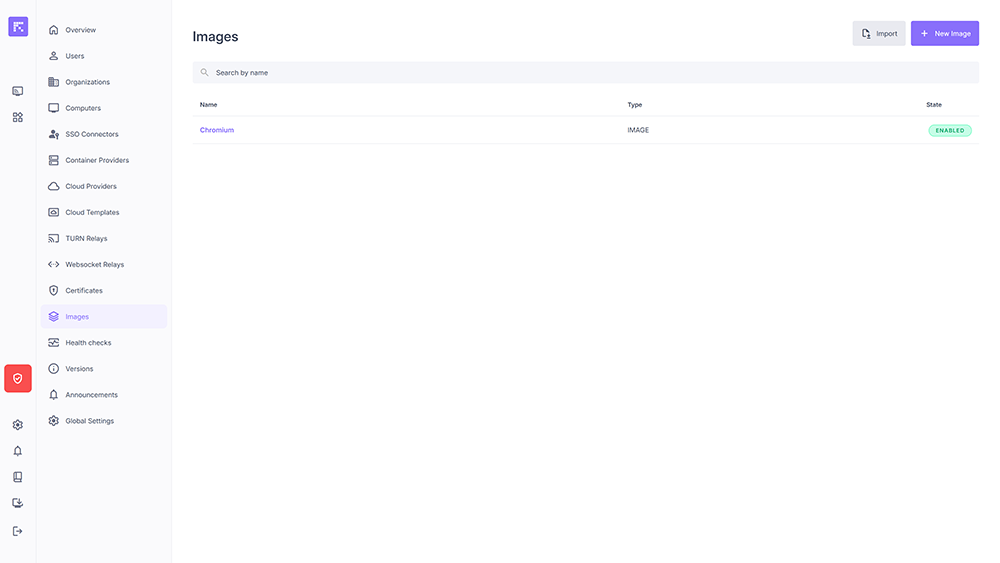
List of container images.
Important
When an image is imported, it is disabled by default (Disabled) and must be explicitly enabled before it can be used. This default state allows you to modify it according to your needs before activating it.
Click on an image to access its detail page (tabs, variables, providers, links) — see Image Details.
Import and Export of Images
Images can be exported and imported. This feature makes it possible to back up and reuse the complete configuration of an image on another instance or in another context.
Export: generates a JSON file containing all image information, including variables. The Export button is on the image’s detail page (see Image Details).
Import: reloads an image from a previously exported JSON, from this page.
Note
The New Image button lets you create an image entirely from scratch instead of importing an existing template.
Importing an Image from an Official Template
Reemo provides ready-to-use templates for official images (see Official Images).
Choose an image from the catalog (e.g. SSH) and copy the content of its Template section.
On the Images page, click Import.
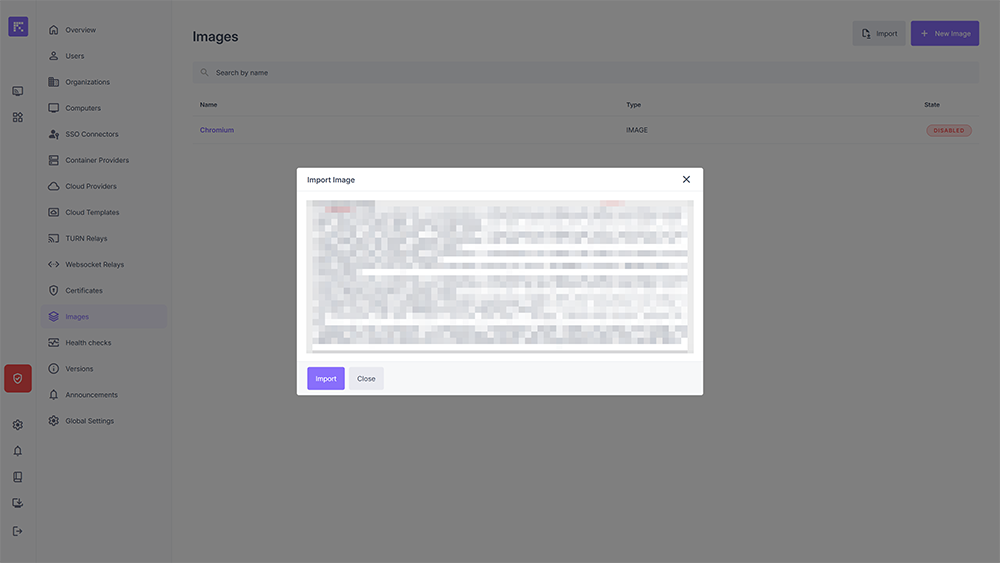
Container image import window.
Paste the copied content into the import window, click Import, then Close.
Activate the image using the Enable button to make it available: it is disabled by default after import.
Private Container Image Association
A Container Image can be defined as Public or Private:
Public: automatically available to all organizations.
Private: must be explicitly associated with authorized organizations.
This makes it easy to share common images (Public) or reserve specific environments for certain organizations (Private).
Managing Associations
From the Images section of an organization, it is possible to associate a Private Container Image available on a Container Provider.
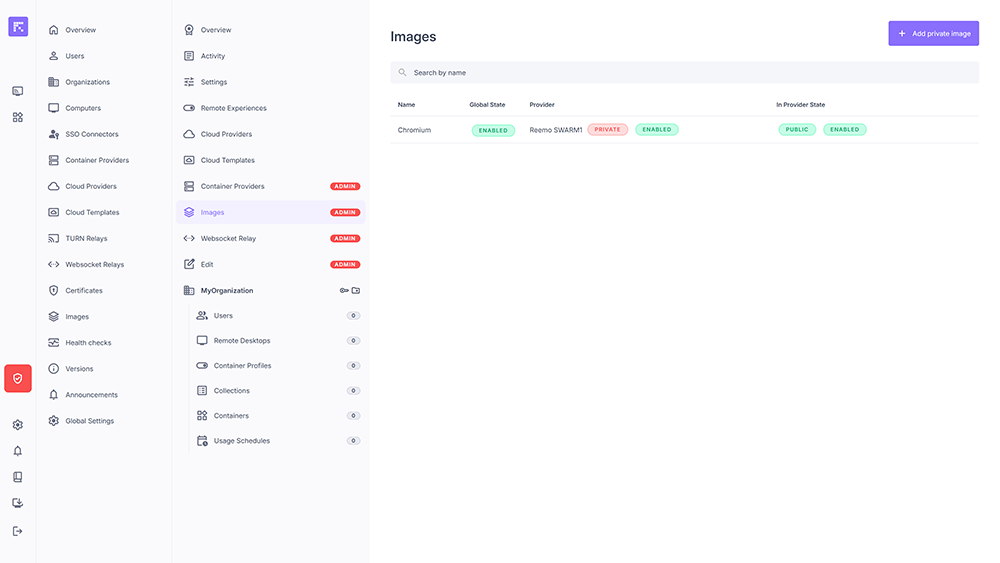
List of container images associated with an organization.
Note
When an image is private, it will not be visible to organizations until it has been assigned.
Adding a Private Container Image
To associate a Private Container Image with an organization:
Click Add private image.
Select the corresponding Provider.
Choose the Image to associate.
Save the association.
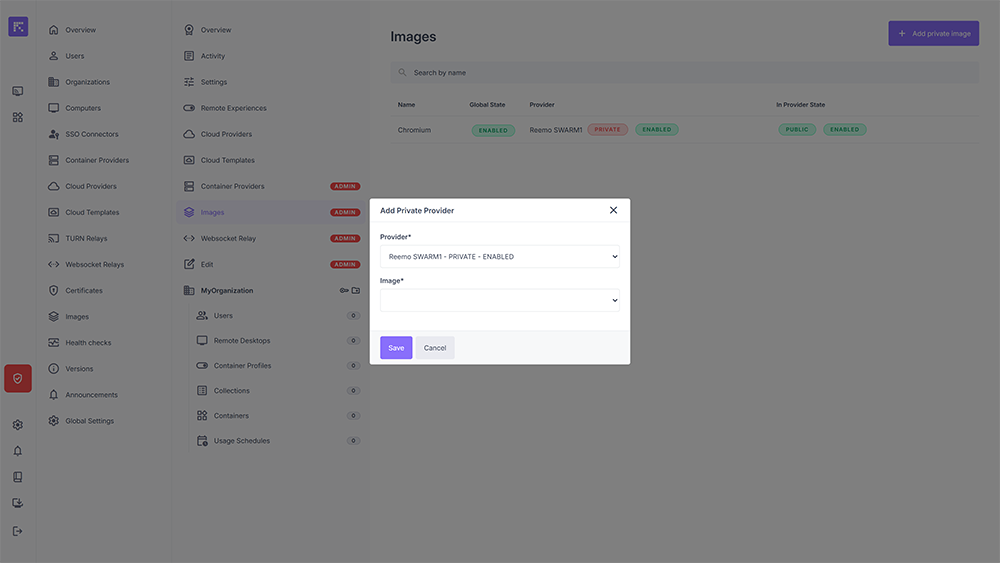
Window for associating a private container image.