Manage Users
Use the person Users section to view global accounts and create instance administrators.
Important
To manage operational user settings (permissions, roles, assignments), go to the domain Organizations section.
User List
The list displays all users created in the instance, with their global role (e.g. Instance Administrator) and their status (active, blocked, etc.).
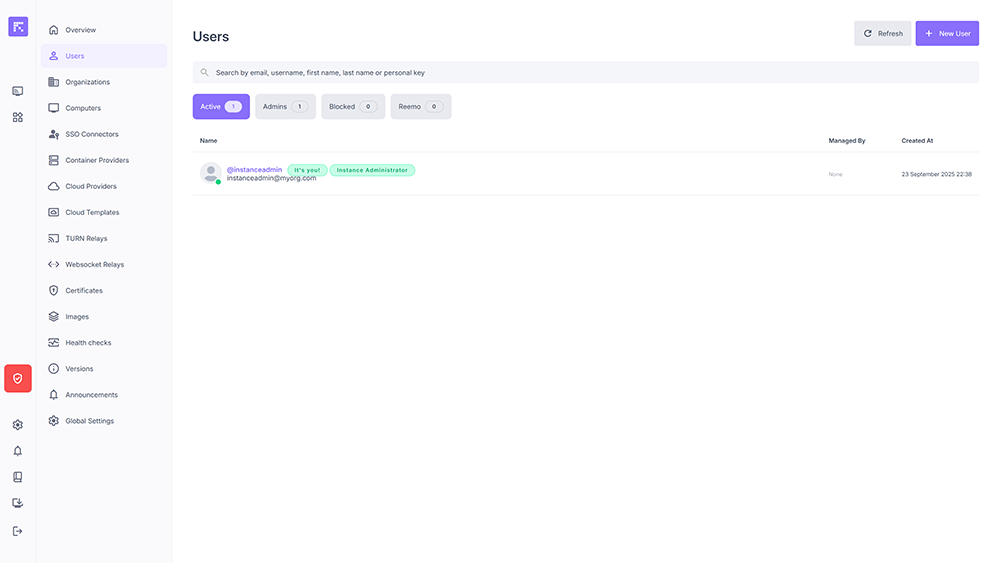
Overview of instance users Creating a User
When creating a user, the following fields must be filled:
Username: the user’s login identifier.
Email: associated email address.
Full Name: full name (optional).
Password / Confirm Password: login password.
Role: global role, either Regular User or Instance Administrator.
Note
From version 1.8.2 onwards, the user creation page provides a strong password generator.
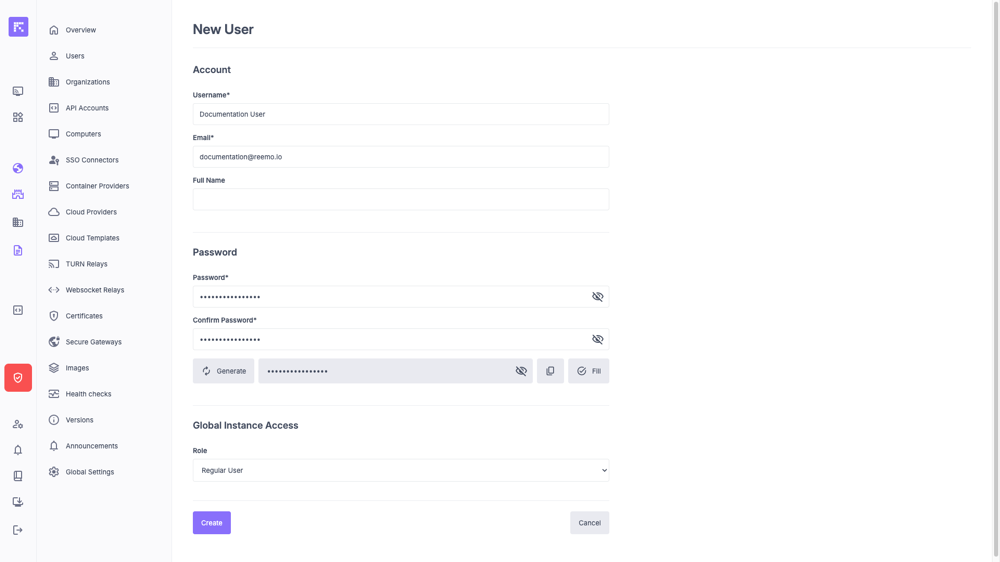
Instance user creation form
User Profile
Each user has a detailed profile containing:
Account information (email, instance role, 2FA status, etc.).
List of personal and organizational computers associated.
Linked organizations.
Activity and security logs.
Active devices and identity management.
Available actions: person_off Block, Edit, Remove 2FA, Delete account.
Note
Read-Only Administration (View Only): From the form accessible via the Edit action, the Read-only admin checkbox (located at the very bottom in the Global instance access group) allows you to restrict the account’s privileges.

Read-only admin checkbox
This profile is designed to allow a user to safely audit activity and review logs: it restricts access solely to consulting the Overview page and viewing the sessions of each organization. Any creation, modification, or deletion action is therefore blocked. Click on Update to apply the change.