User Interface
This section covers the Reemo portal’s interface for end users — how to navigate it, connect to your resources, and manage your account.
Note
Administration features (organization management, private instances, etc.) are documented separately — see the Sidebar section below for where to find them.
Interface Overview
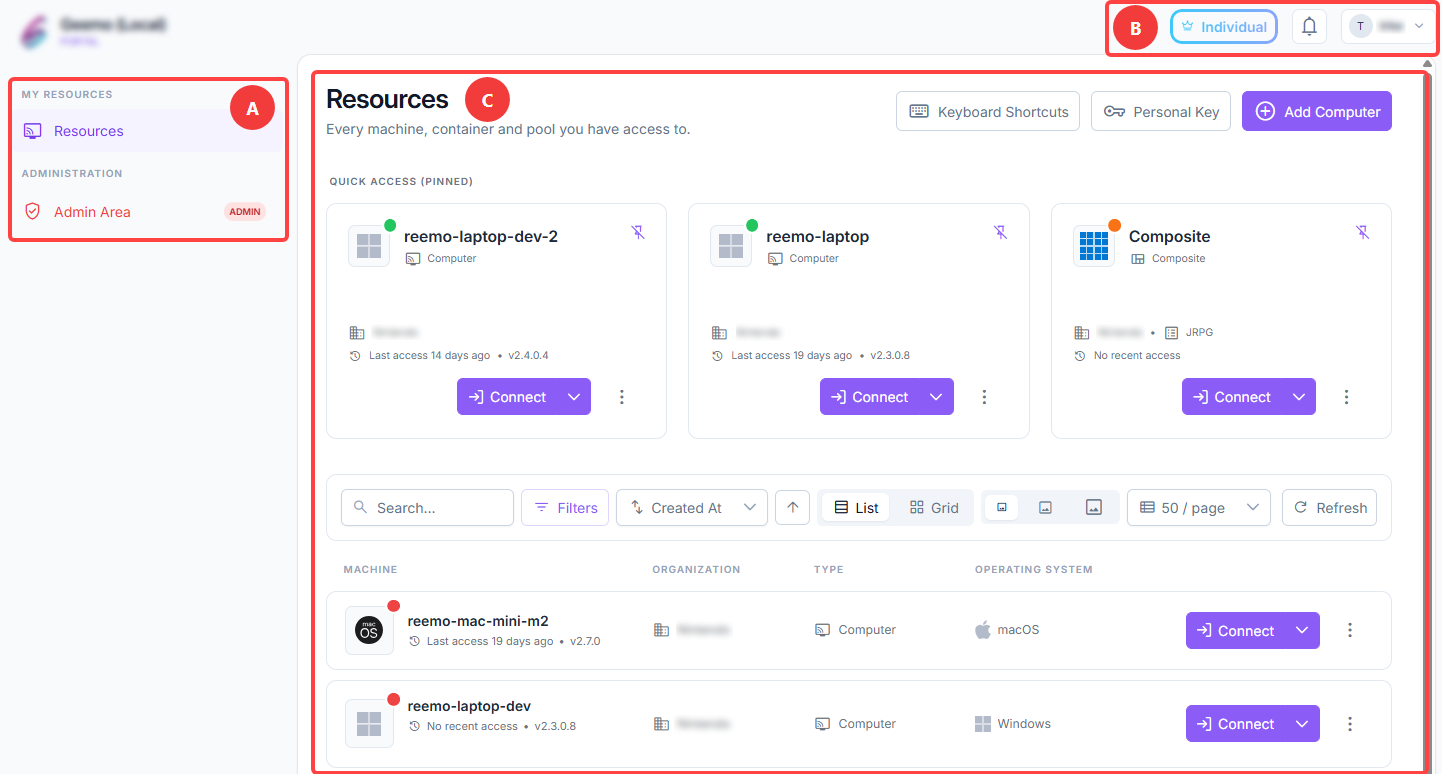
Sidebar
The left-hand panel is organized into groups — My Resources is always visible and serves as your main dashboard. The others depend on your role and your organization’s settings:
My Resources: Always visible. Return to the main dashboard view — see Resources Dashboard.
Approvals: Shown if your organization has enabled the approval workflow. Review and act on the access requests you’re responsible for approving — a badge shows the number of pending requests — see My Approvals.
My Organizations: Shown if you are an organization administrator. Access team settings or create a new organization — see Interface Tour.
Administration: Shown if you are an instance administrator. Access the instance-wide Admin Area — see Getting Started.
Top Navigation
The header provides access to global account and system tools:
Unlock new features: Manage your subscription plan, if applicable.
Notifications (): View recent system notifications — see Notifications.
User Menu: access your account settings, switch theme or language, and find other session-related tools — see User Menu below.
Central Panel
Displays your resource cards and inventory — see Resources Dashboard.
User Menu
The User Menu (click your name in the top-right corner of the navigation bar) gathers the tools related to your account and current session:
manage_accounts Settings: manage your profile, security, and devices — see Account Settings (includes your Personal Key, under the General tab).
Theme: switch between the portal’s light and dark theme.
Language: change the portal’s display language.
Support: access the Reemo support site — reemo.io/support.
Download: download the Reemo Agent installer — see Install the Reemo Agent.
Add to Home Screen and Sign Out.