Configuration Variables
Variables make it possible to customize the container’s behavior. They serve two main roles:
Environment variables: injected directly into the container at startup.
Dynamic form: define the fields in the configuration form of container profiles on the organization side. Organization administrators can then configure options (text fields, checkboxes, dropdown lists, etc.) defined in advance by the instance administrator.
Important
Only variables marked as editable appear in the configuration form on the organization side.
Other variables are hidden from organization administrators and transmitted internally to the container.
Access: verified_user Admin Area > view_in_ar Containers & Workstations > stacks Images > select an image > Template tab > click Edit next to the variable.

The Edit button to edit an existing variable.
Options
Value mode: Determines how this field’s value is set, and what the organization administrator sees at the Options step when configuring a container profile:
Fixed in the container profile: the value will be configurable directly in the container profile (applies to every container profile inheriting from this image).
Requested at container launch: no configuration in the container profile — a window asks the user for the value when they connect (applies to every container profile inheriting from this image).
Configurable per container profile: the fixed-or-requested state will be set directly within each container profile (see screenshot below).
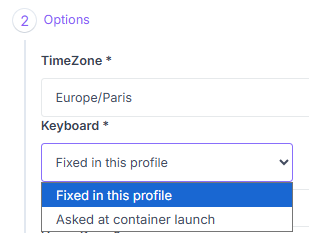
In a container profile inheriting from this image, the Keyboard field, set to “Configurable per container profile”, shows a dropdown.
Type: The template type. Different types serve different purposes: some are configurable via profiles, others are static.
STRING: text
BOOLEAN: true/false (checkbox)
SELECT: dropdown menu
SELECT_OPTION: dropdown option
SECRET: Docker Swarm secret
HOST: adds an entry to the container’s /etc/hosts file
Name: The variable name displayed in a container profile.
Variable: The environment variable name that will be sent to the container (
-eoption in the Docker command line).Editable: Makes this variable editable by organization administrators.
UI Priority: Organizes the fields of a container profile: the higher the value, the higher the field appears. Also orders SELECT_OPTION values in descending order within the dropdown list.
Hint: Explanatory text displayed under the template field in a container profile.
Placeholder: Placeholder text displayed in gray in a text field to illustrate an example without filling it in.
Default Value: The default value when creating a profile.
Condition Variable / Condition Operator / Condition Value: Applies a condition to display a template based on the value of another template and an operator. For example, to display TEMPLATE_1 only if TEMPLATE_2 == true, configure TEMPLATE_1 as:
Condition Variable: TEMPLATE_2Condition Operator: EQUALCondition Value: true
Examples
A visible, editable field displayed at the top of the profile, which sets the environment variable REEMO_HOME to its default value:
Name: Home Page
Type: STRING
Variable: REEMO_HOME
Editable: true
UI Priority: 1000
Default Value: https://reemo.io
A non-editable field (hidden from the profile), active only if REEMO_PROXY == NONE, which then sets REEMO_NO_PROXY=true:
Name: REEMO_NO_PROXY
Type: STRING
Variable: REEMO_NO_PROXY
Editable: false
Default value: true
Condition: REEMO_PROXY EQUAL NONE
The same field, with a different condition: active only if REEMO_PROXY == EXTERNAL, which also sets REEMO_NO_PROXY=true:
Name: REEMO_NO_PROXY (other condition)
Type: STRING
Variable: REEMO_NO_PROXY
Editable: false
Default value: true
Condition: REEMO_PROXY EQUAL EXTERNAL
A dropdown option (SELECT_OPTION) for the REEMO_PROXY field, which sets REEMO_PROXY=EMBEDDED if selected — it appears second in the list (priority between 8 and 10 of the other options):
Name: Embedded Proxy
Type: SELECT_OPTION
Variable: REEMO_PROXY
Value: EMBEDDED
UI Priority: 9
Create a Multi-Choice Field
This example shows how to let each container profile decide the keyboard layout. It combines several variables sharing the same Variable: one per language offered (Type SELECT_OPTION), and a global variable (Type SELECT) that groups them and carries the desired Value mode (see the screenshot above):
Name: French
Type: SELECT_OPTION
Variable: REEMO_KEYMAP
Value: fr
Repeat for each language to offer (English, Swedish…), then add the global variable that groups them:
Name: Keyboard
Type: SELECT
Variable: REEMO_KEYMAP
Editable: true
Value mode: Configurable per container profile
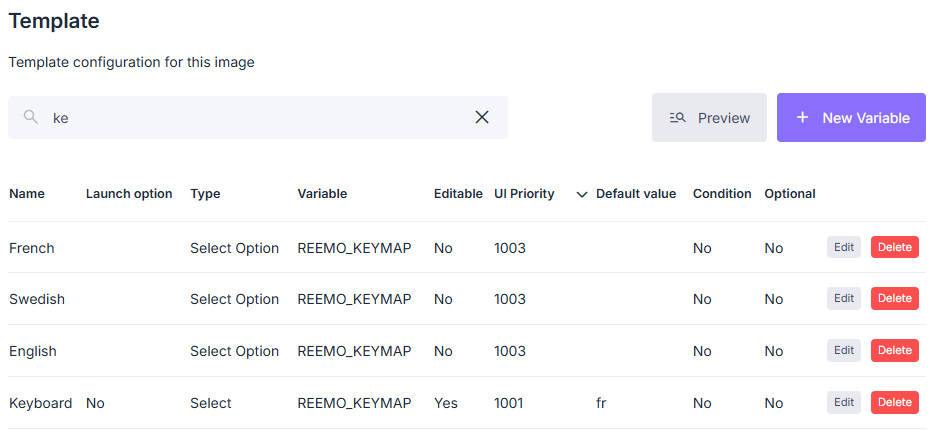
The three French/Sweden/English variables (Type SELECT_OPTION) and the Keyboard variable (Type SELECT) that groups them, all sharing the same Variable REEMO_KEYMAP.