General Settings
The Settings section allows you to configure all parameters related to your Reemo organization. These settings impact security, remote user experience, and network connectivity.
Access: domain Organization > dashboard General > tune Settings.
Edit Organization
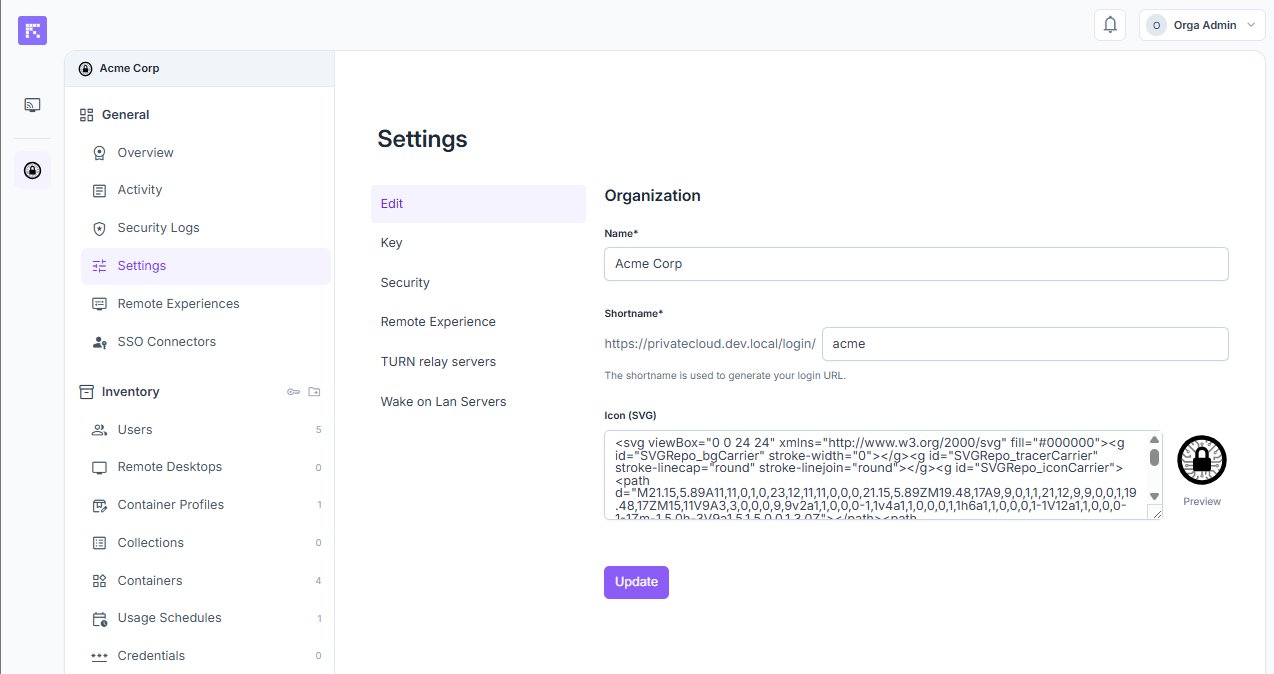
General organization settings
Name: full organization name displayed in the portal.
Short Name: unique identifier used to generate a custom login URL. This URL is used for SSO authentication. Example:
https://portal.reemo.io/login/my-organizationIcon (SVG): custom organization logo displayed in the portal sidebar.
Studio Key
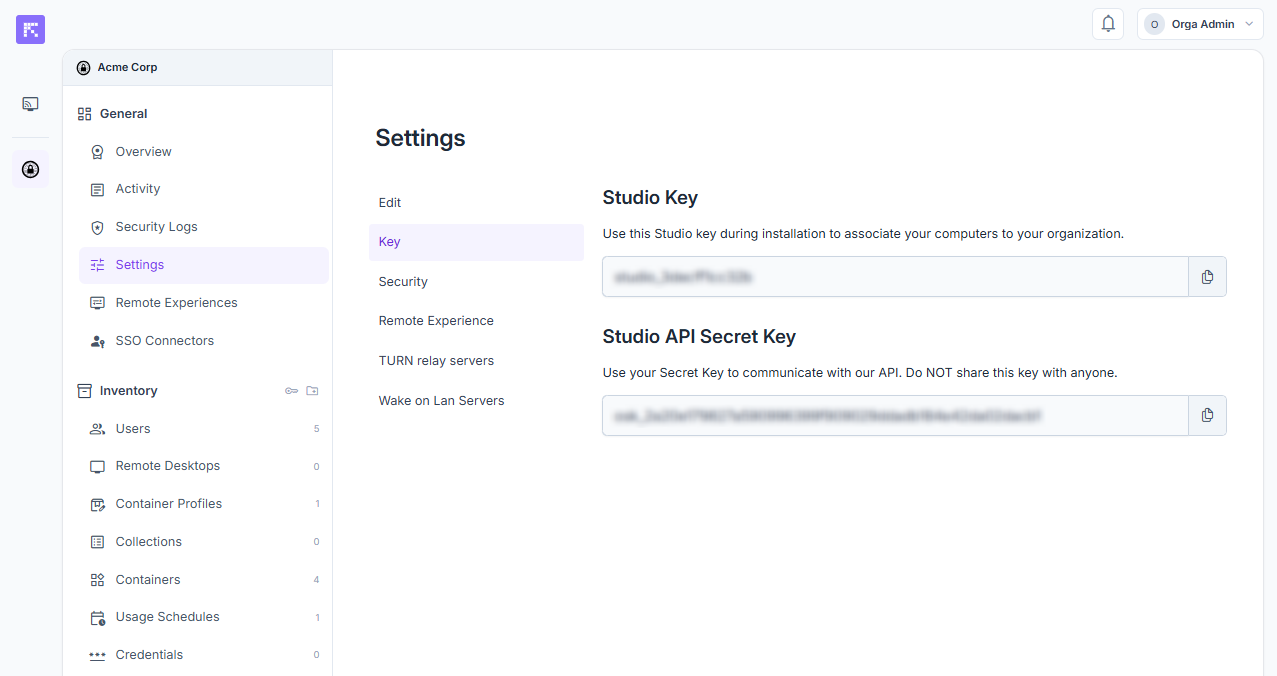
The Studio Key is used to automatically associate computers with the organization when installing the Reemo Agent.
It can be copied and integrated into your deployment procedures.
The key is unique to each organization.
Note
If your organization already had a single API Studio secret key before version 2.5.0, that key remains displayed in this Key tab and keeps working. New organizations no longer have access to it: use the API keys below instead.
See also
A shortcut to this same Studio Key is also available directly from inventory_2 Inventory, without going through Settings — see Retrieve your Studio Key.
API Keys
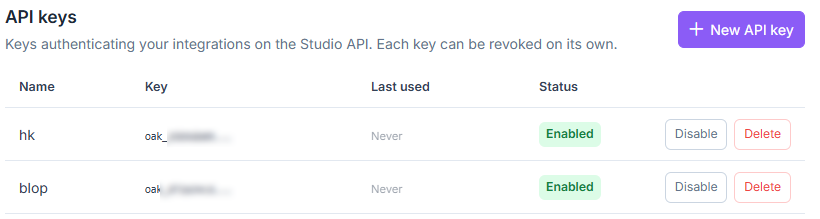
API tab of the organization settings
The API tab lets you manage the keys used by your third-party applications (CRM, access portal, etc.) to interact with your organization through the Studio API.
Each key is listed with:
Name: name given to the key, to identify which application uses it.
Key: truncated value once the key is created (e.g.
oak_15b56b09...).Last used: date of the last call made with this key.
Status: enabled or disabled. A key is enabled by default when created.
Warning
The full value is shown only once, at creation time — copy it and store it somewhere safe: it will never be shown again afterwards.
Available actions:
+ New API Key: creates a key for a new application. You can create as many as needed (one per integration).
Enable / Disable: toggles a key’s state without deleting it.
Delete: permanently revokes the key.
Note
This tab is only visible if the API Studio option has been enabled for your organization by an instance administrator — see Enable the Studio API.
Default Remote Experience
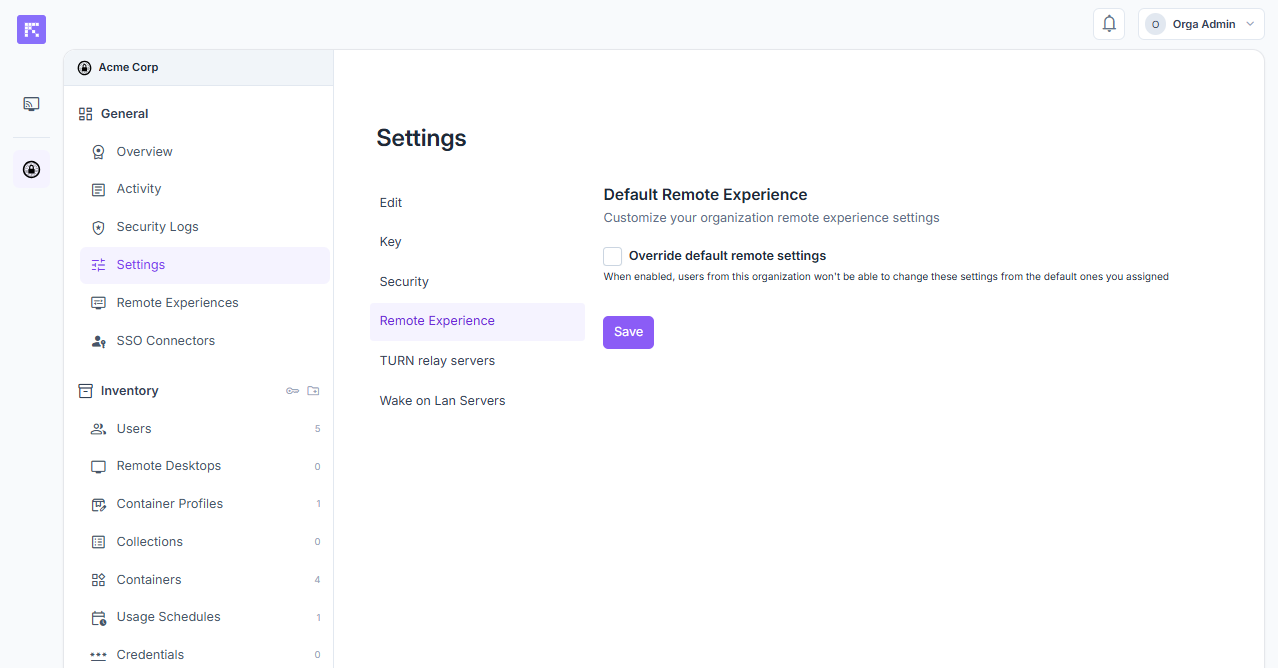
Override default remote settings: applies default settings to all users.
Bandwidth: bandwidth limit (e.g. 7 Mbps).
Video Format: codec choice (H264, etc.).
FPS: maximum frames per second.
Lock Settings: prevents users from changing these session settings.
Note
It is also possible to define session settings per user group in the Remote Experiences menu.
Automatic USB Forwarding
List of USB devices automatically forwarded to the remote machine, from the start of the session, for all members of the organization.
To add an automatic USB redirection:
Provide the Vendor ID, Product ID, and a Name to identify the device.
Click Add a device to save it.
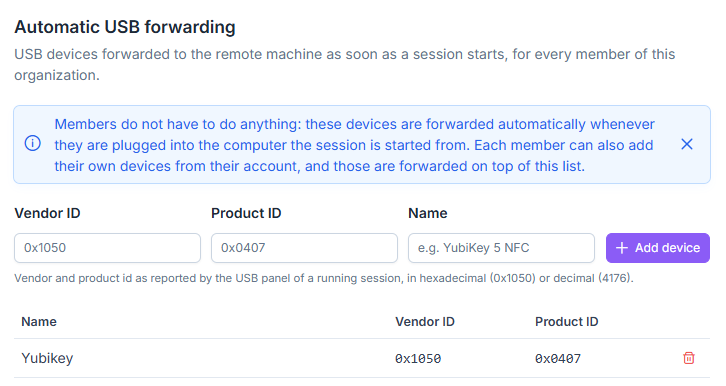
Organization automatic USB forwarding
Form Fields
Vendor ID and Product ID: identifiers of the USB device, displayed next to each device in the USB panel of an ongoing session. Both hexadecimal (e.g.
0x1050) and decimal (e.g.4176) formats are accepted.Name: a name of your choice to identify the device in the list (e.g.
YubiKey 5 NFC).
Note
Members have nothing to do: these devices are forwarded automatically as soon as they are plugged into the computer from which the session is launched. Each member can also add their own devices from their account (see USB Devices), in addition to this list.
TURN Servers
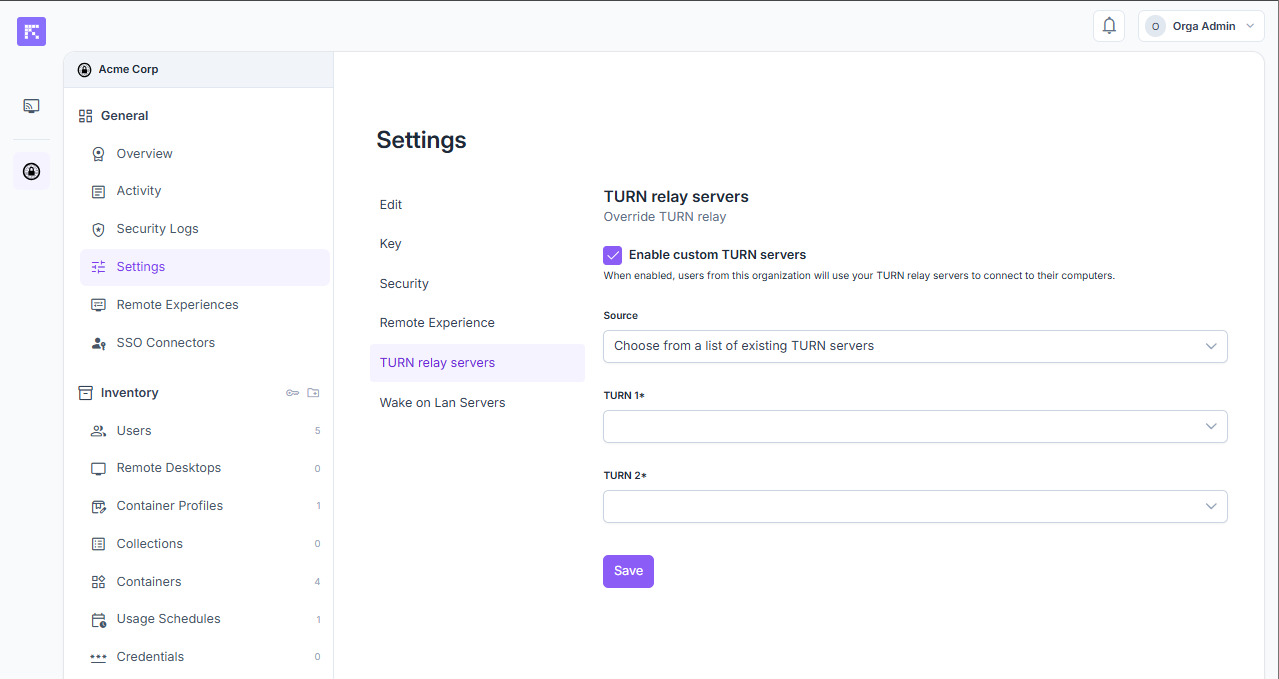
Enable custom TURN servers: enables the use of custom TURN servers for your organization.
Source: choose from a list of existing TURN servers.
TURN 1 / TURN 2: select a TURN server among those available to your organization (see Associate a private TURN server).
The use of custom TURN servers can improve latency depending on the location of the server and the organization’s computers.
Summary
Organization settings allow you to:
Define the identity (name, custom URL).
Manage the Studio Key to easily link machines.
Strengthen security via 2FA, clipboard restrictions, and automatic disconnections.
Configure the default remote experience (bandwidth, video, FPS).
Automate USB forwarding for all members.
Optimize network connectivity through custom TURN servers.