USB
The USB tab of the Settings panel manages the forwarding of local USB devices to the remote machine. Useful for using specific peripherals on the remote machine.
USB Forwarding
USB forwarding now requires two components to be installed:
The Reemo USB Companion App, running on your local (client) machine.
The virtual USB driver, installed on the remote machine (see USB Passthrough).
Reemo USB Companion App
If the Companion App is not detected on your local machine, the USB tab shows a Companion App required screen instead of the device list, with a download link for your operating system (Windows, macOS, or Linux).
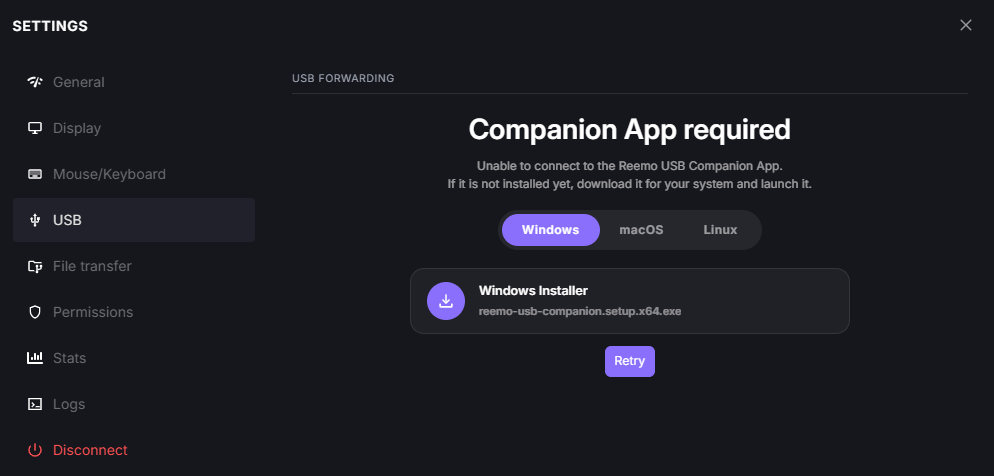
USB tab, Companion App required.
Download and launch the installer for your platform (for example,
reemo-usb-companion.setup.x64.exeon Windows).Once the Companion App is running, click Retry in the Settings panel.
Note
The Companion App runs locally and communicates with the browser over the local network (localhost) — see the Local network permission on the Diagnostics tab.
Managing Forwarded Devices
Once the Companion App is detected, this tab lists the USB devices available on your local machine. Each one offers two actions:
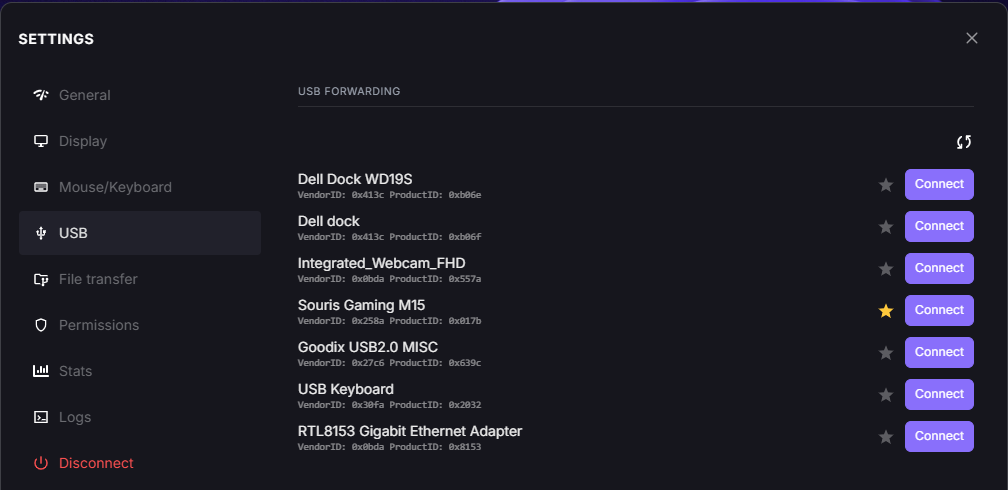
USB tab, available devices.
The star-shaped icon adds (or removes) the device from your automatic forwarding list: it will then be forwarded from the start of every session, without going through this tab again.
The Connect button forwards the device to the remote machine for the current session only.
Important
This icon only adds or removes the device from the list — full management (removal, devices added from another machine, etc.) is done from Account Settings > USB Devices.
See also
An organization can also enforce its own devices for automatic forwarding across all its members — see Automatic USB Forwarding in the organization settings.
New Device Detected
When a new USB device is plugged in while the Companion App is running, it asks for confirmation before offering it for forwarding:
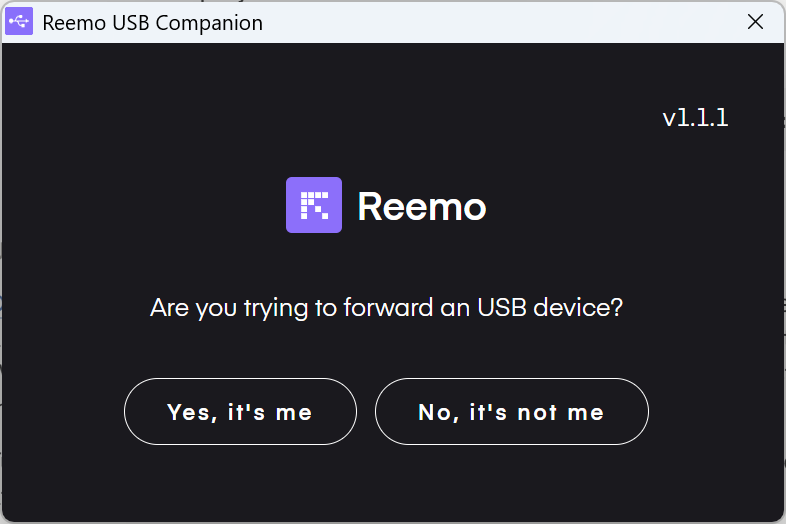
Reemo USB Companion App, new device confirmation.
Yes, it’s me: the device is added to the list on the USB tab.
No, it’s not me: the device is ignored.
Back to the Settings panel overview.