Mouse & Keyboard
The Mouse/Keyboard tab of the Settings panel adjusts input modes and keyboard behavior.
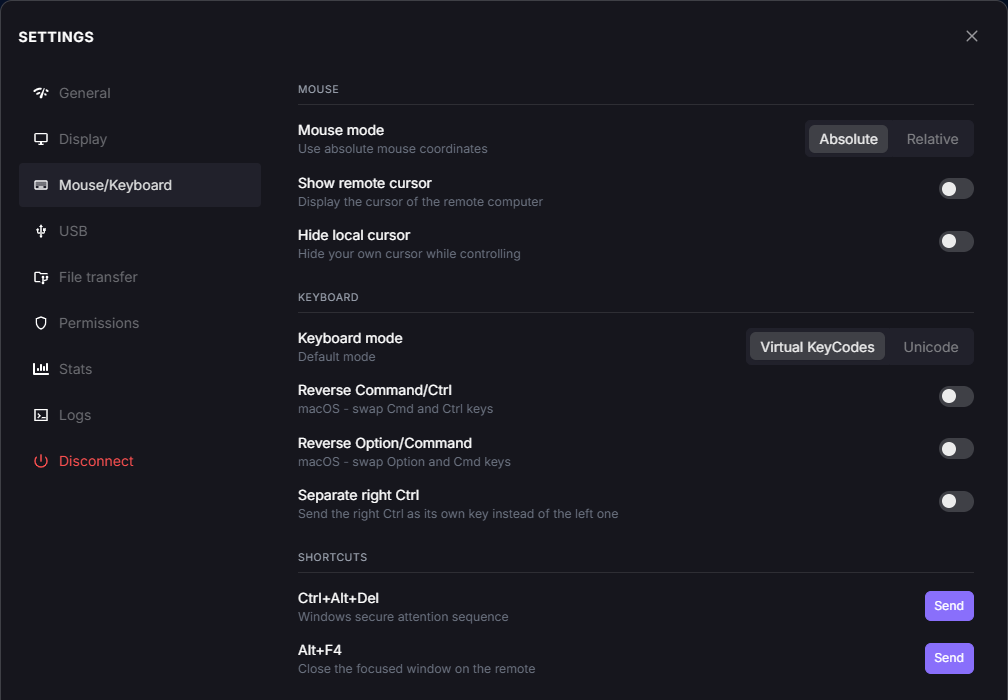
Settings panel, Mouse/Keyboard tab.
Mouse
Mouse Mode
Absolute: uses the absolute coordinates of the mouse. Provides better precision during movements and is recommended for most standard uses.
Relative: uses the relative movements of the mouse (instead of position). Designed for video games, especially FPS, where continuous and fluid movements are essential.
Show Remote Cursor
Displays the remote computer’s cursor. Particularly useful when multiple people are on the same machine: without this option, the remote user cannot see the local user’s cursor.
Hide Local Cursor
Hides your local cursor (to be used together with Show Remote Cursor). Particularly useful for graphic tablet users to counter latency: only the real position of the remote cursor is shown, not the slightly delayed local one.
Important
If you are connected to a Windows machine and cannot see the cursor, it means no mouse is physically connected to the PC. To fix this issue, either plug in a mouse or enable Mouse Keys in Windows (Settings > Accessibility > Mouse > Mouse keys).
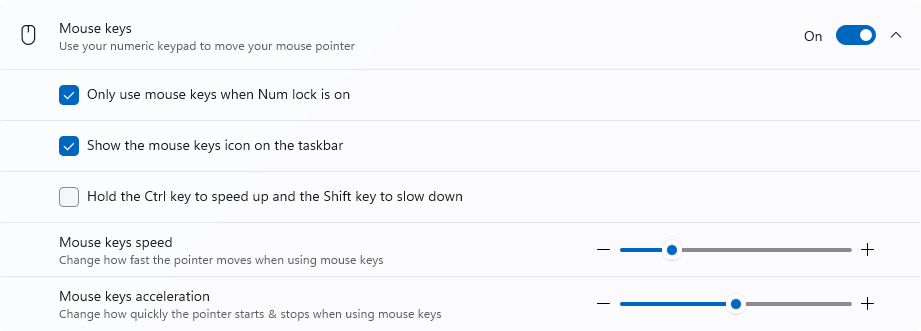
Enabling Mouse Keys in Windows.
Keyboard
Keyboard Mode
- Virtual KeyCodes (default): Sends the physical key code (its position on the keyboard).
- Example: if your local keyboard is AZERTY and the remote machine is QWERTY, pressing the A key locally will send a Q to the remote machine.This mode is useful if you want to reproduce the physical layout of your keyboard, regardless of the language or remote mapping.
- Unicode: Sends the Unicode character corresponding to the pressed key directly.
- Example: typing A on an AZERTY keyboard will send an A, even if the remote machine is configured as QWERTY.This mode is particularly useful when keyboard layouts differ (AZERTY ↔ QWERTY, or other non-standard layouts), or when using keyboards with specific system differences (Windows ↔ macOS, custom keyboards, etc.).
Warning
Reverse Command/Ctrl
macOS only. Swaps the behavior of the Command (⌘) and Control (Ctrl) keys when using a macOS keyboard connected to a remote machine. Useful to avoid confusion between macOS and Windows keyboard shortcuts.
Reverse Option/Command
macOS only. Swaps the behavior of the Option (⌥) and Command (⌘) keys when using a macOS keyboard connected to a remote machine.
Separate Right Ctrl
When enabled, the right Ctrl key is sent to the remote machine as its own key, instead of being treated the same as the left Ctrl key. Useful for applications or shortcuts that distinguish between the two.
Shortcuts
Ctrl+Alt+Del
Windows secure attention sequence. Click Send to send the Ctrl+Alt+Del combination to the remote machine — useful to open Task Manager or the Windows security screen.
Alt+F4
Click Send to close the focused window on the remote machine.
Back to the Settings panel overview.