Troubleshooting the Privacy Screen
This page covers issues with the privacy screen on Windows remote computers. If you encounter a problem not listed here, contact support.
Privacy Screen Does Not Start (Windows)
Symptom:
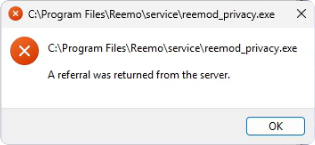
When you turn on the Privacy screen setting, the remote display is not blanked and Windows shows an error on the remote computer, with the message “A referral was returned from the server.”:
Root Cause:
The privacy screen is displayed by the reemod_privacy.exe program, which must stay above every window, including the taskbar. Windows only allows this for a program whose digital signature it can verify up to trusted root certificates. The signature of the Reemo agent relies on 2 root certificates:
GlobalSign Code Signing Root R45, for the signature of the code
GlobalSign Timestamping Root R45, for the timestamp of the signature
Windows downloads these certificates from Windows Update when it needs them. A computer that cannot reach Windows Update, because its Internet access is restricted or because a policy turns off the automatic update of root certificates, does not have them, and Windows refuses to start the program. The message is a generic Windows error and does not concern any server.
Solution:
Run the PowerShell commands of this procedure in a window opened as administrator on the remote computer.
Check the signature of the program:
Run:
Get-AuthenticodeSignature "C:\Program Files\Reemo\service\reemod_privacy.exe" | Format-List Status, StatusMessage
If
StatusisValid, the certificates are present and the cause is elsewhere: contact support. Otherwise,StatusMessageindicates the missing certificate:A certificate chain could not be built to a trusted root authority: both root certificates are missing.
The timestamp signature and/or certificate could not be verified or is malformed: GlobalSign Timestamping Root R45 is missing.
Download the root certificates from GlobalSign:
If the remote computer has no Internet access, download the files on another computer, then copy them to the remote computer.
Certificate
File
SHA-1 thumbprint
GlobalSign Code Signing Root R45
4EFC31460C619ECAE59C1BCE2C008036D94C84B8GlobalSign Timestamping Root R45
139B1C712FD17C3CA5DA6E5701AFBA0158F9D45DCheck the thumbprints of the downloaded files:
From the folder that contains the files, run the following commands, and compare the results with the table. If a thumbprint is different, delete the file and download it again.
(Get-PfxCertificate .\codesigningrootr45.crt).Thumbprint
(Get-PfxCertificate .\timestamprootr45.crt).Thumbprint
Import the certificates into the trusted root store of the computer:
Note
A root certificate is trusted by the whole computer, not only by Reemo. Import only the files whose thumbprint matches the table.
From the same folder, run:
certutil -addstore -f Root codesigningrootr45.crt
certutil -addstore -f Root timestamprootr45.crt
To fix several computers at once, see Fix Several Computers.
Check the signature again:
Run the command of step 1 again.
Statusmust now beValid.
Turn the privacy screen on again: it starts without restarting the computer or reinstalling the agent.
Fix Several Computers
To fix several computers at once, use one of these options:
Deploy the 2 certificates by Group Policy, in Computer Configuration > Policies > Windows Settings > Security Settings > Public Key Policies > Trusted Root Certification Authorities.
Allow the computers to reach
ctldl.windowsupdate.com, the address from which Windows downloads root certificates.