VDI
Reemo does not provide the virtual desktops itself: it lets you drive existing VDI environments — public cloud or internal hypervisors — and give access to the virtual machines they host, through the Reemo protocol, directly in the browser. Reemo thus centralizes provisioning and access, without hosting the VMs.
Cloud providers
Reemo drives the provisioning of virtual machines on the main cloud providers — AWS, Azure, GCP. The VMs are created and hosted at the provider; Reemo orchestrates their deployment and access, from cloud templates:
The administrator configures their cloud provider in Reemo (API keys).
They declare an instance template (OS, GPU, hardware characteristics) linked to that provider.
Once enabled, Reemo automatically deploys workstations (VMs) at the provider from that template, and gives access to them through its protocol.
See also
Virtual machine templates — Configure a cloud provider and declare templates.
Internal hypervisors
For on-premises deployments, Reemo integrates with internal hypervisors to drive the virtual desktops they host:
Proxmox: integration available, to gather VDI access in a single interface.
Vates and Nutanix: supported hypervisors.
Coming soon: OpenShift and Hyper-V.
VDI desktop lifecycle
A VDI desktop follows a chain of objects, from the hypervisor to the session. The state names are those shown in the portal.
VDI provider (Admin side): your hypervisor or your cloud account, for example Proxmox, Nutanix, or AWS.
VDI template (Admin side): the reference Windows image and its versions. It sets the desktop mode: Dedicated or Pool.
VDI profile (Studio side): capacity, reserve, and shutdown rules. It is assigned to users.
Desktops (automatic): virtual machines cloned from the active image. Reemo creates, starts, stops, and deletes them.
Session: the user opens the VDI profile in Reemo and receives a desktop.
The VDI template image
A VDI template keeps several versions of its image. Only one is active: new desktops are cloned from it.
A version comes from one of four sources: an existing image already present at the provider, a new VDI template created from the portal, the Update the image action (which starts from the active version), or the Build from ISO action (a fresh Windows). An existing image is Ready right away; the other three go through a build VM.
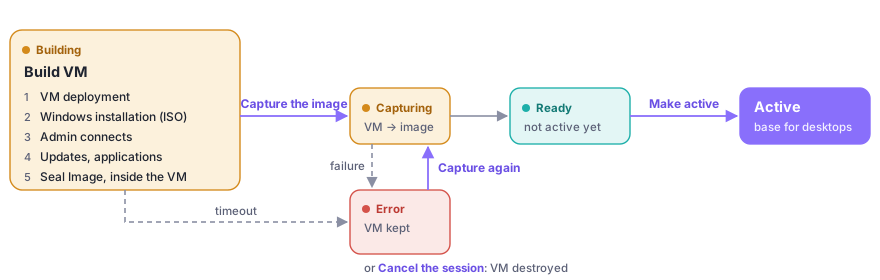
From the build VM to the active version of an image.
The build VM is a regular Windows desktop: the administrator connects to it with Reemo, installs what is needed, then runs Seal Image inside the VM. The capture turns it into a version. Users see nothing until this version is made active.
On failure or timeout, the version goes to Error and the VM is kept. The administrator can then Capture again or Cancel the session, which destroys the VM.
When a version becomes active:
New desktops: cloned from it.
Free desktops from another version: replaced as soon as their replacements are ready.
Desktops in session, Pool mode: keep their image until they are deleted, after disconnection.
Assigned desktops, Dedicated mode: keep their image permanently.
VDI profiles pinned to a version: do not change.
Three special cases:
Going back: an earlier ready version becomes active again, with the same rules.
Existing image: once active, Update the image is no longer offered. Reemo only updates an image it built.
From scratch: this type of VDI template has no image. Each desktop installs Windows from the ISO during its Provisioning.
The desktop
Reemo creates, starts, stops, and deletes desktops according to the VDI profile settings. The mode comes from the VDI template and never changes.
Dedicated mode
Each user keeps their own desktop. It is permanently assigned to them at their first connection, and it is deleted, disk included, only if the user loses access to the profile or an administrator deletes it.
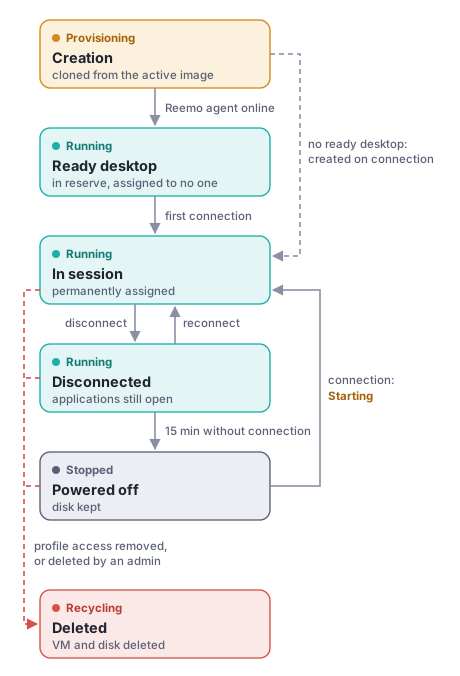
Lifecycle of a desktop in Dedicated mode.
VDI profile settings:
Ready desktops: a started reserve, for a new arrival. 0 by default.
Stop desktops left disconnected: 15 min by default, 5 min minimum, or never.
Maximum desktops: ceiling, assigned desktops included.
A Dedicated desktop that has already been used is kept with its disk, and only an administrator decides to delete it. If it comes back online, it returns to Running.
Pool mode
Each user receives a new desktop from the pool. After disconnection, the desktop stays reserved for the reconnection window, then it is deleted with nothing kept and a new desktop replaces it.
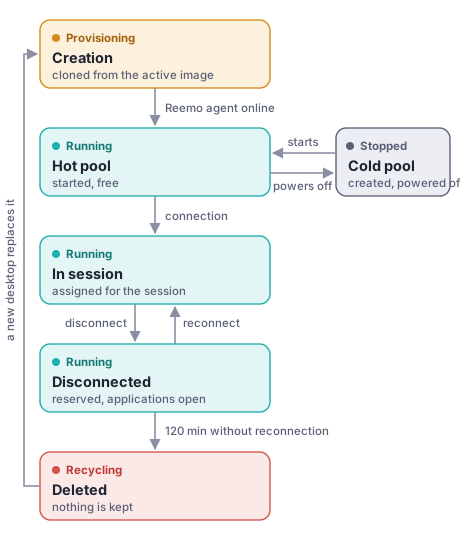
Lifecycle of a desktop in Pool mode.
VDI profile settings:
Hot pool, Cold pool: free desktops, started or powered off. The cold pool starts when the hot pool runs out.
Reconnection window: 120 min by default.
Pool schedule: outside the scheduled hours, only the “Hot pool in reduced mode” stays started. The others are powered off, not deleted.
Maximum desktops: ceiling, desktops in session included.
Connecting to a desktop
To connect, the user must have access to the VDI profile, within their allowed hours. Reemo then looks for a desktop in this order:
Their own desktop, if they have one: always the same one in Dedicated mode; in Pool mode, the one from their session during the reconnection window.
A free desktop that is already started: the connection is immediate.
A free desktop that is powered off: the user waits for it to start.
No free desktop: Reemo creates one, and the user waits for Provisioning to finish.
If Maximum desktops is reached: the connection is refused.
A desktop whose creation or startup fails goes to Error, visible in the portal. A desktop that was never used is deleted, then Reemo creates a new one.
Once the desktop is available, the session follows Reemo’s common connection lifecycle.
See also
Connection lifecycle — How a session unfolds, from the portal to the resource.