VDI Providers
Connect your hypervisors to Reemo and check that the virtual desktops they host are healthy.
Access: verified_user Admin Area > desktop_windows VDI > VDI Providers.
A VDI Provider is the connection between Reemo and one hypervisor. Reemo supports Proxmox, Nutanix, AWS and Vates (Xen). Every desktop built from a blueprint runs on the provider chosen for that blueprint.
Before you create a provider, check the VDI Prerequisites.
Create a VDI Provider
Open verified_user Admin Area > desktop_windows VDI > VDI Providers, then click New VDI Provider.
Fill in the Information step, then click Next.
Fill in the Capacity step, then click Next.
Fill in the connection step, named after the type you chose (for example Configuration - Proxmox).
Click Create.
Test the Connection
Click Test on the provider line in the list. The result appears next to the button: Success, or the error message of the connection.
If the test fails, read the message. For example, getaddrinfo ENOTFOUND pve.local means that the name pve.local is not resolved: use the IP address of the hypervisor, or check that the infrastructure that runs Reemo resolves this name. Also check the token credentials and that the infrastructure can reach the hypervisor (see VDI Prerequisites). Fix the configuration, then test again.
When the test succeeds, the provider is ready: next, create a VDI blueprint to build your first desktops. See VDI Blueprints.
Form Fields
Information
Name: name of the provider in Reemo.
Type: type of hypervisor (Proxmox, Nutanix, AWS or Vates). It cannot be changed afterwards.
Comments: free text (optional).
Capacity
Limit the number of virtual machines on the provider. With the limit enabled, the total number of desktops that can exist at the same time on the provider, all profiles combined, is capped. Reemo refuses to create a desktop once the limit is reached. Choose a value that matches the real resources of the hypervisor. Without a limit, the provider page shows No limit.
Configuration for Proxmox
Endpoint: address and port of the Proxmox server, for example
pve.local:8006.Token ID: identifier of the API token that Reemo uses.
Token Secret: secret of that token.
The option that ignores the TLS certificate check: accepts any certificate presented by the hypervisor. Enable it only for a self-signed certificate on a trusted network, because the credentials above can then be intercepted.
Follow the State of Your Providers
Open VDI Providers to see at a glance whether each hypervisor responds. The list shows one line per provider:
Name, Type and Connection (the address Reemo uses to reach the hypervisor).
State: Enabled or Disabled.
Health: whether Reemo reaches the hypervisor, Reachable or Unreachable.
Profiles: the desktop problems found on the VDI profiles that use the provider, for example No desktop issues, or Not enough ready spares when a pool has fewer ready desktops than planned.
Test: checks the connection on demand.
Use the search box to find a provider by name. Click Refresh to reload the list.
View and Manage a Provider
Click the name of a provider to open its page. The VDI Provider Information card gives its type, state, comments, creation date and maximum VMs. A badge next to the name flags a problem: Provider unreachable, or the number of unknown VMs.
From the provider page:
Click Refresh to check the provider again.
Click Maintenance to put the provider in maintenance.
Click Disable to disable the provider. The button becomes Enable when the provider is disabled.
Click Edit to change its name, comments, capacity and configuration. The type cannot be changed.
Available Tabs
Status: the attention points of the provider, from the most to the least serious. Four cards give the number of desktops, the nodes in use (Locations in use when the provider is unreachable), the number of VDI profiles and the date of the last check.
Nodes (Proxmox), Clusters (Nutanix) or Hosts (Vates): the machines of the provider, the desktops they host and what else runs there. On Proxmox and Vates, Reemo creates a new desktop on the node or host with the most free memory, and a disabled or offline one receives none.
Storage: the space left and what uses it. Each storage shows its type (for example Local), the space used out of the total, the free space, the percentage used and the node it is visible from.
Virtual Desktops: every desktop running on the provider, with its status, agent, cluster, profile, image, organization, assigned user and creation date. Search by name, user, OS or address, and filter by All, Stopped or Running. Start, stop or restart a desktop from its line.
VDI Profiles: the profiles that use the provider.
Configuration: how Reemo connects to the provider, read-only: Endpoint, Token ID, Token Secret (shown as Defined, never in clear) and the TLS certificate check option (Yes or No). To change them, click Edit.
Delete: permanently deletes the provider and its stored credentials. Its VDI profiles must be deleted first.
Warning
Deleting a provider is permanent: its stored credentials are deleted with it.
Spot an Unreachable Provider
When Reemo cannot reach the hypervisor, the provider page shows the Provider unreachable badge, and the Status tab lists “The provider could not be reached” as an attention point. The Nodes and Storage tabs show the same message until the connection is restored.
Check that the infrastructure that runs Reemo can reach the hypervisor (see VDI Prerequisites), then click Refresh.
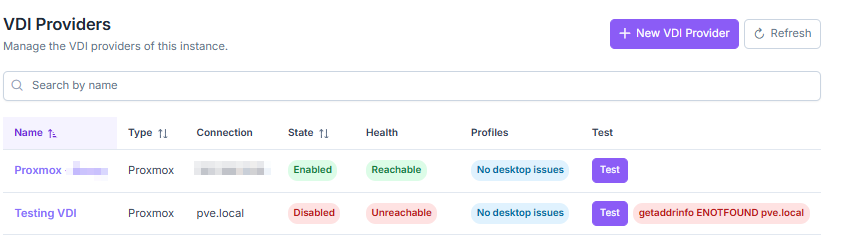
Unreachable provider in the list, with the error message of the test.
Spot Unknown VMs
The unknown VMs badge (for example “5 unknown VMs”) appears when VMs named reemo-… exist on the hypervisor with no matching Reemo desktop. The Status tab lists them, with the node that hosts them, among the attention points.
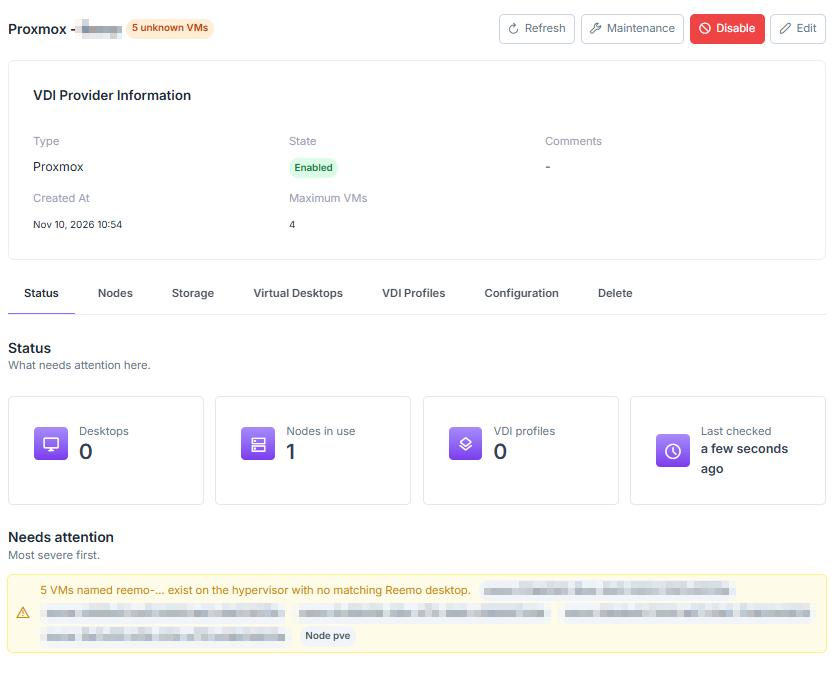
Unknown VMs badge and attention point of the Status tab.
See also
VDI — How VDI is organized and which desktop type to choose.
VDI Blueprints — Create the blueprint that defines the desktops the provider hosts.