Zero Trust
Zero Trust means granting no access by default: every session is verified before it opens, limited to what it needs, and traced.
Reemo gives access to desktops, applications and servers from a browser, without a VPN. Every session is authenticated, isolated and controlled:
Verify the user’s identity and the access rules before the session opens.
Separate the user from the resource, which only receives an image stream.
Frame what happens during the session and keep a trace of it.
Each principle is illustrated by use cases, with the step-by-step flow and, where they exist, the settings pages. To choose which settings to enable, see Securing Your Instance (instance) and Securing Your Organization (organization). For encryption and internal trust, see Security model.
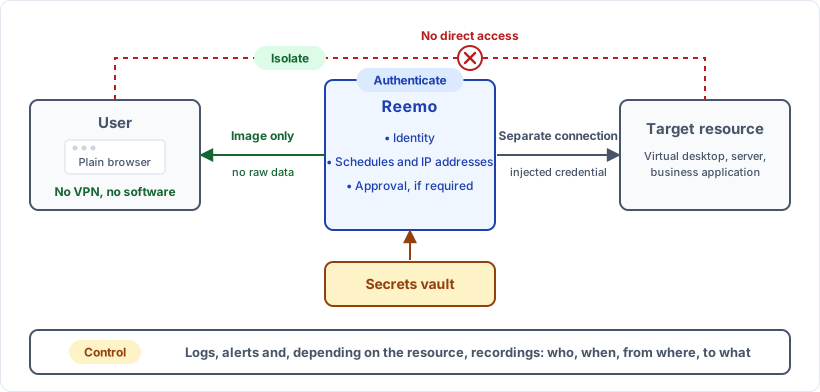
A Reemo session, from the user to the resource.
Authenticate
Every session starts with authentication, access rules and, depending on the resource, an approval.
Give an external vendor access
A vendor must work on a production server, without the company opening its network to them or giving them a password.
The vendor authenticates with the company’s identity provider (SSO) and two-factor authentication (2FA).
Access rules apply before the session opens: usage schedules (Configure Usage Schedules) and IP address filtering (login settings).
An approver validates the request. The session only opens after their decision (Approval Workflow).
Reemo injects the resource credential (password or SSH key) from the secrets vault (Credentials): it is not displayed to the vendor.
The vendor works on the session’s image stream, with no direct access to the server.
Risk covered: a leaked or reused password, and access granted outside the intended scope.
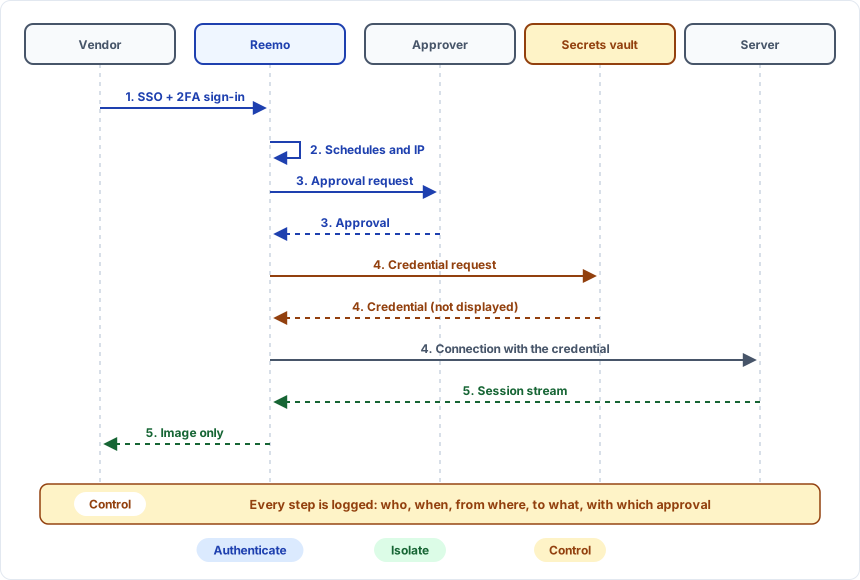
External vendor access to a server.
Publish a sensitive application without sharing a password
A critical business application (SAP, Grafana, DevOps tool) must only be accessible to some employees, and its password must not be known to users.
The user authenticates with SSO, optionally with a passkey.
Only assigned users see the resource.
Reemo connects to the application on the user’s behalf, with the credential from the secrets vault (Credentials).
Risk covered: a password written down, lost or stolen, since the user does not know it.
Isolate
The user receives an image stream, with no access to your network and no raw data on their workstation. Resources stay where they are, connected to the instance through secure gateways and relays, with encrypted communications (Manage Certificates).
Access a desktop from an unmanaged workstation
An employee uses a personal workstation, or one the company does not manage, to access their virtual desktop (Nutanix, Proxmox, Azure, GCP).
They open their browser, with no software to install and no VPN.
They authenticate, then only receive the image of their desktop.
By default, no raw data reaches their workstation: the clipboard and file transfers are configured separately (see Control).
Risk covered: if the workstation is compromised, the attacker gets no access to your network, no resource credentials and no way to pivot to your other systems. The attacker can still act in the session that is already open, with the user’s rights: the Control section describes how to limit what they can do there.
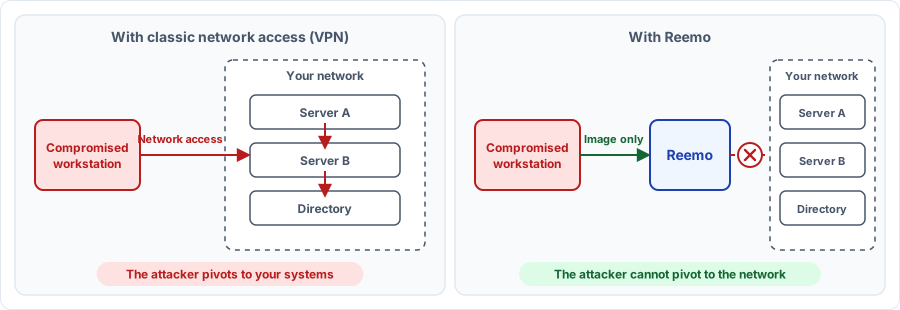
Compromised workstation, with a VPN and with Reemo.
Isolate a legacy application
A legacy application (Java, unsupported browser) must remain usable without exposing the workstation or the network.
The application runs in a dedicated container, not on the user’s workstation.
The user only receives the image.
The session environment is destroyed at the end.
Risk covered: a vulnerable application becoming an entry point to your network.
Browse the Internet without exposing the workstation
Users visit sites the company does not control, without web threats reaching their workstation.
The browser (Chrome, Firefox, Edge) runs in a container.
The user only sees the image of the page.
A booby-trapped site only reaches the container, which is destroyed at the end.
Risk covered: a malicious download or script installing itself on the workstation.
Control
During the session, administrators configure what the user can do and a trace of their actions is kept.
Frame what the user does during the session
Depending on the resource’s sensitivity, the clipboard and file transfers are allowed or not.
Session policies restrict the clipboard and file transfers between the user and the resource (Session Policies).
Container file transfers are configured separately (Configure File Transfer).
Risk covered: data leaking through copy and paste or file transfer.
Respond to an audit or an incident
It must be possible to tell who did what on the systems, and to prove it.
The administrator traces the access: who, when, from where, to what and with which approval (Security Logs).
Every alert is followed through to resolution (Alerting).
The session can be replayed to see exactly what happened (Session Recordings).
Risk covered: being unable to reconstruct an access after an incident or during an audit.